
O-6-131 Send Offer Letter to Candidate
👤 Role
Hiring Manager or Designee
ATTENTION
Must have Manager Role in Dayforce
🎯 Purpose
When the hiring manager makes the determination to offer a candidate who has completed the application and interview process, the hiring manager will, after notifying the candidate of the offer via phone call, send an offer letter to the candidate in Dayforce for their review and acceptance or rejection.
The candidate will receive the offer letter via email and then will either be able to accept or reject the offer letter. This process shows the steps the Hiring Manager will take to send the offer letter to the candidate from Dayforce.
🔄 Process
-
In Dayforce, logged in under the Manager Role, navigate to Recruiting and open the job requisition to view the candidates.
REFERENCE
Use O-6-102 Accessing Candidate Information, if needed.
-
Ensure the status of the requisition is Open. If so, proceed.
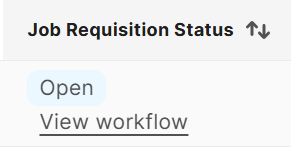
If the status is not Open, reach out to Recruiting to change the requisition status as you will not be able to proceed with a status other than Open.
-
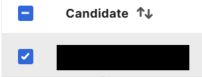
Within the requisition, select the checkbox beside the name of the candidate who is being offered the role; that candidate’s row will be highlighted in grey.
- In the upper right, select More and then select Offer from the dropdown.
-
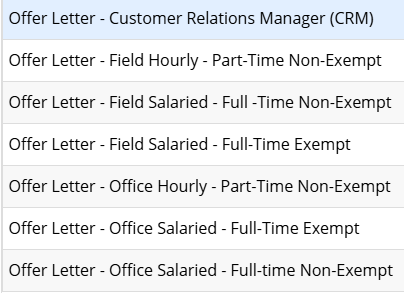
A pop-up window will open with a list of templates from which you can select. Select the template appropriate to the role you are offering the candidate. The template options include:
-
Select Next in the lower right of the pop-up window. The next window will have several sections to complete.
-
Under the Select Recipients header, the following dropdowns will appear:
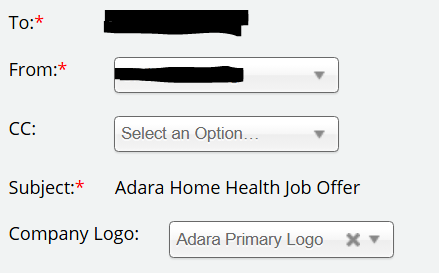
- To: This field will automatically populate with the candidate's name; this offer will be sent to the email address in their candidate profile.
- From: In this field, select the hiring manager from whom the email should be sent; there will be one or more options in the dropdown depending on who was included as an additional user on the requisition.
- CC: This field does have a dropdown but the CC function in Dayforce is not currently operational; omit this field.
- Subject: This field will automatically populate and cannot be updated.
- Company Logo: This field will automatically populate; no changes needed.
-
Under the Workflow Details header, complete the following fields:

- Workflow: In the dropdown, select Recruiting Offer Letter - 1-Level Approval.
- Expiration in Days: Enter the number of days in which the offer should expire. Typical recommended timeframe is 5 days.
- Workflow Comments: No workflow comments are needed.
- Under the Required Information header, complete the following fields:
- Offer Start Date: Enter the date that will be their first day worked on which they will complete general orientation.
-
After the offer is accepted, this date can only be changed by creating a new offer letter, so try to enter an accurate start date whenever possible.
-
Offer Base: This sum is the total annual salary.
If the employee is part-time, enter their hourly rate; this field will then be editable within the generated template if necessary.
- Primary Job Location: Select the applicable office location from the dropdown.
-
Select Next in the lower right of the pop-up window.

-
A draft of the offer letter using the selected template and populated fields will open for review and needed changes. To view the letter more easily and see more text options, select the icon with three small dots, which is on the editor bar above the template.

-
More icons will appear in an additional editor bar. Select the “Expand” icon, which will enlarge your view of the draft offer letter.

- In the draft offer letter, review the offer letter carefully. Complete and edit fields when needed as described in the steps below. Begin at the top of the offer letter template:
-
Review the candidate’s name and mailing address, making any adjustments needed.
NOTE
The candidate’s name and address auto-populate based on data the candidate entered when they applied.
EXAMPLE
If they completed a field using all-caps initially, it will now pull into this email with identical formatting and must be corrected prior to the email being sent.

-
Adjust the office location name as it populates twice due to department categorization in Dayforce.
NOTE
Remove any additional words or names as in the highlighted example so that the office name reads correctly.
EXAMPLE
“Buffalo Office”

-
Ensure the Hiring Manager’s job title and full name are included and accurate; make any adjustments needed.
NOTE
A common change needed is to remove the name of the Hiring Manager’s department, which Dayforce will include by default.
EXAMPLE

-
Fill in and adjust the worker pay rates as necessary to reflect the agreed-upon pay rate.
NOTE
The offer base field completed prior will populate in the annual salary field.

-
The hours field should read 40 hours for full-time salaried employees. However, if the employee is part time, adjust the weekly hours to the estimated range of weekly hours that will be worked (e.g. 0–30 hours a week).

- If the employee is being offered a salaried position at 32 hours per week (often referred to as a 0.8 employee), add the following verbiage at the end of the second paragraph:
-
For Salaried Exempt:
“This position is considered Full-Time (32 Hours) Exempt under the federal and state wage and hour laws.”
-
For Salaried Non-Exempt:
“This position is considered Full-Time (32 Hours) Non-Exempt under the federal and state wage and hour laws.”
-
-
Scroll down to the bottom of the offer letter and fill in the date of when the offer needs to be accepted by:

- Update the Hiring Manager’s signature.
- Add credentials, if applicable.
- Remove the department name (e.g. Management) which auto-generates in front of manager title.
- Add/edit phone number, as needed.
- Add/edit work email address, as needed.
-
-
After completing review of the offer letter and ensuring all within is accurate, reduce the offer letter view by selecting the expand button again.

-
Submit the offer letter for HR approval by selecting Submit.

The offer letter cannot be edited after it is submitted. Ensure everything is accurate to avoid unnecessary duplicative work.
- The offer letter will route to Human Resources for approval prior to being sent to the candidate; HR will receive notification of the offer being submitted via Dayforce.
- HR will review the offer letter and either reject or approve it. Upon their determination, the Hiring Manager will receive a message in their Dayforce Inbox as well as an email notification (dependent on their Dayforce notification selections).
-
If HR has rejected the offer letter as written, review the workflow comments within the Dayforce message for further instructions/edits needed. Based on these comments, return to beginning of this process and create a new offer letter including the updates needed.

NOTE
A Hiring Manager cannot edit an offer letter after it is submitted.
-
If HR has approved the offer letter as written, the offer letter is automatically sent to the candidate via email immediately upon approval.

NOTE
In the approval notification sent to the Hiring Manager via Dayforce, a copy of the offer letter is included for later reference.
-
- After the candidate receives the offer letter, they will review the offer and either accept or reject it. The Hiring Manager will receive notification of their decision via a Dayforce message.
- If the candidate rejects the offer letter, this is typically accompanied by a phone call and negotiation. If an updated offer letter is needed, return to the beginning of this process to create a new offer letter.
- If the candidate accepts the offer letter, they will add their electronic signature as part of accepting the offer through their email.
-
After the candidate accepts the offer, the Hiring Manager receives a message in Dayforce.

The Hiring Manager then proceeds with O-6-133 Send Candidate Instructions to Initiate Background Study.
📅 Effective: 03.28.2025 | 🔍 Reviewed: 09.16.2025
🛠️ Revised: 03.27.2026 | ✅ Approved: JFJ