
O-6-132 Send Pre-Hire Questionnaire to Candidate
👤 Role
Hiring Manager or Designee
ATTENTION
Must have Manager Role in Dayforce
🎯 Purpose
When a candidate is offered employment, a pre-hire questionnaire is sent in an email to the candidate via Dayforce for the purpose of obtaining essential information which will be used to create the employee record in Dayforce in the case that the candidate is hired.
If after completing O-6-131 Send Offer Letter to Candidate, the Pre-Hire Questionnaire has not automatically sent (which is dependent on the Requisition setup), the Hiring Manager must send the Pre-Hire Questionnaire from Dayforce via this process.
🔄 Process
- Identify whether the Pre-Hire Questionnaire may already have been sent automatically.
- Select the candidate.
-
Navigate to the Screening tab.

-
If the Pre-Hire Questionnaire appears in this section, it means the questionnaire has been sent. The status of the questionnaire will also be indicated. If the questionnaire has already been sent to the candidate, this process is not needed and you may proceed with O-6-133 Send Candidate Instructions to Initiate Background Study.
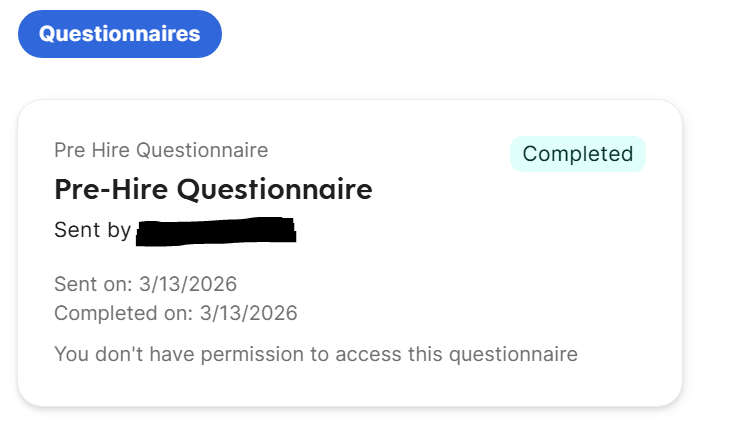
- However, if the questionnaire is not listed in this section as above, the questionnaire has not been sent yet - continue on with step 2 of this process.
- To send a Pre-Hire Questionnaire to the candidate, select the candidate.
-
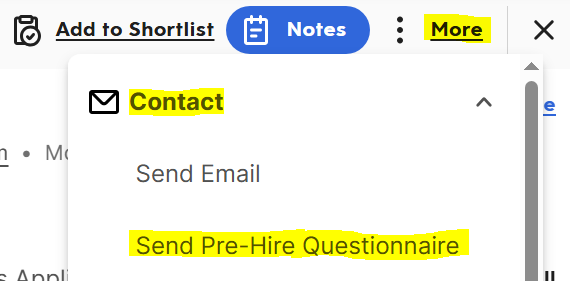
In the upper right, select More and select Contact from the dropdown. Then select Send Pre-Hire Questionnaire from the secondary dropdown.
A pop-up will open. Make any adjustments needed.

- From: This field will populate automatically to the Hiring Manager but can be adjusted to be sent from the Designee if needed.
- Pre-Hire Questionnaire Template: This will populate to “Pre-Hire Questionnaire” and should be left as-is.
- Expiration in Days: This will default to 7 days but can be adjusted as needed.
-
Click OK.

-
A confirmation pop-up will appear in the lower right, and an icon showing the questionnaire has been sent will appear under the Indicators column for the candidate.

-
The candidate will immediately receive an email containing a link to complete the questionnaire as in this example.
EXAMPLE OF EMAIL TO A CANDIDATE

- Upon clicking the link, the candidate will be navigated to a web browser, prompted to enter their email address and then will click Next. They will then be prompted to provide their full Social Security Number, Gender, Date of Birth, Address, and Emergency Contact information. When complete, the candidate will select Submit.
-
After the candidate completes the Pre-Hire Questionnaire, the status will update in the section described in step 1.
-
The Hiring Manager will proceed with O-6-133 Send Candidate Instructions to Initiate Background Study after completing at least steps 1–6 of this process.
It is not required to have the Pre-Hire Questionnaire completed when beginning process O-6-133.
📅 Effective: 03.28.2025 | 🔍 Reviewed: 03.27.2026 | 🛠️ Revised: 03.27.2026 | ✅ Approved: JFJ