
O-6-133 Send Candidate Instructions to Initiate Background Study
👤 Role
Hiring Manager or Designee
ATTENTION
Must have Manager Role in Dayforce
🎯 Purpose
After a candidate accepts a job offer, the candidate must initiate a background study through the Minnesota Department of Human Services via NETStudy 2.0.
To enable a candidate to do this, the hiring manager or designated manager (must be assigned to the requisition as an additional user) sends an email through Dayforce to the candidate. This email will give the candidate the information they need to be able to submit their information in NETStudy 2.0.
🔄 Process
-
In Dayforce under the Manager Role, select Recruiting.

- Select the Job Requisition Title to view the requisition and the listed candidates.
- Select the name of the candidate who has accepted an offer of employment.
-
Select Contact.

- Select Send Email from the dropdown.
-
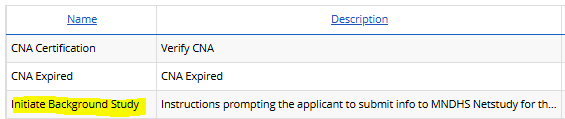
A pop-up window will open, showing a list of e-mail templates. Select the e-mail template titled Initiate Background Study.
-
Select Next.

-
The next screen shows the recipient and sender information. If no changes are needed, select Next.
You do not need to select a company logo as the template already includes a logo

-
A draft of the email will open with an auto-generated template included. The template gives some basic instructions and a web link through which the candidate will submit their information. The email also includes a PDF attachment which gives the candidate some necessary directions for login as well as a Provider Code.
For the hiring manager’s reference, a copy of these instructions is included in the Appendix at the end of this document.
-
In the draft email, review the candidate’s name; make any adjustments needed.
The candidate’s name auto-populates based on data the candidate entered when they applied.
EXAMPLE
If the candidate completed a field using all-caps initially, it will now pull into this email with identical formatting and must be corrected prior to the email being sent.
-
In the draft email, review your signature and make any adjustments needed.
A common change needed is to remove the name of your department, which Dayforce will include in your signature by default.
-
Send the email by selecting Send.

Sent emails can be viewed under the Communications tab in the candidate’s profile.
After the candidate completes the required steps on their end, continue with O-4-123 Netstudy 2.0 - Complete a Background Study.
📎 Appendix
For the Hiring Manager’s reference:
Below is a screenshot of page 1 from the instructions sent to the candidate in this process. The full 4-page instruction packet is automatically attached to the email sent to the candidate via Dayforce.
If that candidate has any questions on completing their steps, a phone number for them to reach out to DHS is included in the lower right of this page screenshot: 651-431-6620

📅 Effective: 12.23.2024 | 🔍 Reviewed: 03.26.2025
🛠️ Revised: 03.27.2026 | ✅ Approved: JFJ