
O-6-102 Accessing Candidate Information
🎯 Purpose
These directions show how to access, view, and leave notes and updates on a candidate’s profile on Dayforce.
Instructions on the following topics are included; click a topic to navigate down to that section:
- Viewing Candidate Information/Notes
- Leaving Notes to Candidate Records
- Attaching Interview Guides and Reference Forms to Candidate Application
🔄 Process
🧾 Viewing Candidate Information/Notes
-
In Dayforce under the Manager Role, select Recruiting.

-
Click Open to filter by open requisitions.

- Click on the requisition, then the candidate you want to view. The candidate information will load, split out under multiple tabs.
- Under Documents, you can access:
- Resume and Cover Letter
- Additional Documents: This is where Phone Interview Notes and Interview Guides. are uploaded.
- Under Candidate Info, you can access:
- Summary of work history
- Candidate contact information
- References information
- Under Screening, you can access:
- Application Questionnaires: Candidate Answers to Application Questions (i.e. Licensure and role-specific questions).
- Post-Application Questionnaire: This form includes the candidate's response to the Request for References form, if sent. This data is used by the hiring manager to complete candidate reference checks.
- Record of other questionnaires sent to candidate such as the Pre-Hire Questionnaire. You cannot see the contents of the Pre-Hire Questionnaire here, but the data will auto-populate into the New Hire form when that form is opened.
- Under Jobs Applied For, you will see any other jobs to which the candidate applied, if any.
- Under Communications, you will see emails sent to candidate.
-
On the top right, click Notes to view notes left by recruiting and other hiring managers. License/Certificate numbers will be listed here.

💬 Leaving Notes on Candidate Records
These directions show how to leave notes to a candidate’s application. The notes section will be used to communicate between recruiting, hiring managers, and additional users.
Click here for more detailed direction on the content of these notes.
-
With the candidate selected, click Notes on the top right of the page.
- You will be able to see notes left by recruiting, hiring manager, and additional users.
- To leave a note, type it in the box and select Attach to: Candidate.
-
Tag Recruiter, hiring manager, and additional users (@Name) and tagged users will get an email notification to view the note.

📎 Attaching Interview Guides and Reference Forms to Candidate Application
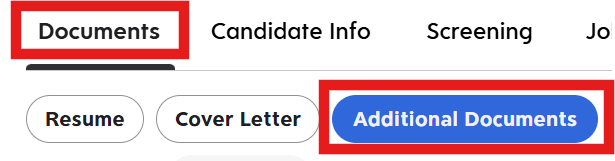
- Click on candidate, then on the Documents tab.
-
Then select Additional Documents.
-
Click Add.

-
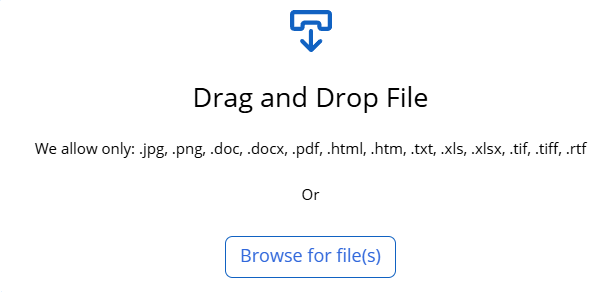
Either drag and drop the files into the box or select Browse for file(s) to select the completed Confidential Reference Form(s) from their saved location.
-
Select Upload.

- The documents will then be visible in the candidate chart.
📅 Effective: 01.24.2024 | 🛠️ Revised: 06.04.2026 | ✅ Approved: MA/JFJ