
O-7-161 Start of Care Packet (Admission Forms) Review
👤 RESPONSIBLE POSITION
Business Manager (or designee)
🎯 PURPOSE
This process outlines the steps needed for the Business Manager to review a Start of Care Packet. The process operates in conjunction with process O-7-160 Mobile Forms Review and Linking; please reference this process for steps to be completed prior to and following these steps, which are specific to the type of mobile form Admission Forms Packet (Start of Care Packet).
The Start of Care Packet includes the following:
- Admission Coordination Acknowledgement (ACA)
- Service Agreement (SA)
- Rights/Responsibilities/Consent
- Emergency Plan / Responsible Party
- Advance Beneficiary Notice of Non-Coverage (ABN)
🔄 PROCESS
- First, here are three general directives for review of the Start of Care packet:
- Throughout this process, if any questions arise or if a clinician’s entry seems out of place, utilize branch or corporate resources to resolve the question, and reach out for further assistance if needed.
- Ensure that the client or legal representative’s signature/date, clinician’s signature/date, and initials fields has been completed throughout the entire form. If any of these are missing, follow up and resolve prior to proceeding.
- Scan for typos; if a typo is identified you may correct it using the editable fields.
- If both the client and legal representative fields have no signatures but the clinician did sign/date, a POA/Legal Representative is indicated. Complete steps 2-7 of this process, but then follow O-14-216 Process POA/LEGAL REPRESENTATIVE Note.
- If there is no coordination note in your HCHB workflow associated to that client, immediately refer to step 3 of that same process.
- Viewing the document in Mosai, begin on page one of the packet and review the ACA form.
- Ensure that the branch with auto-populated phone and fax numbers has been selected. If not, select the appropriate branch from the dropdown.
- Review the Service Agreement.
-
Ensure that the payer identified is also listed as the current active payer source in HCHB for that client. To identify the payer in HCHB, navigate to the patient information via Clinical Input, open the Patient Snapshot, and click View All beside Payor Type and Source. Active payers are those listed as a Primary, Secondary, or Tertiary payer (not Informational Only).
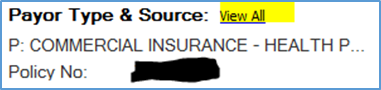
-
-
In the lower left of the Service Agreement, add the date mailed as the date the administrative assistant will be mailing the form (usually today’s date).
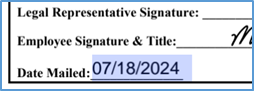
- Review the Rights/Responsibility/Consent form.
- A commonly-missed field is the Third Party Payment Authorization and Assignment of Benefits field on the top of the fourth page of this individual form. If this field is empty, enter the payer name into this field, referencing page two of the packet, the Service Agreement.
- Review the Client Portal section, which is at the end of the Rights/Responsibility/Consent form. The client/POA may have put their initials in that section.
-
If the initial field is empty, move on to step 8 (skip step 7), as this means the client has consented to receive patient instructions electronically and no further action is needed related to the client portal.

If the field is blank, the client has consented. -
If the client/POA has initialed this field, proceed to complete the actions in step 7, as this means they have not consented to receive patient instructions electronically.

If the field has client initials entered, the client has not consented.
-
- If the client/POA has initialed the Client Portal field, follow these steps:
- In HCHB, navigate to the Clinical Input.
- Search for the client and open the Patient Snapshot for their new episode.
-
In the upper right, click View All beside the listed case manager to navigate to the clinical tab of the referral.
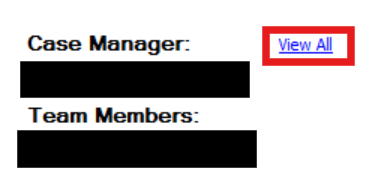
- Scroll down to the Family Link section, which is near the bottom of the Clinical tab.
-
In this section, uncheck the checkbox beside the field Patient Approval Received to Release Medical Data to Family Link Website and remove the password from the password field.
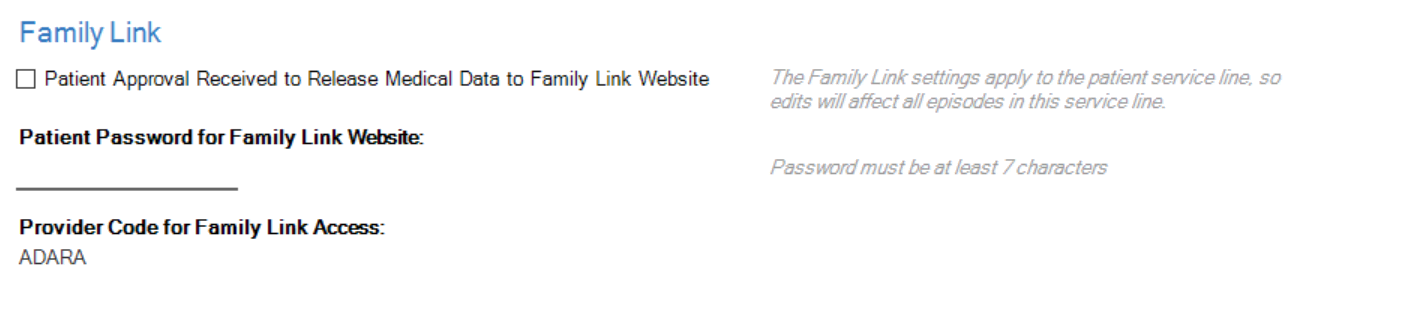
If completing step 7, this section should look like this. - Click Save & Close in the client referral to exit the patient record. Then continue to step 8.
- Back in Mosai, move to the next section of the admission paperwork packet,
- Review the Emergency Plan / Responsible Party form. Compare its contents to HCHB.
-
Within the client’s medical record, navigate to the Clinical tab.

-
If Essential Services is selected on the form, ensure HCHB indicates Disaster Status as Essential. If there is a discrepancy in information between the form and HCHB, coordinate with team members to determine with information is correct, and update accordingly.

-
Navigate to the Demographics tab and compare Emergency Contact information with that listed on the form. If there is a discrepancy in information between the form and HCHB, coordinate with team members and the client to determine which information is correct. Update accordingly.

- If the Client financial responsibility to be billed to field is selected as anyone besides the client, follow up with the Authorization Specialist prior to proceeding.
- In this case, the Authorization Specialist will complete adjustments to the payer setup and will enter a Biller Notification care coordination note, notifying the corporate billing team.
-
- Review the ABN.
- If the form is filled out as N/A, do not delete the form.
- If the form is filled out but the A. Notifier field is empty, select the appropriate branch’s information from the dropdown.
-
In Mosai, click the Save icon in the upper right.

- Continue with process O-7-160 Mobile Forms Review and Linking.
📅 Effective: 08.27.2024 | 🛠️ Revised: 05.26.2026 | ✅ Approved: JFJ