
O-9-211 Manage Referral Documents in Mosai
👤 RESPONSIBLE POSITION | ROLE
Intake Coordinator
🎯 PURPOSE
This process outlines the steps the Intake Coordinator may take to manage documents received in Inbox that have been identified as a referral. This includes making document edits in Inbox (including separating documents into appropriate attachment types), creating cases to attach documents in HCHB or move to Intake buckets, and managing the Intake buckets.
🔄 PROCESS
|
Table of Contents |
| Create Case for New Referral Documents |
| Add Tags to Existing Case |
| Add Follow-Up Note to Case |
| Manage Intake Buckets |
| Attach to HCHB |
Refer to O-9-214 Editing Documents in Mosai for steps to extract, combine, separate and edit documents in Inbox and drive.
Create Case for New Referral Documents
- For a new referral, the Attachment Type for the first case created must be Demographics/Facesheet.
- Refer to O-9-212 Create Client Shell in Mosai for additional guidance.
- When case is ready to be created, update the following information to create the case:
-
Case Name: Enter the client name, document type, and date (if applicable). The case name will fill in the File Name in HCHB Attachment Console.
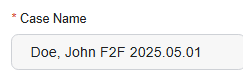
Example -
Type: Attachment Type
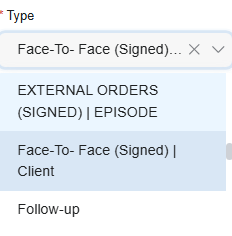
- Refer to O-11-912 Attachment Types Tipsheet for available options.
- Status: Select one of the following:
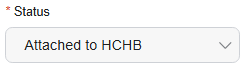
- Attached to HCHB: Select if document is ready to attach to HCHB (used most often).
- I- Pending Signed Docs: Select if additional action is needed and file is not ready to attach (ex. Missing pages, needs provider follow up, unsigned orders).
- I- Documents From Drive: Select to temporarily keep file in Mosai to be attached when medical record is available in HCHB.
-
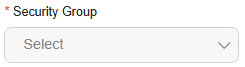
Security Group: Select the applicable branch location for the specific client.
- Patient: Select Patient Name (if the client has already been entered into HCHB).
- Refer to O-9-212 Create Patient Shell in Mosai for steps to initiate external referral workflow in HCHB.
-
To select a specific client that has already been entered in HCHB, start typing client’s last name (even if Forcura IQ may have picked it up):
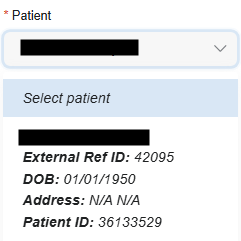
- Ensure you are selecting the correct client and date of birth (DOB).
- If you see duplicate entries for the same client, email clinicalsupport@adarahomehealth.com so the duplicate can be removed.
- Do not select any client with External ID: HCHB-0-XXXXX (this means the referral has not finished processing).
-
-
Select Create. The case will move to the status of Attached to HCHB until it successfully attaches; then it will automatically archive in Mosai.

Add Tags to Existing Case
Tags are customizable features that can be assigned to cases. They can provide additional details that are helpful when searching or filtering cases. To add a tag to an existing case:
-
Within the case, find the Selected Tags field.
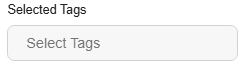
-
Click the field; a dropdown will open.
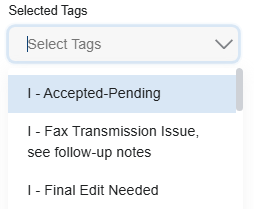
- Select the appropriate tag.
- Intake Tags are designated with an "I- " prefix. Tag options include:
- I – Missing name
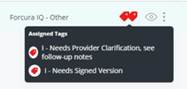
- I – Needs Provider Clarification (see follow-up notes)
- Intake Tags are designated with an "I- " prefix. Tag options include:
-
Select Save in the lower right.

Add Follow-Up Note to Case
Follow-Up Notes can be added a case to document action that has been completed. They are easily accessible from the Follow-Up Log within each case.
-
Within the case, select Follow-Up on the right-hand side.
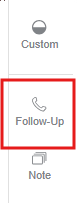
-
Select New.
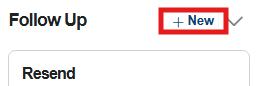
-
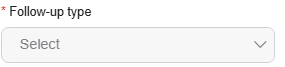
Select the appropriate Follow-Up Type.
-
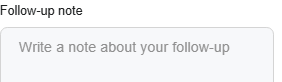
Enter a comment documenting the follow-up actions completed.
-
Select Add Follow Up to save and add the Follow-Up Note.

Manage Intake Buckets
Once a case is created, unless it is able to be directly attached to HCHB (using Attached to HCHB Status), the case should be designated as either I- Pending Signed Docs or I- Documents from Drive to manage in the Intake Buckets.

- Documents from Drive: This is a temporary bucket to hold documents in Mosai while the client's medical record is being created in HCHB.
- Pending Signed Docs: This bucket is for documents which are not ready to attach to HCHB due to additional information needed such as clarification from provider, a signed version of the order, or because incomplete information was received.
To manage documents within these buckets:
- Click into a bucket to view the cases within it.
-
Hover over the tags icon to view tags which have been selected for the case.
-
Select a case and click on the tag icon to add/manage tags within the case list.

-
Select a case and click on the phone icon to add a follow-up note within the case list.

-
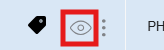
Select the eye icon to open the document and to access Follow-Up notes.
-
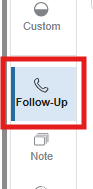
Click on Follow-Up to view all follow-up notes.
Attach to HCHB
-
Once file is complete and ready to attach to HCHB, change the status of the case to Attached to HCHB.
-
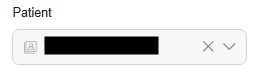
Confirm that the correct patient is selected.
-
In the lower right, click Save to attach the case. The case will move to the status of Attached to HCHB until it successfully attaches; then it will automatically archive in Mosai.

📅 Effective: 12.01.2024 | 🛠️ Revised: 08.26.2026 | ✅ Approved: JS, JFJ