
O-9-214 Editing Documents in Mosai
👤 RESPONSIBLE POSITION | ROLE
All Mosai Back Office Users
🎯 PURPOSE
This process outlines the options available in Mosai to edit documents.
🔄 PROCESS
|
Table of Contents |
| Separate/Extract/Combine Documents in Inbox |
| Additional Document Edits (Inbox and Drive) |
| Add Text to Document |
Separate/Extract/Combine Documents in Inbox
-
Select the eye icon to view document.

-
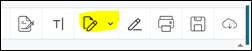
Select the Document Editor icon.
-
Duplicate or delete pages as necessary.
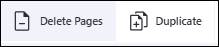
- Delete pages that are not pertinent and which do not belong in the medical record.
- Duplicate any pages that need to be attached to multiple cases.
- For example: if the end of a progress note is on page three, but the start of another is on the same page three and they require separation, page three would need to be duplicated.
- If needing to create a separate document from a portion of the pages:
-
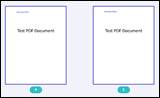
Select the appropriate pages to combine together to create a new document.
-
Select Export to Inbox. Selected pages will move to the Inbox as a new document, which can then be used to create a separate case and attached to HCHB.
-
- Repeat the steps above as necessary until the document has been separated into appropriate attachments.
Additional Document Edits (Inbox and Drive)
Additional document edits are available in the document editor in Inbox and Drive.
-
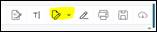
Within the document, select the Document Editor icon.
-
Select pages and make appropriate edits as needed. These options are available:

- New Page: Adds a blank page.
- Delete Pages: Deletes selected page(s) from file.
- Duplicate: Creates a copy of selected page(s) within the same document.
- Rotate Left: Rotates the image of document to the left.
- Rotate Right: Rotates the image of document to the right.
- Move: Moves page(s) before or after a specified page number.
- Move Before: Moves page(s) ahead one page.
- Move After: Moves page(s) after next page.
- Import Document: Gives user the ability to import an externally saved document to merge with document.
- Extract Pages: Gives user the ability to extract pages from the document to download and create PDF. This option does not extract to create a case or move pages to the Inbox.
-
Select Apply to apply the changes made.

-
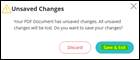
If prompted, select Save & Exit to save the changes.

Add Text to Document (Inbox and Drive)
-
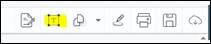
Within the document, select the text icon.
-
Update or edit the text size, font, and formatting as needed.

-
Select cursor and click onto document where text is needing to be added to create a text box.
-
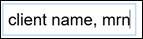
Add text.
-
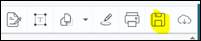
Select the Save icon. The changes made to the document will save.
📅 Effective: 04.03.2025 | 🛠️ Revised: 08.26.2026 | ✅ Approved: JS, JFJ