
O-9-215 Create Case in Mosai and Attach to HCHB
👤 RESPONSIBLE POSITION | ROLE
All Mosai Back Office Users
🎯 PURPOSE
This process provides the steps required to create a case in Mosai to attach a document to HCHB.
For referral documents, reference O-9-211 Manage Referral Documents in Mosai.
🔄 PROCESS
- In Mosai, view the document which needs to be attached to HCHB.
-
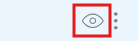
In Inbox, you do this by selecting the eye icon to view the inbound document.
-
- If any document edits are needed, refer to O-9-214 Editing Documents in Mosai.
- When case is ready to be created, update the following information:
-
Case Name: In this field, enter the client name, document type, and date (if applicable)
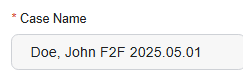
Example - The Case Name will also fill in the File Name in HCHB Attachment Console.
-
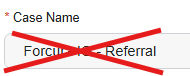
Do not leave as Forcura IQ.
-
Type: Select the applicable Attachment Type.
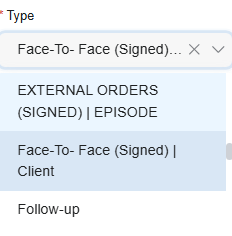
- Refer to O-11-912 Attachment Types Tipsheet for available options.
-
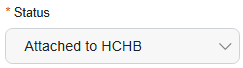
Status: Select Attached to HCHB.
-
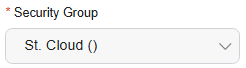
Security Group: Select the applicable branch location for the specific client.
- Patient: Select Patient Name (if the client has already been entered into HCHB).
-
Start typing client’s last name (even if Forcura IQ may have picked it up).
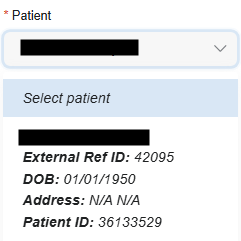
- Ensure you are selecting the correct client and date of birth (DOB).
- If you see duplicate entries for the same client, email clinicalsupport@adarahomehealth.com so the duplicate can be removed.
-
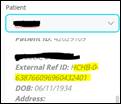
Do not select any client with External ID: HCHB-0-XXXXX (this means the referral has not finished processing).
-
-
-
Select Create. The case will move to the status of Attached to HCHB until it successfully attaches; then it will automatically archive in Mosai.

📅 Effective: 05.05.2025 | 🛠️ Revised: 08.26.2026 | ✅ Approved: JFJ