
O-11-105 Set Up Employee Access to Online Learning Hub (OLH)
👤 RESPONSIBLE POSITION | ROLE
Hiring Manager, Business Manager, or Designee
🎯 PURPOSE
The Online Learning Hub (OLH) provides employees with education on the Home Care Home Base (HCHB) and Pointcare applications. OLH modules are assigned to new employees at time of hire and/or role change to be completed as essential parts of their education in their role.
This process shows the steps needed to set up an employee with OLH access.
For the instructions for how the employee logs into OLH, click here.
🔄 PROCESS
-
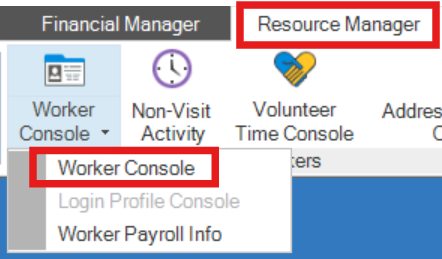
In HCHB, navigate to the Resource Manager tab and open the Worker Console.
-
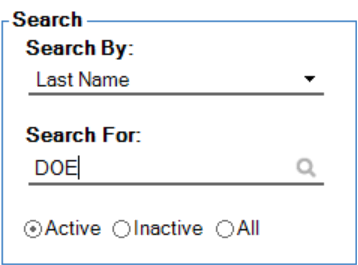
Search for the worker to whom you will assign the modules.
-
Select the worker's profile. Either double-click or select Edit \ View.

-
Go to the HCHB Licensing tab.

-
Under this tab, locate these sections shown in the screenshot below. These are the sections which apply to OLH.
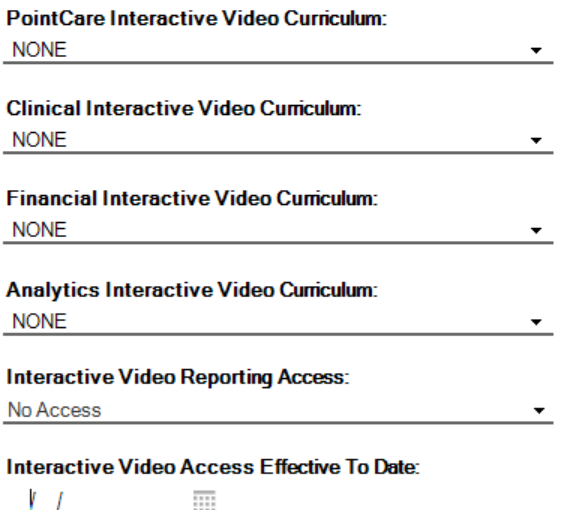
Assign the modules to the employee which are needed for their particular role (reference the Appendix.) Once modules are assigned, this sets the employee's access in motion; it will be activated overnight.
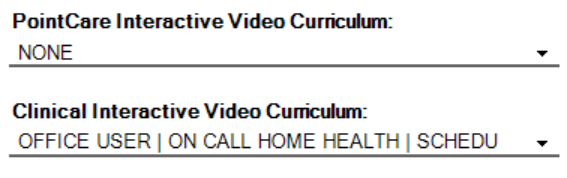
Example of modules assigned for an office user. To avoid billing charges, an effective to date must also be entered. In the Interactive Video Access Effective To Date field, enter the date the access should be ended.

- The employee will lose access at midnight the beginning of the date entered in this field. They will not have access to OLH on the date entered into this field.
- In typical circumstances, the access should be given for three business days.
Example:
If an employee starts their orientation on Monday June 3rd, they can be given access to OLH for three business days by assigning the OLH modules - on Monday June 3rd - and adding Friday June 7 in the Interactive Video Access Effective To Date field.
In this example, the OLH assignment will update overnight, and will give the employee access to OLH on Tuesday June 4th, Wednesday June 5th, and Thursday June 6th. The access would end on June 7th.

- After assigning the modules and adding the effective-to date, click Save & Close. The modules will be active the next day.
📅 Effective: 06.30.2026 | 🛠️ Revised: N/A | ✅ Approved: JFJ