
O-5-133 Adjust Audio and Ringtone Settings in Zoom
The instructions below demonstrate how to adjust audio settings in the Zoom application.
Select one of the hyperlinks listed below to jump to that section in the instructions below.
- Ringtone sound and volume in the mobile app
- Ringtone sound and volume in the desktop version
- Audio device settings in the desktop version
- Audio settings during a phone call
Separately, click here to see instructions for changing the ring sequence when connected to multiple devices (e.g. both mobile app and desktop).
Reminder: Only make changes to your Zoom settings as directed; do not adjust settings which you have not be been directly instructed (either by manager or by process) to adjust.
Ringtone Sound and Volume in the Mobile App
-
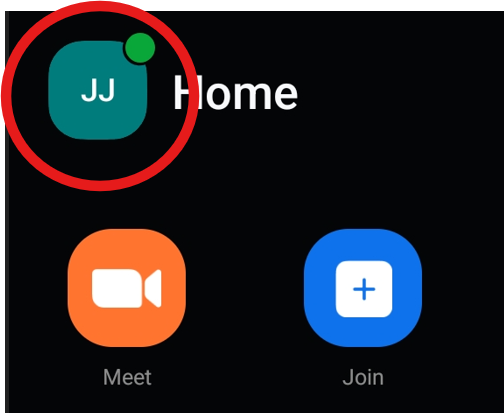
Logged into the Zoom app on your mobile device, click your initials in the upper left.
-
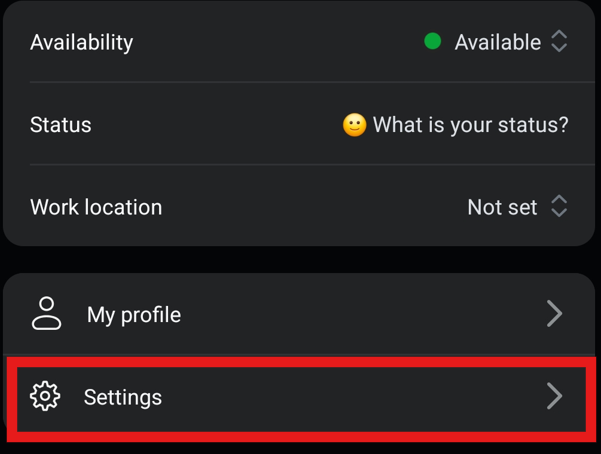
Select Settings.
-
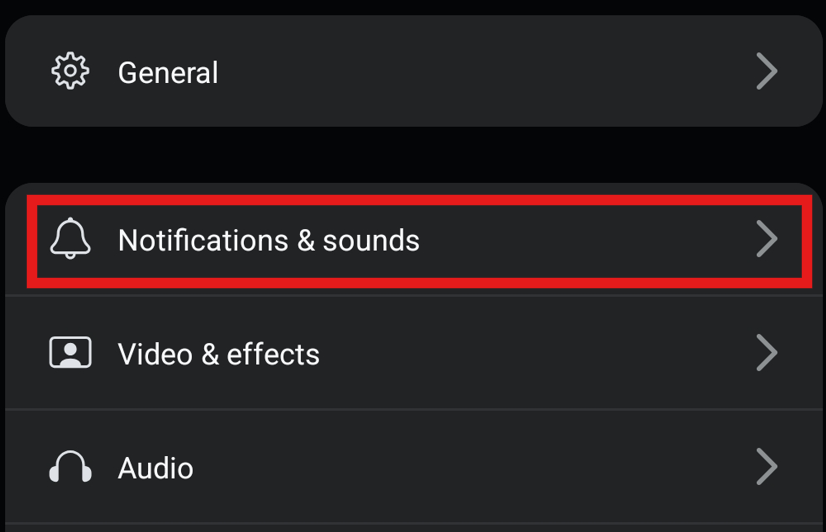
Select Notifications & sounds
-
Select Ringtones.
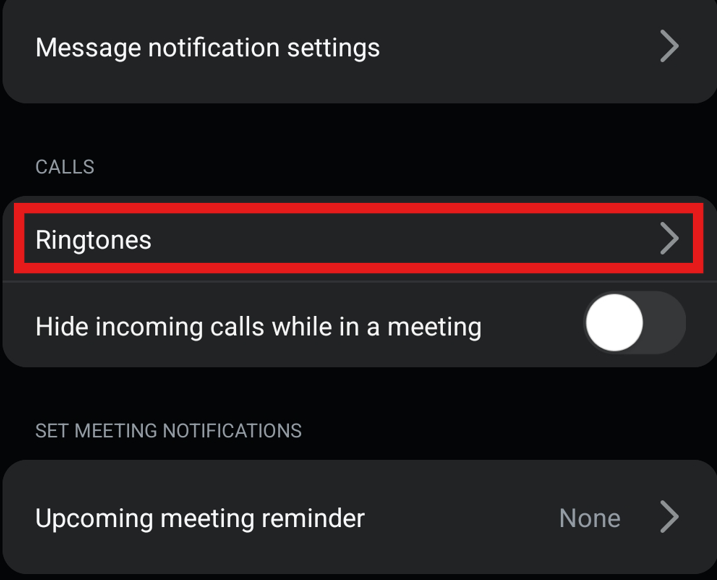
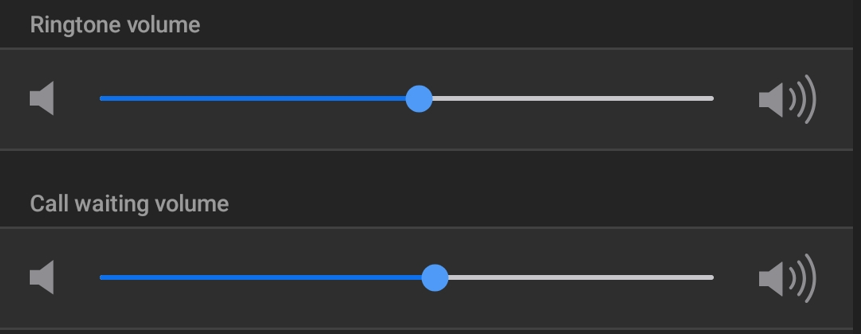
- Use the slider bars under Ringtone volume and Call waiting volume to adjust the volume for incoming phone calls.
-
Call waiting volume is the volume of the ringtone of a phone call you receive while already on an active phone call.
-
-
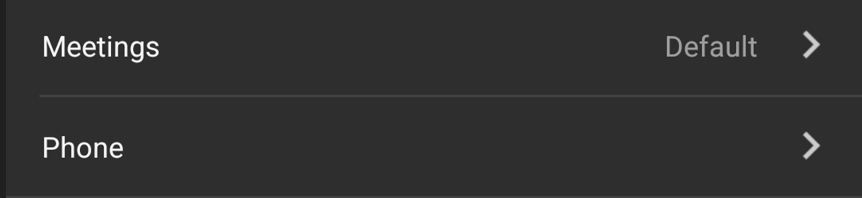
Select either Meetings or Phone if you wish to change the ringtone for meetings or incoming phone calls.
- Selections made will save automatically.
Ringtone Sound and Volume in the Desktop Application
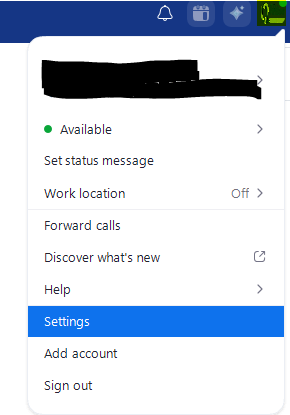
- In the desktop application, look in the upper right of the Zoom window to see your circular profile icon containing your initials. Select your profile icon.
-
A menu will open. Select Settings.
- Select Notifications & sounds.
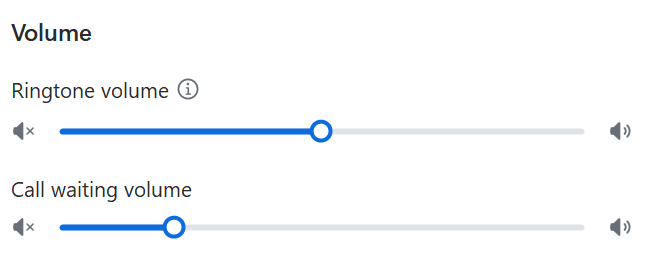
- Use the slider bars under Ringtone volume and Call waiting volume to adjust the volume for incoming phone calls.
-
Call waiting volume is the volume of the ringtone of a phone call you receive while already on an active phone call.
-
-
Under the Ringtones section, you may change your ringtone for incoming phone calls using the dropdowns to select the ringtone and the play button to the right to preview the sound.
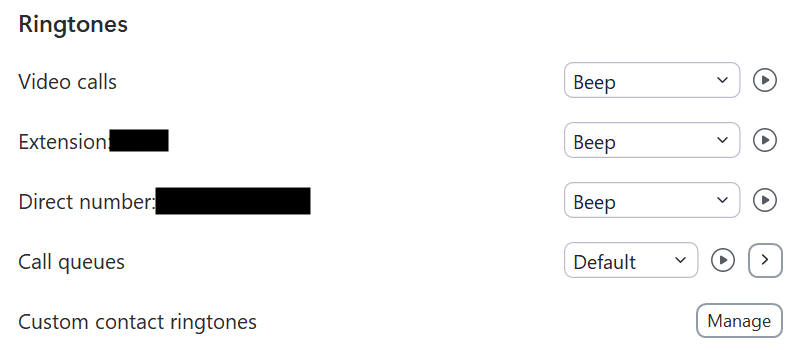
- Selections made will save automatically.
Audio device settings in the desktop version
- In the desktop application, look in the upper right of the Zoom window to see your circular profile icon containing your initials. Select your profile icon.
-
A menu will open. Select Settings.
-
Select Audio.
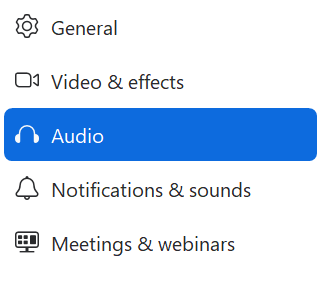
- Use the dropdowns under the Speaker and Microphone sections to make your device selections. Selections made will save automatically and immediately.
Audio Settings during a Phone Call
During a phone call, you may adjust the audio settings by selecting the Audio icon.
Then, to change your microphone or speaker, select Microphone & Speaker to open a menu where you can select another speaker and/or microphone option.

📅 Effective: 04.21.2026 | 🛠️ Revised: 05.04.2026 | ✅ Approved: JFJ