
O-5-137 Adjust Zoom Phone Ring Sequence for Multiple Devices
🎯 PURPOSE
Office staff have the ability to adjust both their Zoom phone's ring sequence for incoming calls when connected to multiple devices. Making the adjustments laid out in this process allows a user to control which device types (mobile, desktop, or desk phone) will ring prior to others when they receive a call.
Reminder: Only make changes to your Zoom settings as directed; do not adjust settings which you have not be been directly instructed (either by manager or by process) to adjust.
🔄 PROCESS:
- First, log in to the Zoom Web Portal. You cannot access these settings via the Zoom Application.
- In a web browser, navigate to https://zoom.us/signin
- Sign into the Zoom website with your work account.
- The website should automatically take you to your settings options. On the left, you will have menu options.
-
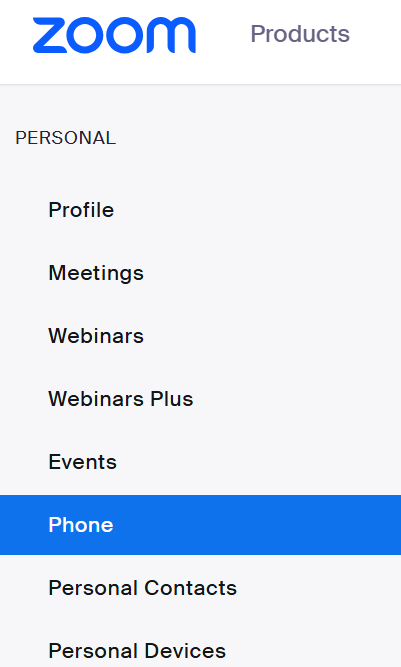
In the left sidebar, select Phone.
-
There will be a bar with tabs across the top of your screen. Select Settings.

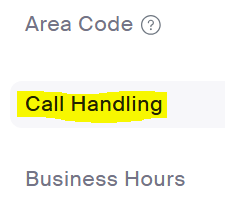
- Scroll down to the section labeled Call Handling.
-
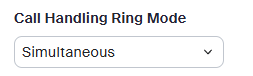
Find the setting labeled Call Handling Ring Mode. The default is Simultaneous, meaning that all devices which the user is logged into will ring simultaneously.
-
To change the settings so that certain devices will ring before others, select the dropdown and choose Sequential from the dropdown.
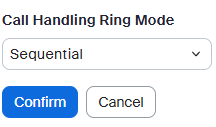
- Then click Confirm to save the change.
-
Next, adjust the ring duration by clicking the dropdown under the setting header Ringing Duration for Each Device. Ring duration is the amount of time the first device will ring before the next device begins to ring. The recommended ring duration time is 10-30 seconds.
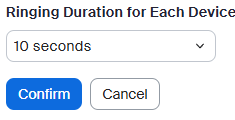
- Click Confirm to save the change.
-
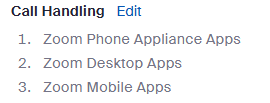
Next, to adjust the order of the devices' ring sequency, click Edit beside the Call Handling header.
-
A pop-up will open, showing the device type options.
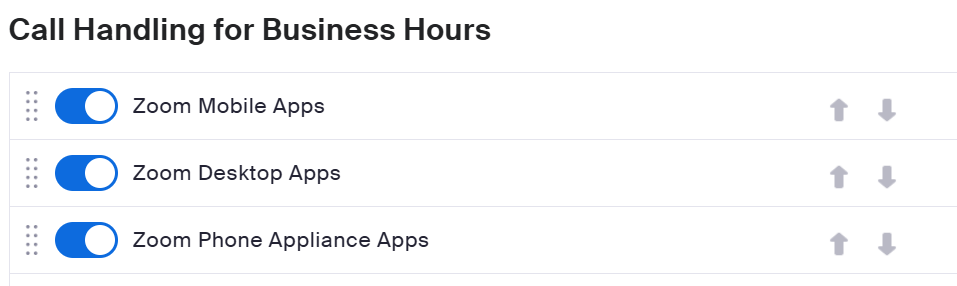
- Use the up and down arrows to adjust the sequence for the device types, which will ring in order from the top to the bottom of the list. The device types are:
- Zoom Mobile Apps = the mobile application installed on tablets or cellphones
- Zoom Desktop Apps = the Zoom applications installed on a computer desktop
- Zoom Phone Appliance Apps = physical desk phones provisioned to Zoom
- Leave the toggles for each device type on, unless you wish to not receive inbound calls on a certain device type. Note that you will only receive phone calls on a device when you are logged in under your Adara work account.
NEVER SELECT THIS OPTION:

Selecting this option will incur significant additional billing charges and should never be used. Reach out to support@adarahomehealth.com if you believe you have a situation where this may be warranted.
-
After your adjustments are complete, click Save.

- This completes the ring sequence setup.
