
O-5-131 Access Zoom Application from a Citrix Session
The steps below describe how to access Zoom in the Citrix desktop.
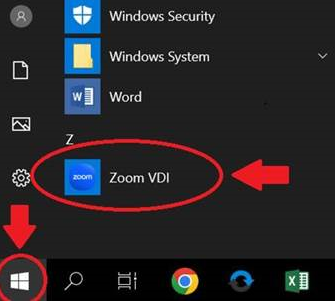
- Logged into your Citrix desktop, click the start menu in the lower left of your screen.
-
Scroll down or search in the list of applications. Locate and click on Zoom VDI.
- A pop-up window will open. If you are logged out of Zoom, follow the prompts to log in.
-
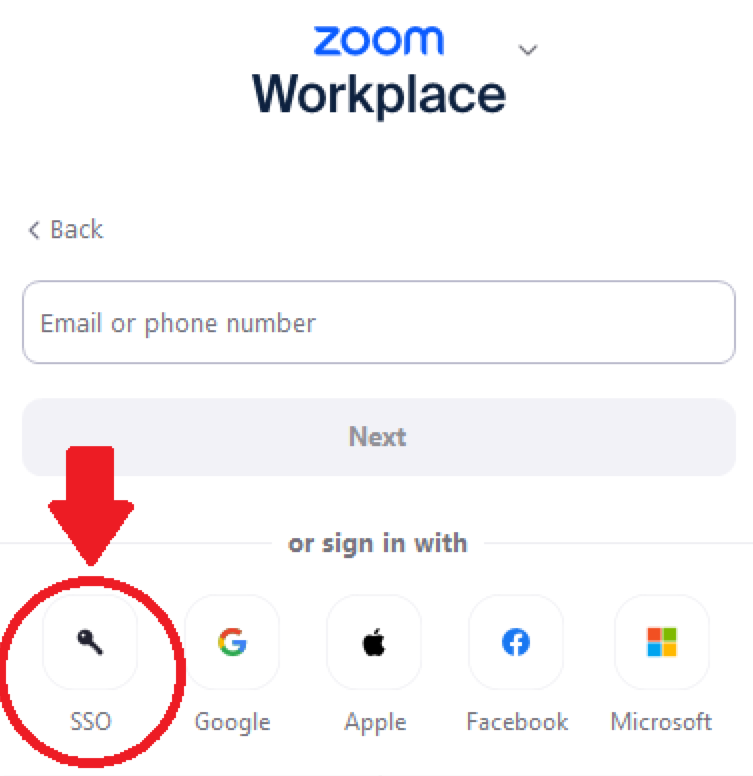
If you have single sign-on (SSO) enabled, select the option to sign in with SSO:
-
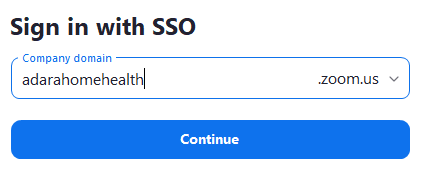
Enter the company domain, adarahomehealth, and then select Continue.
- Single sign-on prompts may populate. Follow the prompts to verify your sign-on.
-
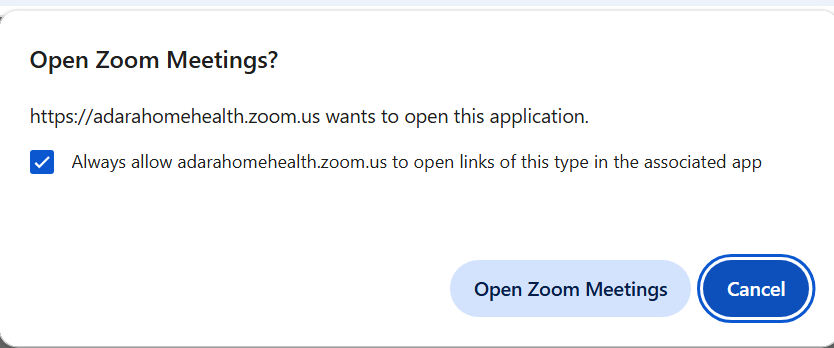
You may then receive a pop-up in your web browser asking whether to allow Zoom Meetings to launch. Select the option to "Always allow..." and click Open Zoom Meetings.
- Your Zoom application will launch, ready to use.
