
O-5-132 Set Up Zoom Application on a Mobile Device
This article covers how to download the Zoom mobile app and sign in with your account.
Screenshots below may differ slightly for some users between Android and iOS (Apple) devices, but should be very similar.
If you have already downloaded the app, skip to step 4 for login instructions.
Downloading the Zoom Mobile App
Note: You can simply go to the App Store on your device to download the Zoom mobile app, but following these steps 1-3 below will ensure that the exact Zoom app you need will be downloaded, even if the name changes in the app store.
1. Open your browser to the zoom.us/download Zoom download page.

2. You should be automatically taken to the appropriate App Store for your device. On some devices, you may have to allow the link to open the App Store.

3. Download the Zoom mobile app.

Signing into Zoom
4. Open the Zoom app.

5. Next, tap Sign In.

6. If you are set up with SSO, tap Sign In with SSO.
If you are not set up with SSO, you may sign in with your Adara username and password. Your username will be your Adara email address. If you need to set up your password for the first time, select Forgot password? and follow the prompts in the email you receive to set up your password.

7. Enter adarahomehealth as the company domain and then tap Continue.

8. Select or add your company email address; then follow the prompts to complete signing in.

-
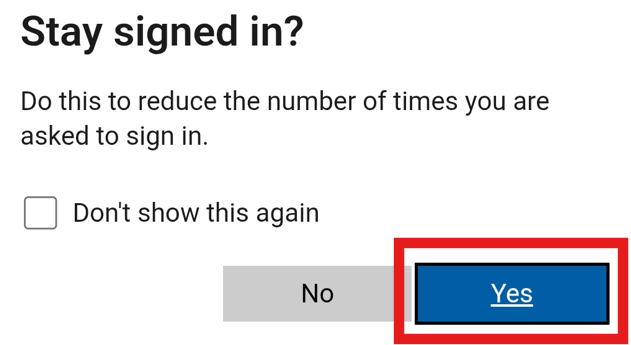
When you reach this prompt, select Yes to stay logged into the Zoom application.
-
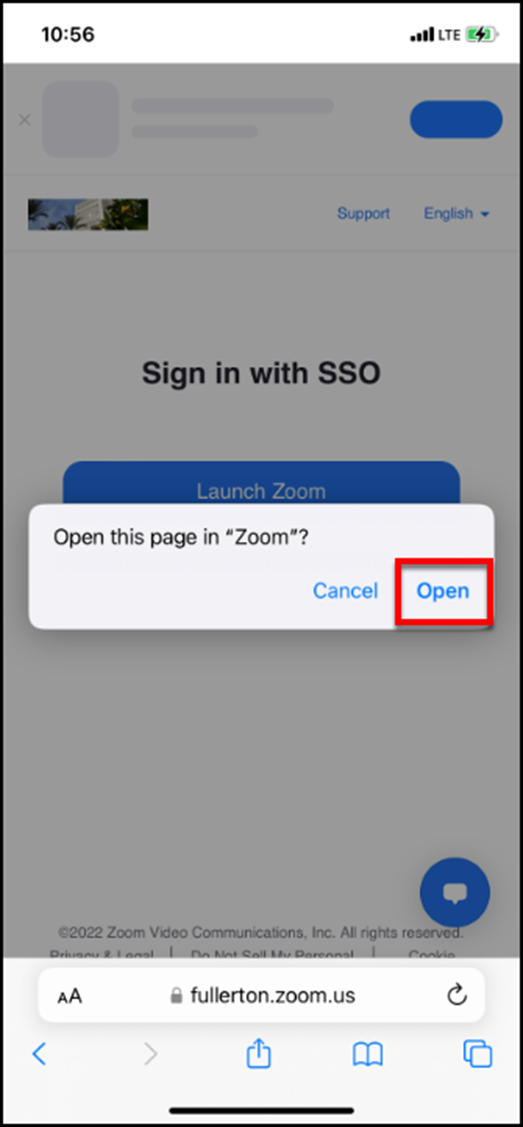
In some web browsers, you will need to allow the site to open the Zoom app.
- Upon logging in, you may see several prompts asking to you to allow Zoom to send notifications, access your contacts, and access your microphone.
It's highly recommended that you allow Zoom to send notifications and access your microphone, but if downloading Zoom on a personal device, do NOT allow Zoom to access your contacts.

11. After a moment, the Zoom app will complete your sign-in and enable any preferences you already have set up. You're ready to go!
📅 Effective: 04.21.2026 | 🛠️ Revised: 05.05.226 | ✅ Approved: JFJ