
O-4-123 Netstudy 2.0 - Complete Background Study
PURPOSE: After a candidate accepts a job offer, the candidate must initiate a background study through the Department of Human Services via the NETStudy 2.0 Applicant Portal, following instructions provided by the employer according to process O-6-133 Send Candidate Instructions to Initiate Background Study. The employer will complete payment and follow the steps below to submit the background study to MN DHS so that eligibility for hire can be determined.
A candidate must be determined as “Eligible” in the NETStudy 2.0 portal prior to the first day worked.
NETStudy 2.0 is designed to enhance protection of children and vulnerable adults by improving the accuracy of background studies through fingerprint-based criminal record checks and expanding background studies to include a review of information registries, databases, and sources. Refer to policy HR-1-190 Criminal Background Study in Human Resources Manual for more information.
PROCESS:
|
Table of Contents - Process Summary |
| 10. Processing a Study with a Disqualified Determination |
| Appendix A: Determination Statuses Definitions |
| Appendix B: FAQ |
1. Receive Notification of Background Study Request
After the candidate has submitted their information via the NETStudy 2.0 Applicant Portal, employees on the email list for NETStudy 2.0 will receive a notification email.

2. Complete payment in NETStudy 2.0 after the candidate submits their information.
-
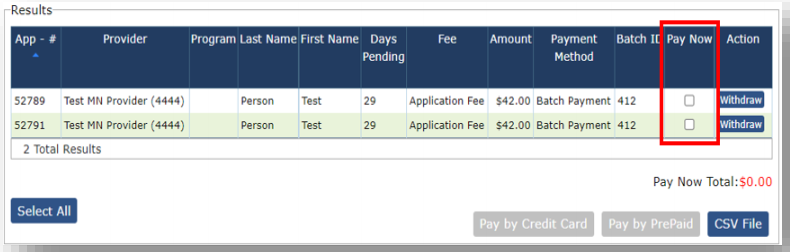
Logged into the NETStudy 2.0 portal, select Applications, then Pending Payments.

-
Select the study you are going to pay for by checking the box in the Pay Now column.
-
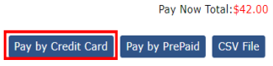
Once you have identified the studies to be paid, select the Pay with Credit Card button.
-
On the Complete Payment screen, select the Complete Payment button.

-
The secure Electronic Payment System will open in a new tab.
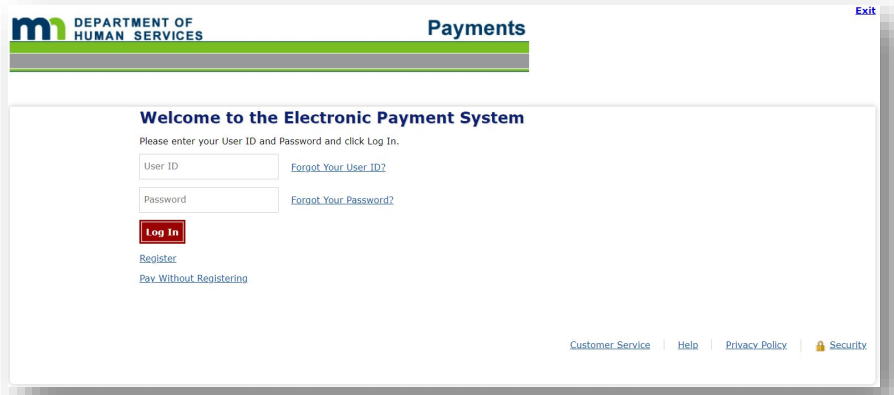
- Access the payment portal in one of three ways:
- Log into an existing account. If you have an existing Electronic Payment System account, enter your username and password to log into your account. This is different from your NETStudy 2.0 username and password.
- Create an account. If you have never created an account for the payment portal, you may choose to register for an account by selecting the Register link and following the instructions on the screen. If you register for an account, you will be able to expedite background study payments by saving your contact and payment information for future use.
- Continue without registering. If you do not want to create an account, you may proceed without registering by selecting the Pay Without Registering link. If you do not register for an account, you will be required to provide the contact and payment information each time you pay the background study fee.
- Once you are on the Make a Payment screen, complete the fields on the screen. If you need additional assistance, select the Help link on the bottom of the screen for written instructions.
- In some cases, the payment may not process immediately. Please wait - do NOT select the Continue button or try to pay the fee more than once, as if you do this may result in being charged multiple times for the same background study and refunds are not provided.
- The payment portal will open in a new window when you select the link. When you finish the payment process, close the window. You may return to working in the NETStudy 2.0 window where you left off.
- When the payment is successfully processed, the application will be available in the Not Yet Submitted queue.

3. Review Candidate Background Study Information
-
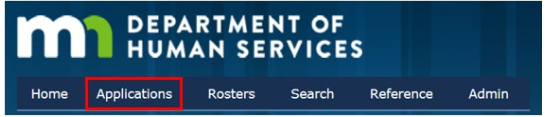
Click the Applications tab on the top toolbar and select Not Yet Submitted from the dropdown menu.

-
The Results box will show, by default, all incomplete applications.

- Click Resume under the Actions column on the right side of the screen.
- The Applicant profile will load with the information that the candidate submitted to NETStudy 2.0. If there are any typos in fields containing common public information, such as the spelling of a street name, these may be corrected.
-
If the candidate has not resided in any state other than Minnesota in the past five years, leaving the section for prior addresses empty, check the box confirming that no prior out-of-state addresses were reported by the candidate.
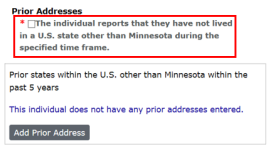
- Click the Next button in the bottom right-hand corner of the screen; the next screen for Applicant Information will load.
- The Provider and Program dropdowns will pre-populate based on the Provider selected when the study was initiated.
-
Select the Position Category and Position that best apply to the position the candidate will hold.
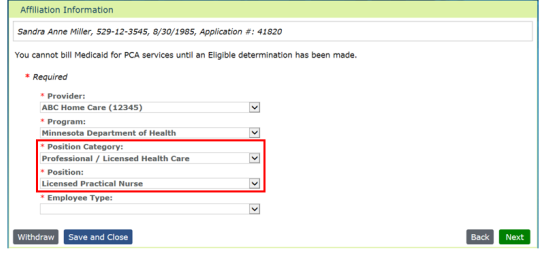
-
Select Employee under Employee Type.
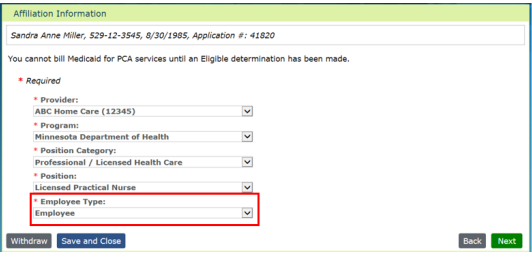
- Once you’ve completed the fields on this screen, click the Next button, navigating to the Verify Identity page.
-
The fields will auto-populate with the information the candidate has provided. If all fields are complete, select Next.
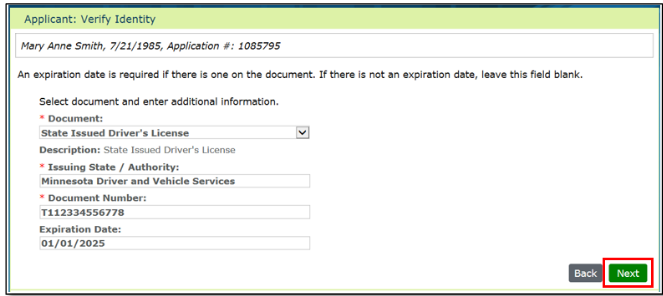

4. Review Minnesota and Federal Registry Search Results
NETStudy 2.0 will perform an automatic search of the following Registries and determine if there is No Match or a Potential Match for the registries. The employer must review and follow up on any potential matches.
· Minnesota Nurse Aide Registry (NAR)
· Minnesota OIG Excluded Individuals
· Federal Office of Inspector General List of Excluded Individuals (EPLS) and
· FBI Record Check, if applicable
Note: This search is only to determine if there is any negative action found on the candidate. This information does not disqualify a candidate at this point.
If a registry result reads No Match, no further action is required.

If a registry result indicates Potential Match, follow-up is needed. Complete the steps below:
- If a registry has a Potential Match result, the employer must determine if the person matched is the same person as the candidate.
- Click on the blue hyperlink in the Research Requirements column.
- View the information to confirm whether the flagged individual is the same person as the candidate.
-
If Not A Match, click Ignore in the Confirm column and then click Close.
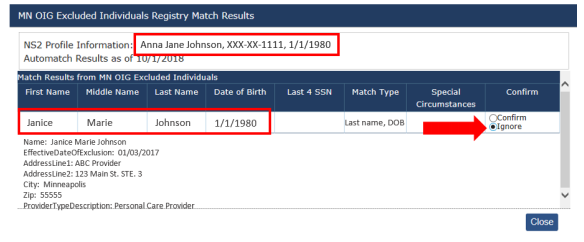
If A Match result box appears, compare the information provided with the candidate information to determine if the match is of the applying candidate. If it’s identified that the match belongs to the subject candidate, click the Confirm box in the Confirm column.
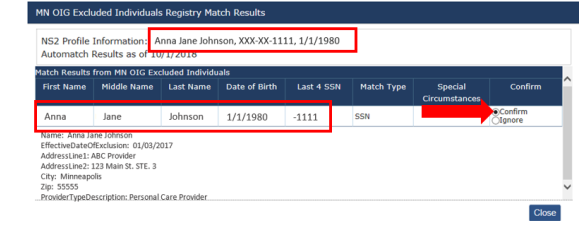
- Click Close to return to the Registry screen. It is recommended you continue with the background study request and affiliation.
-
Select Information Not Disqualifying in the Research Results drop-down box for that registry.

-
If there is a disqualifying factor Adara Home Health will be notified via an email when the study is completed.

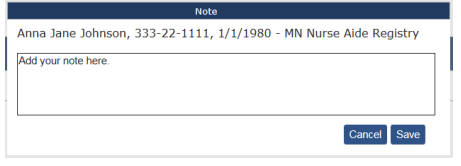
- You must add a note when a possible match is identified in the Research Results drop down, regardless of the selection you make. To add a note, click the Add Note button for that registry.
-
In the Note box, enter the relevant information concerning the possible match. Do not include any identifying information about the candidate in the match (i.e., the candidate’s name). Then click Save.
-
- If the candidate reported residing in a state other than Minnesota in the last 5 years, proceed with section 5. If not, click Next and omit section 5, proceeding to section 6.
5. Review Out-of-State Registries (If Applicable)
If the candidate resided in any state other than Minnesota in the last five years, and this information was recorded on the Profile page, registries that are electronically available from the respective state(s) may display in the “Out-of-State Registries” section on this screen. These registries are optional and must be searched manually.
-
To manually search the registry, click on the blue hyperlinked registry name and the registry will open in a new tab. Follow the instructions provided by that registry to complete the search (e.g., enter the candidate’s name, date of birth, etc.).

-
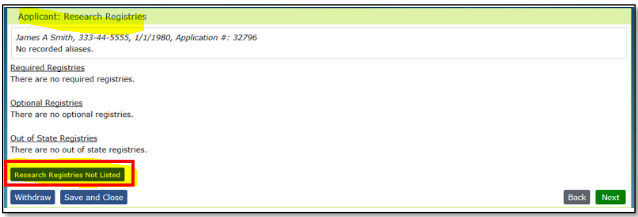
The employer has an option to search registries not listed on the screen. To search a registry that is not listed on the screen, click the Research Registries Not Listed button.
-
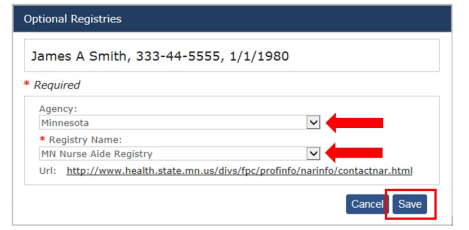
When the Optional Registries box displays, select the state in the Agency drop down, and the registry that you would like to search in the Registry Name drop down. Then click Save.
- Once you have reviewed the results for each registry, click Next.
6. Submit Candidate Background Study and Review Determination Status
- The final page of the background study application is the Applicant: Data Review page. Ensure the information on this page is complete before submitting the application, then click the Submit button on the bottom right corner of the screen.
- The Application Confirmation page will generate. This page confirms that the background study was successfully submitted and the study subject automatically shows as affiliated on Adara Home Health roster. The determination status and next steps needed (if any) will display as in scenarios A, B, and C below.
-
Scenario A: If the Determination is In-Process and fingerprinting is required: The candidate’s fingerprint deadline will display on the screen. The deadline date is calculated by the date the first background study was submitted. The candidate must be fingerprinted before the deadline date or the application will be closed.
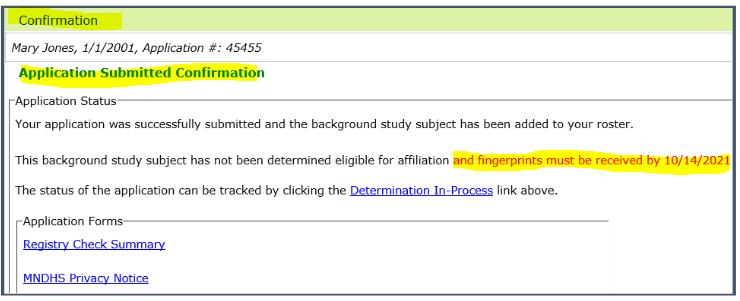
The candidate will be sent two important emails:
- The first will be from DHS. It includes a background study consent and form to self-report criminal history. This form MUST be completed and submitted by the study subject. If it is not completed, the background study application will be closed.
- If the candidate does not receive the email they should call DHS Background Study Division at 651-431-6620.
- The second email will be sent from IDEMI/IdentoGO that includes an individual specific tracking number called a Universal Enrollment Identification (UE ID). The email will be sent within a few minutes of the background study application being submitted in NETStudy 2.0. The email includes instructions on using IDEMIA’s pre-enrollment system and information on locating a fingerprint location.
- If the candidate does not receive the email they should call IDEMIA customer service at 1-844-556-8505. Candidate will need their UE ID they received from DHS.
- The first will be from DHS. It includes a background study consent and form to self-report criminal history. This form MUST be completed and submitted by the study subject. If it is not completed, the background study application will be closed.
-
Scenario B: If the Determination is In-Process and the candidate has already been fingerprinted: No further action is required by the employer at this time. The employer will be notified via email when the background study determination is updated.
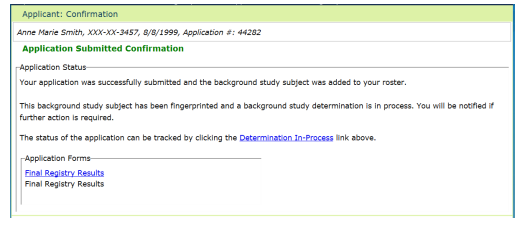
To monitor progress of applications with this status, follow the steps in section 7.
-
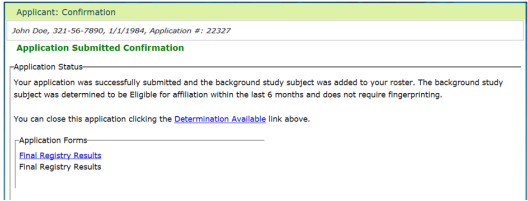
Scenario C: If the Determination is Eligible: The candidate is eligible for hire and will not require fingerprinting. Proceed to step 9 of this process.
-
7. Navigating the Determination In-Process Queue
Applications in the Determination In-Process queue have been submitted in NETStudy 2.0 but a determination has not been completed. The employer can track the status of applications using this queue including the completion of fingerprinting (if required) and consent/disclosure.
- To access the Determination In-Process queue, click the Applications tab in the toolbar. In the drop down, select Determination In-Process.
- Identify the fingerprinting status (if fingerprinting was required for the candidate). The Status column identifies when candidate was fingerprinted. The Status Date column displays the date that the determination status was updated.
- Different statuses are as follows:
- Status - In Process: A status of In Process means the application has been submitted but the candidate has not yet been fingerprinted. The date in the Status Date column is the date on which the application was submitted.
-
In the fictional example below, the application was submitted and the determination status is In Process as of 09/26/2018.

-
- Status - In Process TCN 5DHS1234567899: A status of In Process that also includes the transaction control number (TCN) means the candidate was successfully fingerprinted through the fingerprint hard card exception process and was not fingerprinted at a Minnesota live scan location. The TCN is the unique number assigned to the fingerprint transaction.
-
In the fictional example below, the candidate was approved for and used the fingerprint hard card exception process. The candidate was fingerprinted on paper “hard” cards and the fingerprints were scanned into the system for processing on November 7, 2017.

-
- Status - Fingerprints Taken – 1st TCN 5DHS1234567899: The candidate was successfully fingerprinted. The TCN is the unique number assigned to the fingerprint transaction.
-
In the fictional example below, the candidate was fingerprinted on September 28, 2018.

-
- Fingerprints Taken – 2nd TCN 5DHS1234567899: The candidate was successfully fingerprinted after being fingerprinted again. This happens when the first fingerprint transaction is rejected due to poor quality fingerprint images. The TCN is the unique number assigned to the fingerprint transaction.
-
In the fictional example below, the candidate’s first fingerprint transaction was rejected due to poor quality and the candidate was required to be fingerprinted a second time. The candidate was successfully fingerprinted the second time on September 14, 2018.

-
- Status - In Process: A status of In Process means the application has been submitted but the candidate has not yet been fingerprinted. The date in the Status Date column is the date on which the application was submitted.
- Identify the Consent and Disclosure Status.
- The employer tracks the status of the consent and disclosure using the Consent and Disclosure Status column. This column will display for entities to review whether the study subject completed the consent.

The Consent and Disclosure Status column will display one of the following statuses:
| Status | Definition |
|---|---|
| Not Started | This status indicates that the employer has initiated the application and the background study subject has not started the consent process yet. Study subjects have 14 calendar days to complete the consent process. If the process is not completed within 14 days, the background study application will close. The study subject and the employer will be sent daily reminder emails beginning seven (7) days after the background study is submitted; the study subject will be reminded to complete the consent and disclosure process. |
| Started | This status indicates that the employer has initiated the application and the background study subject started the consent and disclosure. Study subjects have 14 calendar days to complete the consent process. If the process is not completed within 14 days, the background study application will close. |
| Completed | The background study subject has completed the consent process. |
| N/A | The consent does not apply to the study subject. |
8. Navigating the Determination Available Queue
This queue contains background studies that have a completed background study determination recorded in NetStudy 2.0.
From this queue the employer may view: the background study result, certain notices associated with each background study, and, if applicable, the status of a candidate’s request for reconsideration. In addition, the employer may remove disqualified candidate’s background study’s from the Adara Home Health roster and close application records.
-
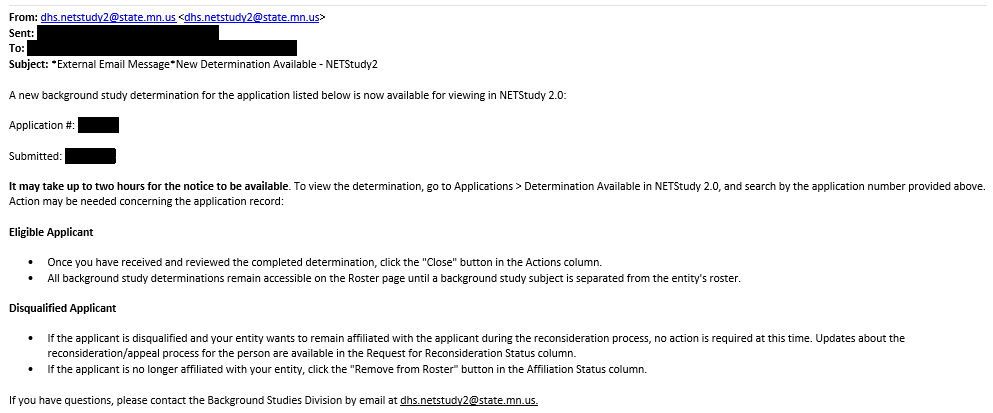
When a candidate’s background study determination is available, the employer will receive an email notification with the subject line “New Determination Available – NETStudy2” as in the example below:
- To navigate to the Determination Available Queue in the NETStudy 2.0 Portal, click the Applications tab and select Determination Available from the dropdown.
- In the list of available determinations, locate the candidate in question.
-
The candidate’s background study determination status will display in the Determination column.

See APPENDIX A of this process for definitions of various determination statuses.
9. Processing a Study with an Eligible Determination
After a candidate has a determination of Eligible, the employer may proceed with hire and onboarding.
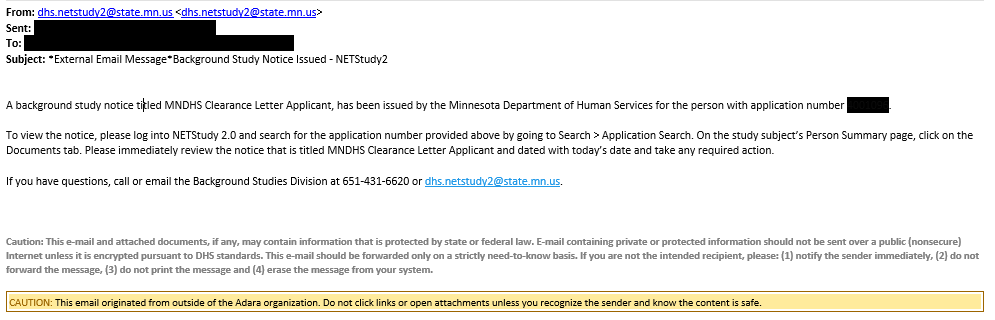
As part of the Eligible determination, MNDHS will issue a Letter of Clearance for the candidate, which will generate almost immediately after the Eligible determination is reached. The employer should save a copy of this letter to the candidate’s employee record. After saving this document, the employer should also close the record from the Determination Available Queue.
-
An email notification as in the example below will be sent to the employer when the Letter of Clearance generates:
- In the NETStudy 2.0 portal, click the Applications tab and select Determination Available from the dropdown.
- Locate the candidate and click their name, which is a blue hyperlink.
-
The candidate profile will open. Select the Documents tab.

-
Click the hyperlink for the document titled “MNDHS Clearance Letter Provider.pdf”.
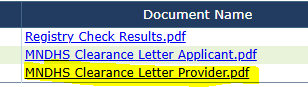
- Download a copy of the Letter of Clearance and file it in the employee records.
- Navigate back to the Determination Available Queue by clicking the Applications tab and selecting Determination Available from the dropdown.
- Close the candidate’s record from the Determination Available Queue.
- If the employer is proceeding with hiring of the candidate, the employer must acknowledge the background study determination by closing the application record from the Determination Available queue.
- Closing the application record from this queue removes the study subject being listed in the queue, but does not remove the study subject from the roster.
-
To close the record, click the Close button in the Action column.

- When the Confirm Close box appears, click the Yes button. The record will be closed from this queue.
- The determination will remain accessible on the Roster page.
This completes the background study for a candidate who has received an Eligible determination using NETStudy 2.0.
10. Processing a Study with a Disqualified Determination
If the candidate has a disqualification, Disqualified will be shown in the Determination column, or it may show Disqualification has been set aside.
- Notify Corporate Business Manager if the Disqualification or Disqualification – Set Aside status appears. Provide the candidate name and subject applicant ID number.
- Candidates who are disqualified have the right to request reconsideration of their disqualification. There are several options for proceeding when a candidate’s study receives a Disqualified Determination, which are outlined below:
-
If the candidate chooses to pursue reconsideration and the Adara Home Health chooses to remain affiliated with the candidate during their request for reconsideration: Do not remove the candidate from the Roster. By remaining affiliated to the candidate, the employer will have access to the status of the request for reconsideration in the Determination Available queue.
If the candidate chooses to pursue reconsideration and Adara Home Health chooses NOT to have the candidate remain affiliated with our program during their request for reconsideration: Remove the study subject from Adara roster by clicking Remove from Roster under the Affiliation Status column.

- A pop-up box titled Terminate Affiliation will open. Enter the date on which affiliation was separated in the Separation Date field and click Save.
- In the Actions column, click the Close (Not Affiliated) button and when the Close without Affiliating box pops up, click Yes in the lower right corner of the box.
- This removes Adara Home Health affiliation with the candidate’s study and the employer will no longer be notified of future reconsideration rights, appeal rights, or determinations for this candidate’s study. The record is then removed from your queue.
- If the candidate will not be pursuing reconsideration (and thus no longer pursuing employment with the agency): Remove the candidate from the roster in the same manner as the second option above.
-
APPENDIX A: Determination Statuses Definitions
| Status | Definitions |
|---|---|
| Eligible | The candidate has a cleared background study and can provide unsupervised direct contact services for the entity. |
| Disqualified | The candidate is not eligible to provide direct contact services in a position that requires a DHS background study. Study subjects who are disqualified have the right to request reconsideration of the disqualification. |
| Disqualified – Set Aside | The candidate was determined disqualified and requested reconsideration of the disqualification. The disqualification was set aside and the candidate may provide direct contact services for the entity. There are other variations of this status, including: Limited Set Aside; Previous Set Aside; and, Remains Set Aside. |
| Disqualified – Not Set Aside | The candidate was determined disqualified and requested reconsideration of the disqualification. The disqualification was not set aside and the candidate cannot provide direct contact services in a position that requires a DHS background study or have access to persons served by the program. |
| Disqualified – Disqualification Affirmed | The candidate was determined disqualified and requested reconsideration of the disqualification. The candidate’s disqualification is affirmed, and the candidate remains not eligible to provide direct contact services in a position that requires a DHS background study. |
| Disqualified – Variance Granted | The candidate was determined disqualified and requested reconsideration of the disqualification, and the disqualification was not set aside. The entity requested a variance, and the variance was granted. |
| Disqualified – Variance Denied | The candidate was determined disqualified and requested reconsideration of the disqualification, and the disqualification was not set aside. The entity requested a variance, and the variance was not granted. |
| Undetermined | Background study information was found about the candidate. The information was forwarded to the entity to determine whether the candidate can provide services (for the entity). This status is used only for certain provider types where DHS does not have the authority to disqualify the candidate. |
APPENDIX B: NETStudy 2.0 FAQ
Who pays for the fingerprint and photo service?
The fee for the fingerprinting and photo service is paid by Adara Home Health. The fee is paid directly to the vendor that provides the fingerprint and photo service for DHS background studies. The candidate receives a receipt at the fingerprint location that includes the type of payment that was used.
Adara Home Health has established a “No Charge Authorization Code” (NCAC) account with IDEMIA. The candidate is not charged a fingerprinting fee when they arrive at the location.
Adara receives NCAC authorization codes that are uique to a single fingerprint and photo service transaction. Adara provides the authorization codes to the candidate to redeem when the candidate is fingerprinted and photographed.
Where can the candidate be fingerprinted and photographed?
Candidates must be fingerprinted and photographed using a fingerprint location authorized for DHS background studies. Fingerprint and photo service locations may be located by the “look-up” tool provided in pre-enrollment process that candidates complete. Candidates receive an email from IDEMIA with the information needed to complete the pre-enrollment process. The tool displays service locations near the study subject based on a city or ZIP code the study subject enters. The tool then displays information about the location, such as address and hours of operation. There is also the ability to locate an IDEMIA IdentoGO Center on IDEMIA’s website.
What is the fingerprinting deadline?
Candidates who are required to be fingerprinted and photographed generally have 14 calendar days from the date the study is submitted to complete the process. Adara Home Health will receive email notifications reminding them when a candidate is required to be fingerprinted but has not yet completed the process. Adara is responsible to ensure study subjects are fingerprinted by the deadline. If the study subject is not fingerprinted by the deadline date, (as shown on the Confirmation) the background study application will close and Adara will have to submit a new application.
What if a subject applicant says they have previous had their Background Study fingerprints done, and it doesn’t show up when NETStudy 2.0 is submitted?
If the initial background study is not in NETStudy 2.0 the subject applicant will have to complete the Background Study and Fingerprint/photo process.
Can the deadline for fingerprinting be extended?
If the fingerprints and photo are not completed within the 14 days the authorization will no longer be valid. Adara Home Health can request a one-time, up to 30 day extension (of the deadline). The extension process is for situations where a candidate experiences an unforeseen emergency such as a serious illness or an emergency that requires the person to be out of Minnesota, orthere is another reason beyond the person’s control that causes them to not be fingerprinted by the deadline.
The extension request must be submitted at least two business days prior to the expiration date.
To request an extension, contact the Corporate Business Manager. The Corporate Business Manager will receive an email from DHS with the information of whether the request was approved or denied. The branch office of the candidate will be notified.
How long do Determinations Available and Action Needed remain in the over 10 days queue?
The study will remain in the Determinations Available queue until it is manually removed. DHS doesn’t automatically clean this queue, the provider requesting the study must remove it.
How long does a Not Yet Submitted application remain in the queue?
The system will begin automatically closing out un-submitted applications from the Not Yet Submitted queue after 90 days.
Can a background study be removed while still in the Determination In-Process queue?
Yes, withdraw the application by finding the person, then click the “Remove from Roster” button. After that, the “Withdraw” button will appear in the “Action” column. Click “withdraw” and enter a reason.
If a person has a hyphenated name, do all names have to be searched? The hyphenated name, the (2) names separately? EX: Smith-Jones, Smith, Jones
No, if the hyphenated name is on their acceptable form of ID, enter their name exactly as listed on the ID. No separate names have to be searched in the alias field.
How long does a subject applicant remain on the DHS Roster after being removed from Adara Home Health roster?
DHS retains the subject applicant study for 6 months.
How many alias names can be entered?
All aliases must be entered and there is no system limit.
How many previous out-of-state addresses within 5 years can be entered?
All addresses must be entered and there is no system limit.
If an eligible study subject does not work for a period of time, does DHS remove them from the DHS Background Study Roster?
In NETStudy 2.0, people remain affiliated with an entity by being on the entity’s roster. As long as a person is on an active roster, there is no time limit for how long a person may be absent from providing direct care services and stay on an entity’s active roster.
If a subject applicant is removed from the entity and DHS Roster how does a State licensors, surveyors, and investigators get access to pertinent background study data and notices, and to be able to verify study compliance through NETStudy 2.0 records?
State staff have access to background study history regardless of roster status. As a provider, the record of the study remains on Adara Home Health separated roster at DHS.
If a study subject shows already having fingerprints/photo and Background Study completed and is Eligible to work, how does that person get affiliated with our company?
The person is automatically affiliated once the background study is submitted.
Is a fingerprint Authorization Form needed?
No. IDEMIA’s fingerprint and photo service locations do not use the Fingerprint Authorization form. It is replaced by study subjects completing the online IDEMIA/IdentoGO pre-enrollment process.
What is a UE ID number?
The Universal Enrollment Identification, or UE ID number, is a unique IDEMIA tracking number for each background study subject. The UE ID is used by IDEMIA and does NOT replace the background study number used by DHS. The study subject should have this UE ID number when they go to the fingerprint and photo service location. The UE ID number is given to the subject to provide to the fingerprint and photo technician when the subject arrives at their appointment. The UE ID number is entered and Adara Home Health is charge for the service.
Where are fingerprinting locations in Minnesota?
Study subjects can find information about locations, including address and hours of operation, by using the “look-up” tool provided in the pre-enrollment process. Information about Minnesota service locations can also be found at IdentoGo Minnesota.
📅 Effective: 12.31.2024 | 🛠️ Revised: 12.05.2025 | ✅ Approved by: JFJ