
O-14-102 Print Patient Instructions and Send to Patient
👤 RESPONSIBLE POSITION
Staffing Manager
🎯 PURPOSE
This task is completed by the Staffing Manager or designee, typically the Administrative Assistant, who prints and sends the Patient Instructions Report to the client as prompted by the patient-related task in workflow PRINT PATIENT INSTRUCTIONS AND SEND TO PATIENT.
This process ensures every client receives a copy of the Patient Instructions Report following each Start of Care (SOC), Resumption of Care (ROC), and Recert (RCT). The Patient Instructions Report includes important information for the client in an easy-to-read format. Items listed include: ordered services (including frequencies), allergies, medication profile, and treatments.
In the interest of compliance with HIPAA, it has been determined that this task must be completed for each specific client report individually from start to finish. The report printed in this task must not be printed and processed in batches for multiple clients as this can lead to errors. Instead, processing each client’s report individually will help reduce the likelihood of an error being made in mailing a client’s information to another client’s address. It is of upmost importance that client information is kept confidential and is sent to the correct client.
🔄 PROCESS
-
Navigate to the workflow for patient-related tasks and locate the task:

-
Right click on the task and select Patient Snapshot from the menu.
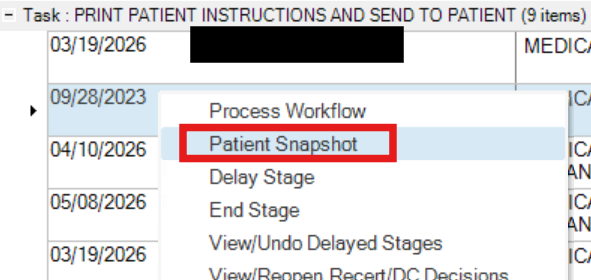
-
In the upper right, click View All beside the listed case manager to navigate to the clinical tab of the referral.
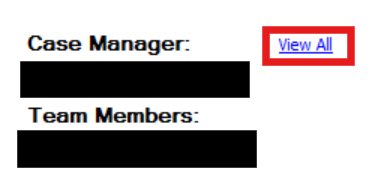
- Scroll down to the Family Link section, which is near the bottom of the Clinical tab. Here, you will be observe one of two possibilities:
-
If the approval box is checked: Skip to step 12, as the patient instructions report does not need to be mailed.
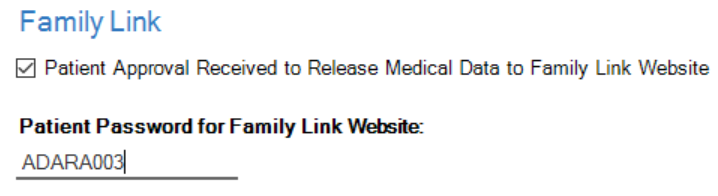
If the Family Link section looks like this, skip to step 12. -
If the approval box will is not checked: Continue with step 5.
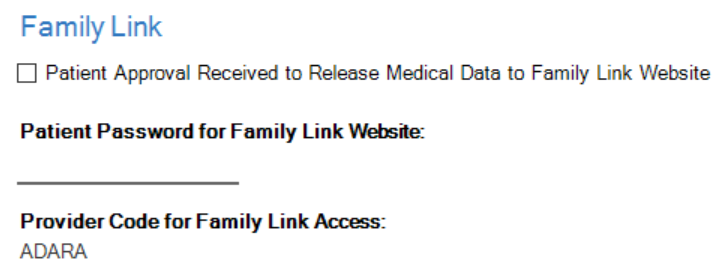
If the Family Link section looks like this, continue to step 5.
-
-
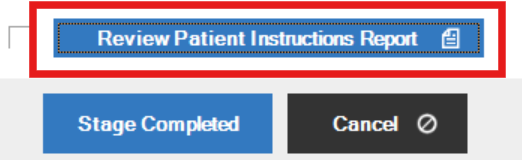
Open the task. Select Review Patient Instructions Report.
-
A PDF will open in a new window. Select the Print icon in the window header or right-click on the document and select Print.
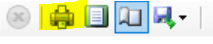
The print icon is highlighted in this screenshot. - The print options window will open. Select the correct branch location printer and ensure the option to print on both sides is selected.
-
To ensure double-sided printing, click Preferences and ensure the options under the Layout tab are selected as in the screenshot below.

-
- Print the document and obtain the printed document from the printer.
- Address an envelope with the client’s address.
- If a post office box is listed as part of the address, use the post office box address and not the street address for mailing purposes.
- Ensure apartment or suite numbers are included clearly in the address.
- To print client mailing labels, follow O-11-215 Print Client Mailing Labels.
-
Place the printed documents into the envelope, ensuring that the correct client paperwork is being added to the correct addressed envelope. Seal and stamp the envelope.
Reference as needed: USPS Instructions on Sending Mail
- One No. 10 envelope can include 4-5 pages (or 1 oz) of standard letter paper (8.5 x 11 inches) when using one first-class “Forever” postage stamp.
- Route the envelope to be mailed according to your localized branch mailing process.
-
Returning to the open task in HCHB workflow, select Stage Completed.

📅 Effective: 10.09.2025 | 🛠️ Revised: 05.20.2026 | ✅ Approved by: JFJ