
O-5-400 Microsoft Outlook MFA Setup
🎯 PURPOSE
Outlines the steps to set up MFA (Multifactor Authentication) to verify a user’s identity to allow log-in to Microsoft Outlook.
🔄 PROCESS
-
Sign into Microsoft Outlook by selecting the Outlook icon:

-
Add Full E-mail (including @adarahomehealth.com)
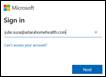
-
Enter current password. Select Sign In:
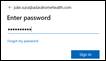
-
Select Next to set up MFA (Multi Factor Authentication):
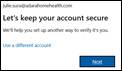

NOTE
There are multiple options available to set up MFA, which are listed below.
- Do not select Phone/Text as it will no longer be an option.
MFA must be set up for Outlook account before moving forward. Once initiated, user will not be able to sign into Outlook until MFA is established and verified.
Available Sign-In Methods
Option A: Microsoft Authenticator App
To use this option:
- Install the Microsoft Authenticator App to receive a code for each sign-in.
-
Select Next:

- Refer to O-5-401 Microsoft Authenticator App for instructions on setting up the application and use of the app for multi-factor authentication.

Option B: Different Authentication App
Other authentication apps are available, such as Google Authenticator. To set up this option:
-
When prompted, select “Set up a different authentication app” and follow the prompts.
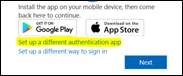
-
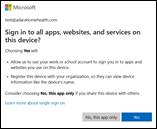
Once MFA method has been set up, user will be prompted to use this method for all apps/services. Select Yes:
-
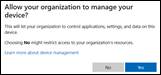
Select Yes to allow device management:
-
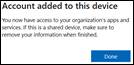
Account has been added to device. Select Done:
-
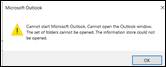
User may be prompted to log back in using MFA method. Outlook error may also populate indicating it cannot start. Select OK to close out and then sign back into Outlook:
📅 Effective: 02.04.2026 | 🛠️ Revised: 10.19.2026 | ✅ Approved: JS