
O-11-414 Create Non-Visit Activity: Aide Hourly Pay
👤 RESPONSIBLE POSITION | ROLE
Business Manager, Staffing Manager, or other Designee
🎯 PURPOSE
This Non-Visit Activity (NVA) type, Aide Hourly Pay, is entered by office to capture non-visit hourly time requiring pay for Hourly Home Health Aide and Homemaker staff. Examples of reasons for an NVA entry of this type include:
- Meetings (such an annual evaluation or performance correction meeting)
- Education/Training (including time worked completing Annual Education)
- Office Support
- Shadowing HHA or nurse for training (if not performing the visit)
- Other reported time such as time spent receiving placement to the plan of care
When the staff member is traveling to a destination for this hourly time, this NVA will also generate mileage data for mileage reimbursement if it is not their first business stop of the day.
🔄 PROCESS
-
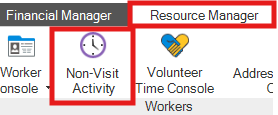
Under the Resource Manager tab, select NVA Console.
-
Select Add.

- Complete the following fields as prompted:
- Branch: Select the relevant branch location.
- Worker Type: Select Agent.
- Worker Name: Select the worker's name.
-
Type: Select the type Aide Hourly Pay.

- Date: Select the date the work was completed.
- Start Time: Enter the start time of the time worked.
- End Time: Enter the end time of the time worked.
-
Destination: If the employee traveled to a business stop (e.g. the branch office), enter the destination location information.

Example -
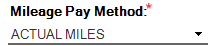
Mileage Pay Method: Ensure that Actual Miles is selected.
-
Details: Enter a brief description of the reason for the time worked.
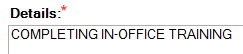
Example
NOTE
The time entered must also include travel time to the destination (if applicable), as time listed in NVA should capture all payable time for that instance of time worked, which would include travel from one business stop to another.
EXAMPLE
If an employee travels from a client's home to the office and their journey takes 1/2 hour, and then the employee works at the office for 1 hour, the NVA should be entered for 1.5 hours, including the office as the location of the work so that the employee is also reimbursed for their mileage to the office location.
-
After all fields are complete, select Save & Close.

- After this has been saved, the NVA will later need to be accepted so that it will be processed for payroll.
📅 Effective: 09.25.2026 | 🛠️ Revised: N/A | ✅ Approved: JFJ