
O-5-406 Setting the Default PDF Viewer to Foxit PDF Reader
🎯 PURPOSE
Outlines the action to take to update a user’s default PDF viewer to Foxit PDF Reader when working in the Windows/Azure Virtual Desktop (AVD) Back Office environment.
Foxit PDF Reader is the preferred application for opening PDF documents because it provides the most consistent experience when:
- Viewing PDF documents
- Preserving document formatting
- Viewing and applying electronic signatures
- Saving completed PDF forms
- Reducing document compatibility issues
NOTE: This process applies to all employees who access PDF documents within the Windows/AVD Back Office Environment.
🔄 PROCESS
- Click on the Windows icon on the bottom of the screen when logged into Windows/AVD:

- Click on the Settings icon:

Note: If the Settings icon is not visible, type Settings into the Windows search bar and select the application.
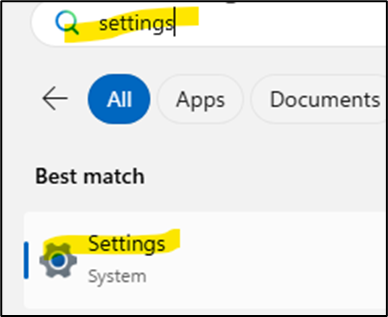
- On the left-hand side of the screen, click on Apps:

- On the right-hand side of the screen, click on Default apps:
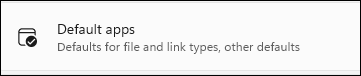
5. Scroll down and click on Foxit PDF Reader:

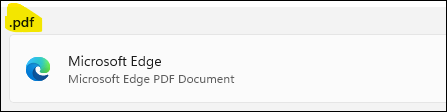
- Scroll down until you find .pdf and click on the app shown under it:
NOTE: the application that shows on your screen may not be Microsoft Edge. It will default to the application that is currently selected as your default PDF viewer.
- In the pop-up window. Click on Foxit PDF Reader. Then click on Set Default:
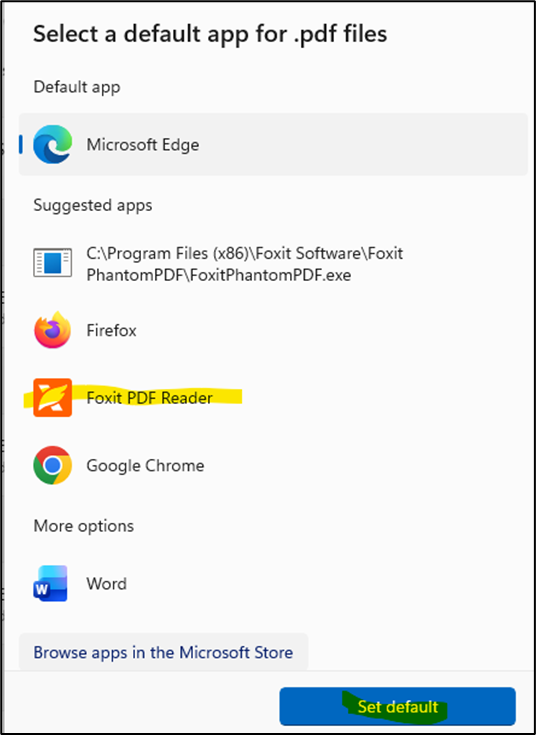
- Confirm your .pdf default app is set to Foxit PDF Reader:
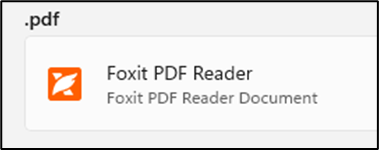
- After completing these steps, all PDF documents opened within the Windows/AVD environment will automatically open using Foxit PDF Reader.
📅 Effective: 09/04/2026 | 🛠️ Revised: | ✅ Approved: AA