
O-6-303 Use the Dayforce Time Clock in a Web Browser
👤 RESPONSIBLE POSITION | ROLE
Salaried Non-Exempt Office Employees
Hourly Office Employees
Salaried Non-Exempt Field Employees
🎯 PURPOSE
Hourly office employees and salaried non-exempt employees use the Dayforce Time Clock to record their time worked in real time using a digital clock to collect their time punches. This assists in accurate record-keeping of time entries including breaks, lunches, and clocking in and out of the workday to ensure that employees are paid accurately for their time worked.
🔄 PROCESS
-
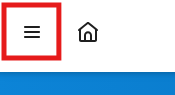
Logged into Dayforce on a web browser, navigate to the upper left corner and select the Menu icon. The menu will expand.
-
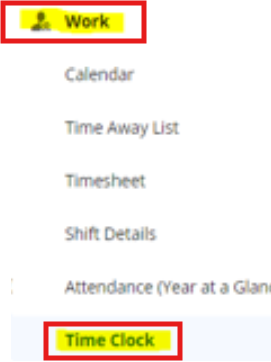
Click Work, and then select Time Clock from the submenu.
-
The Time Clock will show the current time and your current status (clocked in/out) will display. These buttons will be visible:

- Clocking in for the day:
-
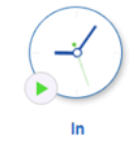
Select the In icon. The time of your clock-in will display and your status will update to "You are clocked On".
- After clocking in, you may close out of the Dayforce Time Clock window while the clock is running; this will not cause any issues. The Time Clock will continue to run until you re-enter the Time Clock window and clock out for a meal, break, or the end of your shift.
-
- Clocking in/out of a break:
- Use a Break to punch in/out of short breaks within your workday, such as a midmorning 15-minute break from 10:15am-10:30am. Breaks are paid and must not be used for a designated unpaid meal.
-
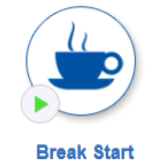
To start a break, after navigating to the Time Clock, select the Break Start icon. Your status will update.
-
When your break is complete, return to the Time Clock and select the Break End icon. Your status will update and your shift will resume.
- Clocking in/out for lunch:
- Use a Meal to clock in/out for your lunch within your workday, such as taking a lunch from 1:00pm-2:00pm. Meals are unpaid and cannot be less than 30 minutes.
-
To clock out for a meal, select the Meal Start icon. The time of your clock-out will display and your status will update.
-
When your meal is complete, clock back into your shift by returning to the time clock and selecting the Meal End icon. The time of your clock-in will display and your status will update.
- Clocking out for the workday:
-
To clock out for the day, select the Out icon. The time of your clock-out will display and your status will update to "You are clocked Off".
-
📅 Effective: 12.17.2023 | 🛠️ Revised: 08.25.2026 | ✅ Approved: JFJ