
O-6-316 Change Address in Dayforce Employee Profile
👤 ROLE
All Employees
🎯 PURPOSE
When an employee has a change in their personal address, their address must be updated in their Dayforce employee profile. To do this, the employee follows these steps.
🔄 PROCESS
-
Log into Dayforce via a web browser (not via the mobile app) under the Employee Role.
For reference if needed: O-6-300 Dayforce Log-In Instructions via Web Browser.
-
Select the menu icon in the upper left.
-
Select Profile.
-
Select Forms.

-
Available forms will load. Under the Personal section, select Address.
-
In the new window which opens, select the icon in the upper right to enlarge the window.

- You will see your current address listed.
-
If your current address is no longer active as of a certain date, enter the End Date for that address listed. (You may not have two Primary Residences active at the same time.)

- If your current address will still be active but is instead moving to a secondary address or mailing address only, you may make that change under the Type column.
-
-
To add your new address, select Add.
- A new line will appear for the new address. Fill in the following fields:
- Type: Select Primary Residence, Secondary Residence, or Mailing Address.
- Start Date: Defaults to today's date. Change to the correct effective date if needed.
- Country Code: Select United States of America.
- Address Line 1: Enter the first line of your address.
- Address Line 2: (optional) If needed, add the second line of your address.
- City: Enter the city.
- State: Select the state.
- Zip Code: Enter the zip code.
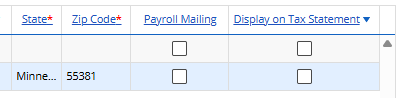
- Payroll Mailing: Check this box if you would like to receive payroll mailings at that address. If the box is unchecked, mailings will default to your primary address listed.
-
Display on Tax Statement: Check this box if you would like to receive your W-2 mailing (if enabled) at that address. If the box is unchecked, any mailings will default to your primary address listed.
- After all edits to the new address and previous address(es) have been completed, review your data entry. Ensure everything is correct and accurate.
-
Select Submit to save your changes and submit the form for approval. After approval, your profile will update with the new address information.

📅 Effective: 08.18.2026 | 🛠️ Revised: N/A | ✅ Approved: JFJ