
O-11-410 Create Non-Visit Activity - Salaried Aide Attempted Visit
This process applies to salaried aides only. For hourly paraprofessional staff, follow O-11-409 Create Non-Visit Activity - Aide Attempted Visit.
👤 RESPONSIBLE POSITION | ROLE
Staffing Manager or Designee
🎯 PURPOSE
By creating a Non-Visit Activity (NVA) for the salaried aide’s attempted visit, the office staff member documents the employee’s time worked and enters a travel location. Entry of the travel location within the NVA enables mileage and travel time to/from other visits completed that day to generate to/from that location as appropriately, directly impacting mileage reimbursement.
🔄 PROCESS
-
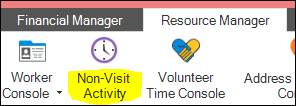
In HCHB, select the Non-Visit Activity console under the Resource Manager tab. The console will open in a new window.
-
At the bottom of the window, select Add. A pop-up window will open.

- Complete the following fields:
- Service Line: This will auto-populate to Home Health.
- Branch: Select the branch location.
- Worker Type: Select AGENT.
- Worker Name: Select the correct employee from the dropdown.
- Type: Select SALARIED AIDE ATTEMPTED VISIT.
- Date: Select the date of the attempted visit.
- Start Time: In this case, there are two options:
- If the worker completed a business stop less than 2 hours prior to the time the worker attempted the visit: Enter the time that the worker began travelling from their previous business stop to the client’s home.
- If the attempted visit was either the worker’s first business stop of the day or time previously worked that day occurred 2 or more hours prior: Enter the time the worker arrived at the client’s home and began attempting the visit.
- End Time: Enter the time that the worker stopped attempting the visit and left the client residence.
- Destination: Select CLIENT HOME.
- Patient: Select the client whose visit was attempted. The address information will auto-populate once the client is selected.
- Mileage Pay Method: Select ACTUAL MILES.
- Details: Enter any additional details that may be helpful, or a summary of the NVA.
An example of Details entered here would be: “Client JD’s caregiver refused due to the client having a doctor’s appointment”.
Details of why the visit was not made should be entered in the missed visit coordination note when the visit is missed and is not rescheduled to another day that week.
NOTE: Anything that is potentially clinically impactful (such as a report of change in condition) must be immediately reported to a branch Clinical Supervisor.
-
Select Save & Close.
-
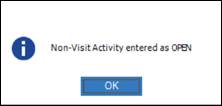
This notification window will display. Select OK.
- Locate the newly-created NVA listed under OPEN status. The filters within the NVA console may need to be adjusted to pull the specific NVA depending on previously set filters.
-
Select the NVA with a single click so it is highlighted, and select Accept at the bottom of the console window.

-
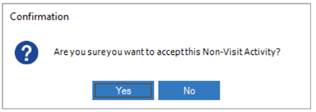
A confirmation window will open. Select Yes. The NVA now has Approved status, which allows the NVA to be visible in payroll reporting and processed for pay at time of payroll batching.
📅 Effective: 08.19.2026 | 🛠️ Revised: N/A | ✅ Approved: JFJ