
O-6-411 Address a Time Away From Work Request
👤 ROLE
Manager Role
🎯 PURPOSE
These directions show how to access, view, and address Time Away from Work (TAFW) requests for your team in Dayforce within a manager role.
🔄 PROCESS
-
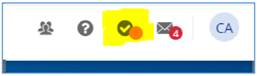
Logged in as a manager within Dayforce, navigate to Approvals. The checkmark icon is located in the upper right corner.
-
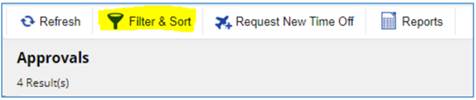
The list of approvals will default to include TAFW requests that have not yet been addressed. To edit your filters within the Approvals screen to show all existing TAFW requests regardless of status, select Filter & Sort.
-
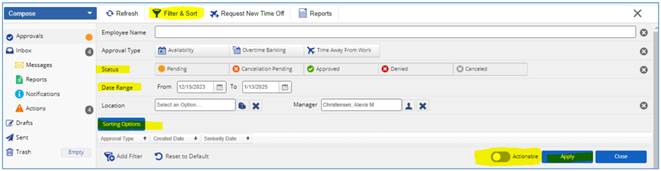
To show all TAFW requests within a certain date range, complete the fields below, select all statuses of TAFW, and turn off the Actionable slide bar.
-
You may also customize sorting of the TAFW requests by selecting Sorting Options.
EXAMPLE
To use Sorting Options to sort by the start date of the request, move Start Date to the right-hand column and move it to the top, adjusting Ascending or Descending as desired. Then click Select to save the sorting options under the set filter parameters.

-
Select Apply in the lower right of the filters tab to apply all selected filters. TAFW requests listed will update according to the updated filters and sorting parameters.
- Select Close to close the Filter & Sort tab.
-
To access the details of a request, select the request from the list.

-
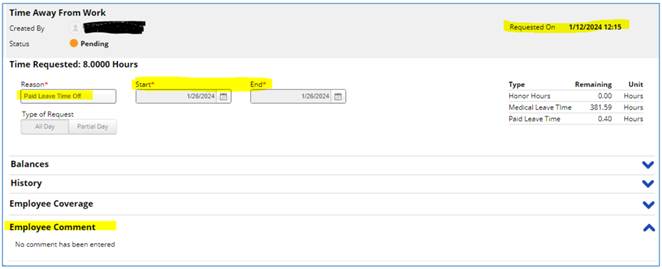
Within the request, you can review details of the request including the employee comment (if any), and can also view the employee’s existing accruals.
-
From this screen, you are able to either approve or deny this request (buttons are at the bottom of the page on the lower right).
-
Alternatively, you may exit the screen by clicking Back (in the upper left) to review other existing requests before addressing this request.
NOTE: A comment entered within the “Workflow Comment” section will not be visible to the employee.
-
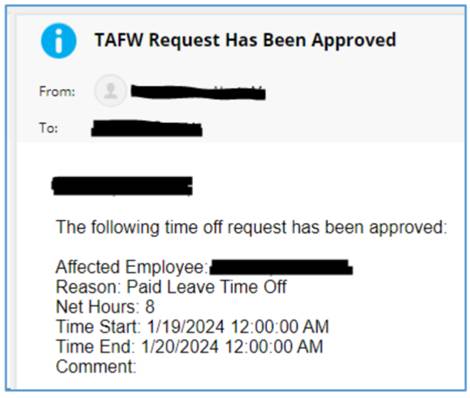
After the request is either approved or denied, the employee will receive a Dayforce message notifying them of the approval or denial.
-
As an additional resource, reports related to TAFW can be accessed by selecting Reports.
📅 Effective: 01.16.2024 | 🛠️ Revised: 08.17.2026 | ✅ Approved: JFJ