
O-6-305 Employee Authorization of Time Worked via Web Browser
👤 EMPLOYEE TYPES
Salaried Non-Exempt Field
Salaried Non-Exempt Office
Hourly Office
🎯 PURPOSE
When an employee uses the Dayforce time clock, the employee must review and authorize their time worked within their employee timesheet in Dayforce. By following this process, the employee reviews their time entries for accuracy and completes employee authorization of shifts worked.
This will be later followed by manager authorization, which allows the employee’s time worked to be processed by payroll.
These instructions give the steps for completing this employee authorization of time worked within a web browser.
🔄 PROCESS
-
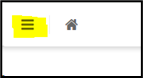
Logged into Dayforce on a web browser under the employee role, select the Menu icon in the upper left corner. The menu will expand.
-
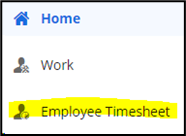
Select Employee Timesheet. The timesheet will display all submitted time punches within a week’s timeframe.
-
Review all time punches for accuracy; make any needed corrections. Use arrows or calendar at the top of the screen to navigate to previous weeks.

-
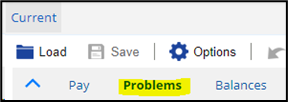
Any auto-detected problems will display under the problems tab. Review and correct any displayed problems.
-
Save any corrections made.
-
After confirming accuracy and saving any changes, authorize your times worked. Authorization can be done per individual shift or in multiples by multi-selecting shifts. To authorize, select the shift(s) and click Authorize. Save the changes.

-
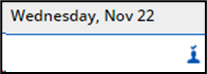
Each authorized shift will now have a blue icon, indicating it has been authorized by the employee.
-
Later, after the manager has reviewed and authorized your shift, a second icon will appear in red alongside the blue icon.


📅 Effective: 09.08.2025 | 🛠️ Revised: 08.17.2026 | ✅ Approved: JFJ