
O-2-113 ID.me Set Up
👤 RESPONSIBLE POSITION | ROLE
Elig/Auth Coordinator | Authorization Specialist
Account Manager
🎯 PURPOSE
ID.me helps you prove your identity and group affiliation across multiple websites. It serves the same purpose as the physical ID cards you carry in your wallet, but for the internet. ID.me uses bank-grade encryption to keep your personal information safe, and you always have control over what information gets shared.
Id.me is used to access several web portals including HSRM, which holds VA information. These instructions include setup instructions for HSRM.
🔄 PROCESS
If you already have an ID.me account set up:
Do not set up a new account. Instead, sign into your existing ID.me account and then add your work email address as another email under your existing account. This will allow you to access the portals needed for work.
- If you do not already have a ID.me account, go to the ID.me website: https://www.id.me.
-
Select Sign In.
-
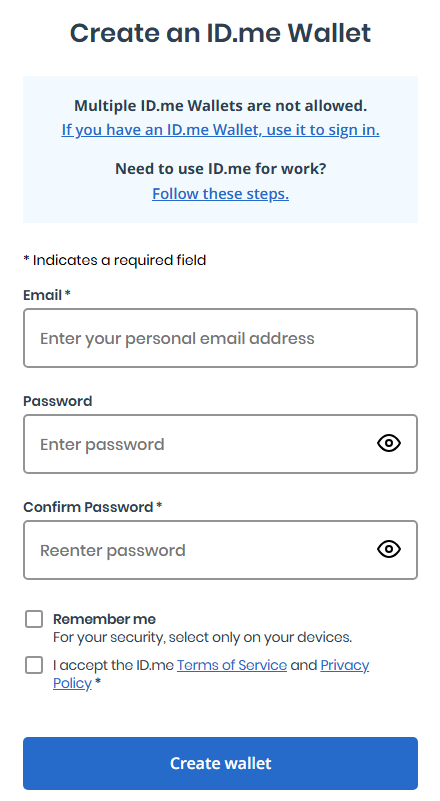
You will need to create a new account. Under the login dialog, select Create a wallet.

-
The following screen will come up. Fill out the fields as prompted including creating a password. Select Create Wallet when the fields are complete.
-
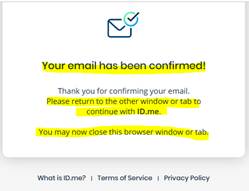
You will receive an email from ID.me asking you to confirm your email address. Click on Confirm your email. The following screen will come up.
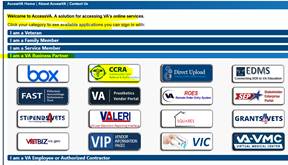
- New, you will set up access to the VA portal (HSRM). Navigate to the AccessVA website. https://access.va.gov/
-
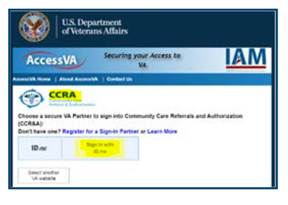
Click the Community Care Referral and Authorization (CCRA) icon.
-
Click Sign in with ID.me.
-
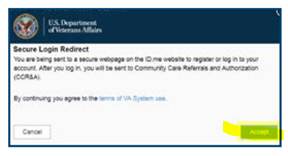
Accept the terms of service.
-
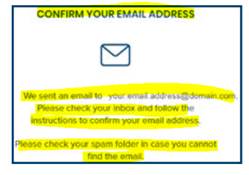
The next screen will direct you to check your email inbox for a confirmation email.
-
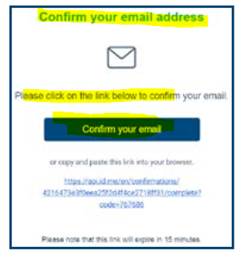
Follow the instructions provided in the confirmation email.
-
A new browser window will open. Instead of going to VA.gov, as directed, on the screen return to Access VA website https://access.va.gov/
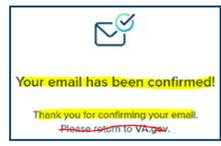
- Repeat steps 6 through 9.
-
When prompted, enter your email address and password.
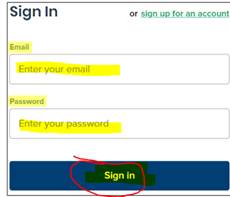
-
When prompted to secure your account, follow the instructions to enable two-factor (2FA) Authentication. Select an option below to setup two-factor authentication.
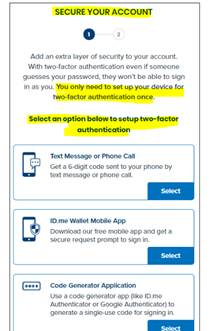
-
Once you have completed the steps to enable 2FA, you will see a confirmation screen similar to the one shown below. Click Continue.
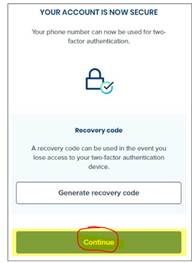
-
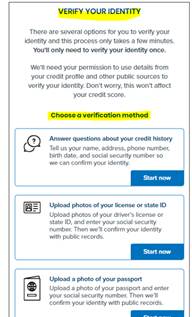
Next, you’ll be prompted to verify your identity. Select one of the options and follow the provided instructions.
-
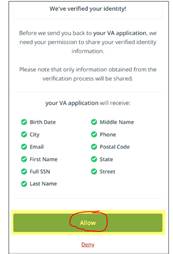
Once you have verified your information, you will be prompted to provide ID.me with permission to share your information with the VA application. Click Allow.
- At this point, your information has been submitted to ID.me. If HSRM access is needed, email support@adarahomehealth.com requesting that the employee be given access to HSRM.
📅 Effective: 09.23.2021 | 🛠️ Revised: 09.14.2026 | ✅ Approved: JFJ