
O-2-231 Medicare NGSConnex User Setup
👤 RESPONSIBLE POSITION | ROLE
Elig/Auth Coordinator | Authorization Specialist
Account Manager
🎯 PURPOSE
NGSConnex is a free, secure, web-based application developed by National Government Services where beneficiary eligibility information can be verified. This portal is used to manually run Medicare eligibility when the automated eligibility response in HCHB receives an error.
This process identifies the steps needs to set up a user's access to the NGSConnex portal.
After your account is set up, you must log in to NGSConnex a minimum of every 30 days, otherwise you will be locked out of your account.
🔄 PROCESS
- Navigate to https://www.ngsmedicare.com/NGS_LandingPage/.
-
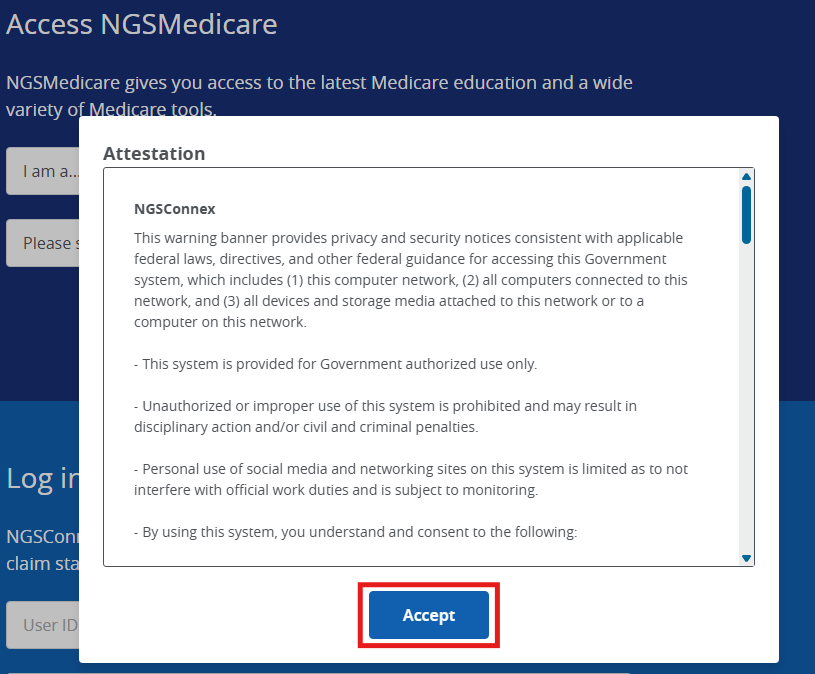
An attestation statement will automatically open. Read the statement and then click Accept.
-
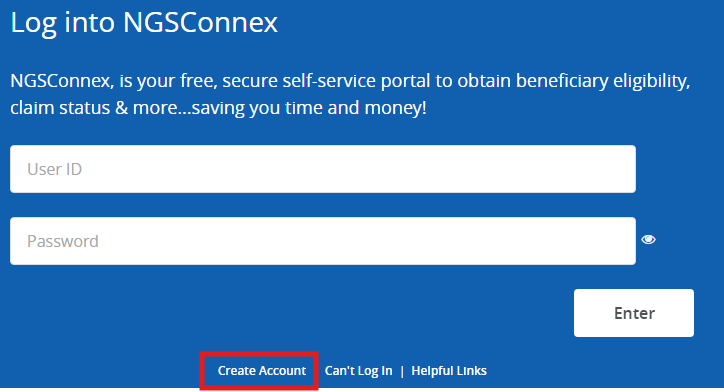
Select the Create Account link on the ‘Log into NGSConnex’ side of the combined landing page.
-
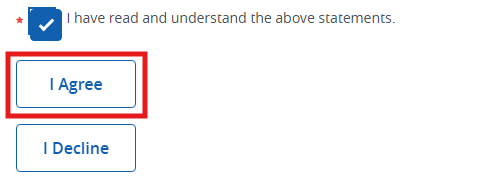
The next screen is the Online Services & Web Confidentiality Agreements page. After reviewing the agreement, click the check box at the end that reads, “I have read and understand the above statements.” and click ‘I Agree’ to continue.
- The next page will load with account information including an auto-generated User ID. Take note of your User ID.
- The page mentions that you will need the NPI, PTAN, and TIN later. These are provided below in the step where they are needed.
- As prompted, create a password.
- The password is required to contain at least one alpha character, one numeric character, one special character, and one uppercase alpha character. The password must also be between 8 and 30 characters in length.
- Enter the password in the Re-type Password field.
- Click Next.
-
The next page is the Individual page, which asks for your information. Fill out all required fields:
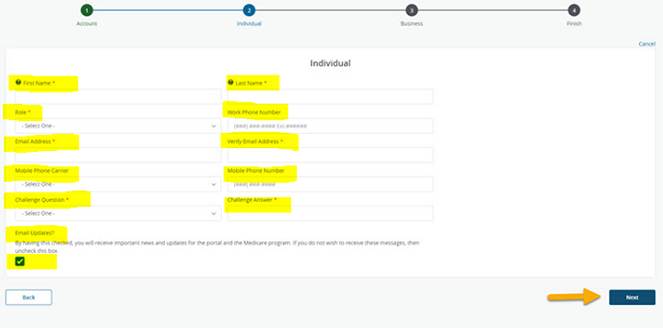
- First Name: Enter your current legal first name.
- Last Name: Enter your current legal last name.
- Role: Click the drop-down arrow and select your role from the list.
- Work Phone Number: If possible, include a direct number where you can be contacted.
- Email Address: Enter your Adara Home Health email.
- Verify Email Address: Re-enter the email address.
- Mobile Phone Carrier: Click the dropdown arrow and select your mobile phone carrier.
- Mobile Phone Number: Enter your mobile phone number.
- Challenge Question: Click the drop-down arrow and select your challenge question.
- Challenge Answer: Enter the answer to your challenge question.
- The challenge answer is not case sensitive.
- The challenge question and answer will be used if your account is suspended or when you need to reset your password.
- Email Updates Checkbox: The box will automatically be checked, which allows you to receive important news and updates from NGSConnex and the Medicare Program. If you do not wish to receive these messages, then uncheck this box.
- The next page is the Business page, which asks for information about Adara Home Health. Fill out these fields:
- Local Security Officer (LSO): Select No.
- NPI (National Provider Identifier): 1063420198
- PTAN (Provider Transaction Access Number): 248056
- TIN (Tax Identification Number): 41-1771811
- Type: HHH = Home Health Hospice
- State: Minnesota
- Access: Claims and Check Eligibility
- Click Next. You will reach the Finish page.
- Click the Finish button. A message will display stating "Success: You have successfully created your account.”
- At this point, a notice will be sent to an admin user at Adara who will review the account and approve the new user creation. This may take one or two business days. Only once your user is established will you be able to proceed.
-
When the code is verified you will received the following email.

- At this point, return to the website: https://www.ngsmedicare.com/NGS_LandingPage/.
-
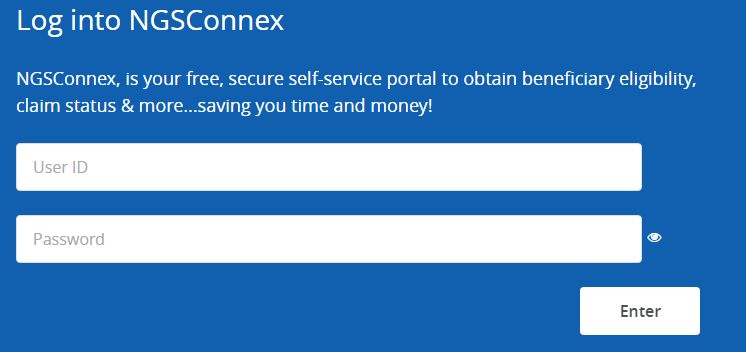
Log into NGSConnex using the username and password you created when you first set up the account.
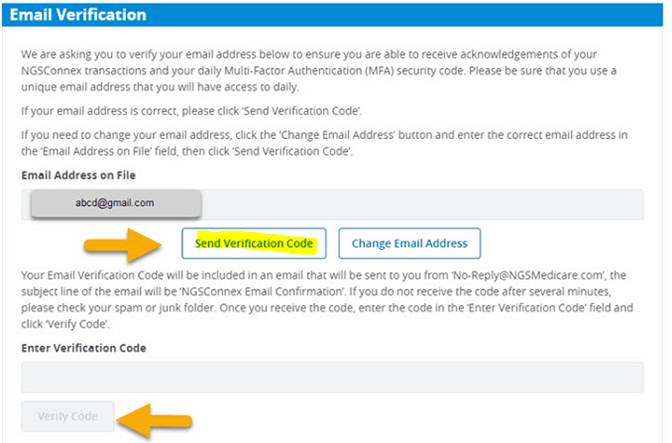
- The Email Verification screen will display the first time you log in to NGSConnex. All NGSConnex users are required to complete a one-time verification to validate the email associated with their NGSConnex user profile.
- The email address associated with your user profile is where notification of certain transactions will be sent and is also one of the methods available to receive your multi-factor authentication security code, which is required for login.
- Verify the email address displayed is accurate.
- If the email address displayed is not accurate:
- Select the Change Email Address button.
- Update the email address by typing over the information displayed in the Email Address on File field.
- Click the Update button to save the changes.
- If the email address displayed is not accurate:
- Select the Send Verification Code button. You will receive a verification code via email which will be sent to the email address associated with your User ID.
- Enter the four-digit verification code in the Enter Verification Code field.
-
Click the Verify Code button.
- Once the initial email verification process is complete, you will not be required to verify your email address again, unless you update your email address associated with your User ID.
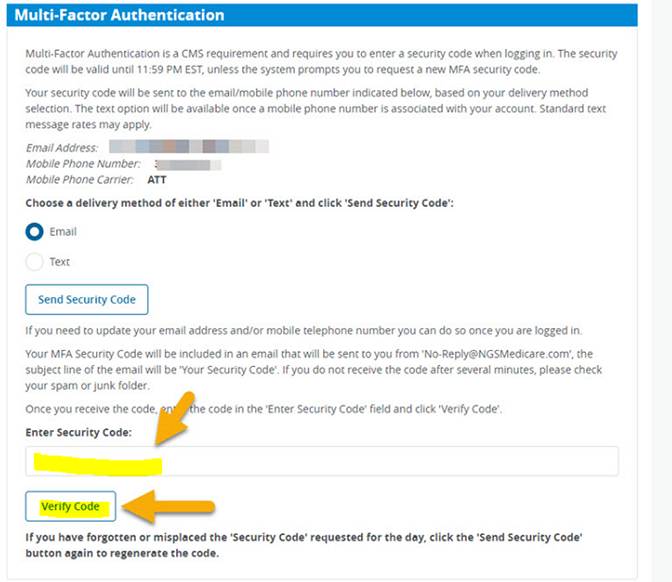
- The Multi-Factor Authentication (MFA) window will open; complete the required MFA verification:
-
Select the Email or Text option and then click Send Security Code. This will trigger the NGSCONNEX system to send you a security code that will arrive via text.
-
Retrieve the Security Code from the email or text you received.
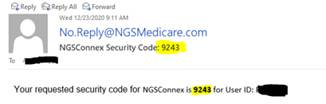
- Enter the four-digit security code in the Enter Security Code field.
- Click the Verify Code button.
-
- Once a valid code is verified, you will have access to NGSConnex.
- If you logout or timeout after 15 minutes of inactivity and then later log into NGSConnex during the same day, you do not need to request a new MFA security code, you can use the previously requested MFA security code.
- The MFA security code is valid until 11:59 p.m. ET on the day requested, and may be used to login throughout the day unless you are prompted to request a new MFA security code. The MFA security code is unique to the User ID and may not be shared.
📅 Effective: 01.12.2021 | 🛠️ Revised: 09.02.2026 | ✅ Approved: JFJ