
O-2-232 Review Medicare NGSConnex Eligibility
👤 RESPONSIBLE POSITION | ROLE
Elig/Auth Coordinator | Authorization Specialist
🎯 PURPOSE
Verification of Medicare (MDCR) eligibility via NGSConnex is available as a backup to HCHB eligibility when needed; this process outlines the steps needed to access the client's eligibility and correctly interpret the eligibility results.
HCHB has automated and on-demand Medicare (MDCR) eligibility which allows employees to check MDCR eligibility via HCHB.
Verification of MDCR eligiblity within HCHB must always be used whenever possible.
NGSConnex is available as a backup alternative to HCHB eligibility for situations when the HCHB eligibility results in an error response.
A scenario of when NGSConnex might need to be used is when the client's name is spelled differently in NGSConnex than in HCHB.
For example, if client's legal name is Judith (and therefore we have her name listed in HCHB as Judith), but MDCR has her name on file as Judy. the HCHB eligibility response (271) will display an error, requiring eligibility to be verified via NGS Connex.
Whenever NGSConnex is used to verify eligibility, a copy of eligibility response must be saved to the client's medical record under Patient Attachments.
🔄 PROCESS
- Log on to website: https://provider.wellpointfederal.com/landingpage/
-
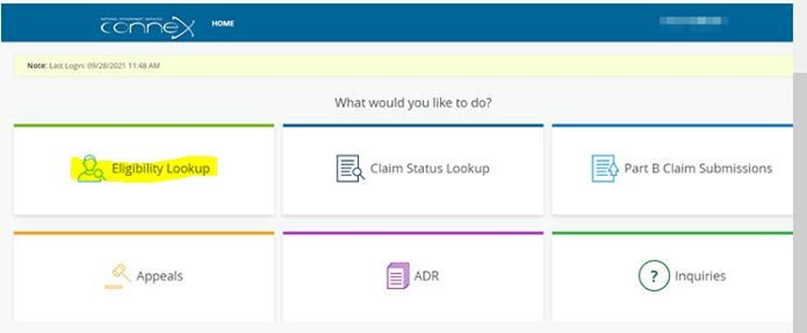
Click the Eligibility Lookup button from the NGSConnex homepage.
-
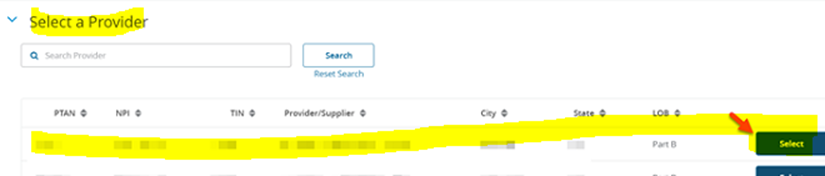
Select Adara as the Provider.
-
Enter the client information under the Beneficiary panel.
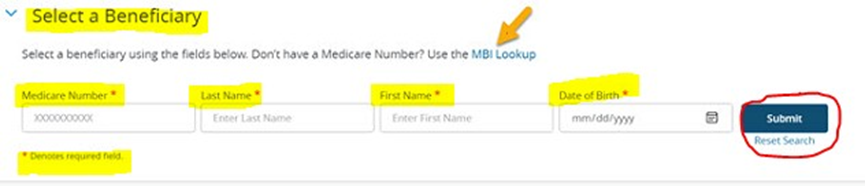
- Medicare Number: Enter the client's Medicare number (11 digits). If you do do not have the MBI you can select the MBI Lookup link.
- Last Name: Enter client's last name.
- First Name: Enter client's first name.
- Date of Birth: Enter the client date of birth (format MMDDYYYY or MM/DD/YYYY).
- Under Years of Data: Enter “4”.
- Select Search button
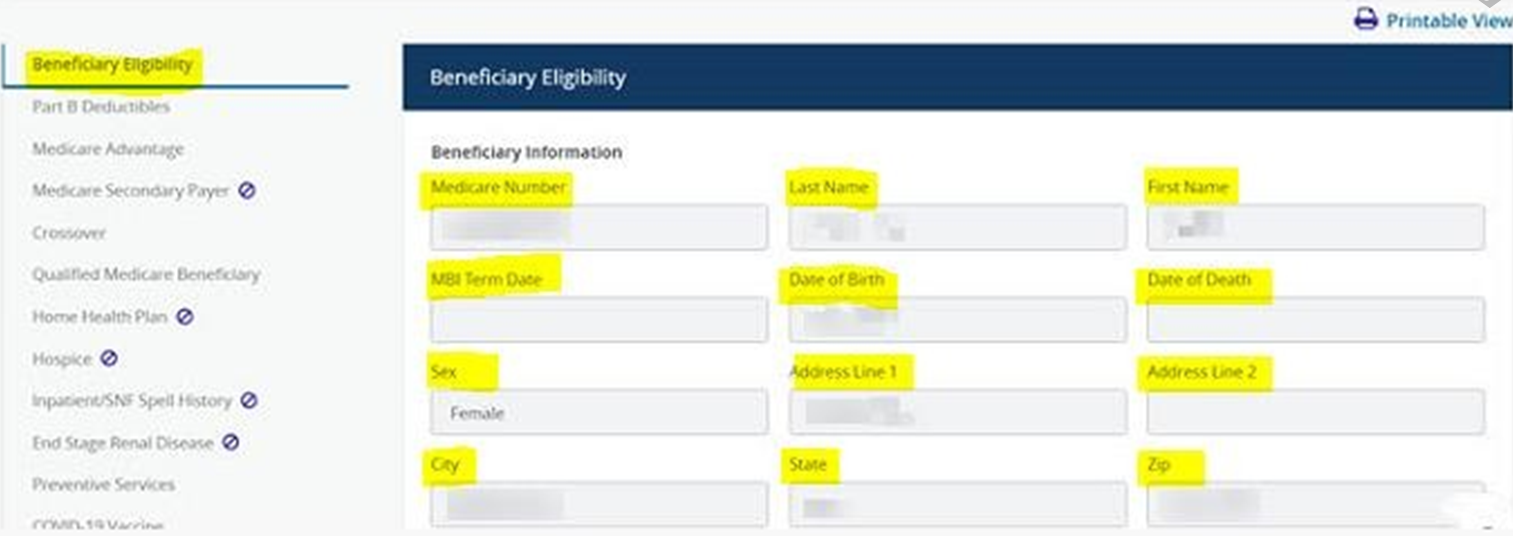
- The Beneficiary Eligibility Information panel will load. This page provides an overview of basic Medicare eligibility information. The Beneficiary Information section will provide the following information:
- Medicare Number
- Last Name
- First Name
- MBI Term Date, if applicable
- If a term date displays, you must contact the beneficiary to obtain the new MBI or use the MBI Lookup Tool, to search for the new MBI.
- Date of Birth
- Date of Death, if applicable
- Sex
-
Address, City, State and Zip Code
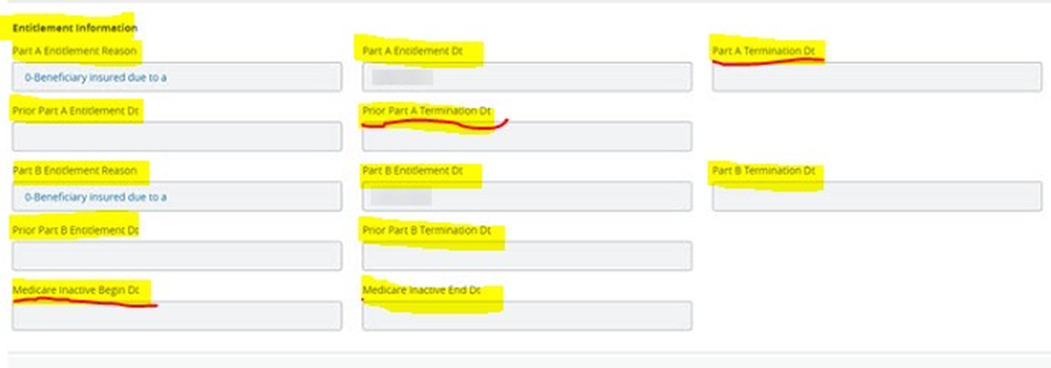
- The Entitlement Information section will provide the following information.
- Part A Beneficiary Entitlement Reason Code – will display the most recent entitlement reason code for Part A coverage
- Part A Entitlement Date
- Part A Termination Date, if applicable
- Part B Beneficiary Entitlement Reason Code – will display the most recent entitlement reason code for Part B coverage
- Part B Entitlement Date
- Part B Termination Date, if applicable
- Prior Part B Entitlement Date
- Prior Part B Termination Date
- Medicare Inactive Begin and End Dates
- When dates are displayed, Medicare is not responsible for coverage due to the inactive status. You must contact the Medicare the beneficiary to determine who is responsible for coverage.
NOTE: Review all the highlighted areas. Be sure to check the Inactive and Termination Date fields. This is critical as if the client is admitted but Medicare is inactive or terminated, we would not be able to bill Medicare.
- The Additional Information section will provide the following information:
- Full Inpatient Days
- Copay Inpatient Days
- Inpatient Deductible Amount Remaining
- Full SNF Days
- Copay SNF Days
- Inpatient Blood Deductible Units Remaining
- Lifetime Psychiatric Days Remaining
- Lifetime Reserve Days Remaining
- Earliest Billing Date
- Latest Billing Date
- Under the Part B Deductible panel, the information in this panel will provide the current year’s deductible and if available up to four years of additional historical deductible information. The following information is provided:
- Deductible Year
- Deductible Amount
-
Remaining Deductible Amount
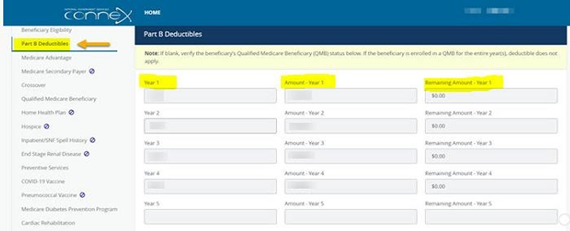
Note: If this panel is blank or deductible information does not display for a specific year it may be because the beneficiary is or was enrolled in Qualified Medicare Beneficiary (QMB) program. If so, deductible does not apply.
- Medicare Advantage Information: The Medicare Advantage Information panel will display information if the beneficiary currently (in a Part C Medicare Advantage Plan, commonly referred to as a Medicare- HMO or Medicare Replacement Plan) has primary insurance coverage to Medicare through another payer or in the past has had primary insurance coverage to Medicare through another payer.
- MCO – C (Medicare Advantage Payer - see other payer)
- MCO – 1 (Straight Medicare)
Example: Medica Advantage Solution - Plan Option Code – C
Submit claims to the Medica Medicare Advantage plan. Exception is for a Hospice plan.

Example: Submit to NGS (Medicare)
Submit claims to Medicare NGS (straight MDCR).

Example: Submit to MA plan – Medicare Advantage (Replacement) Plan
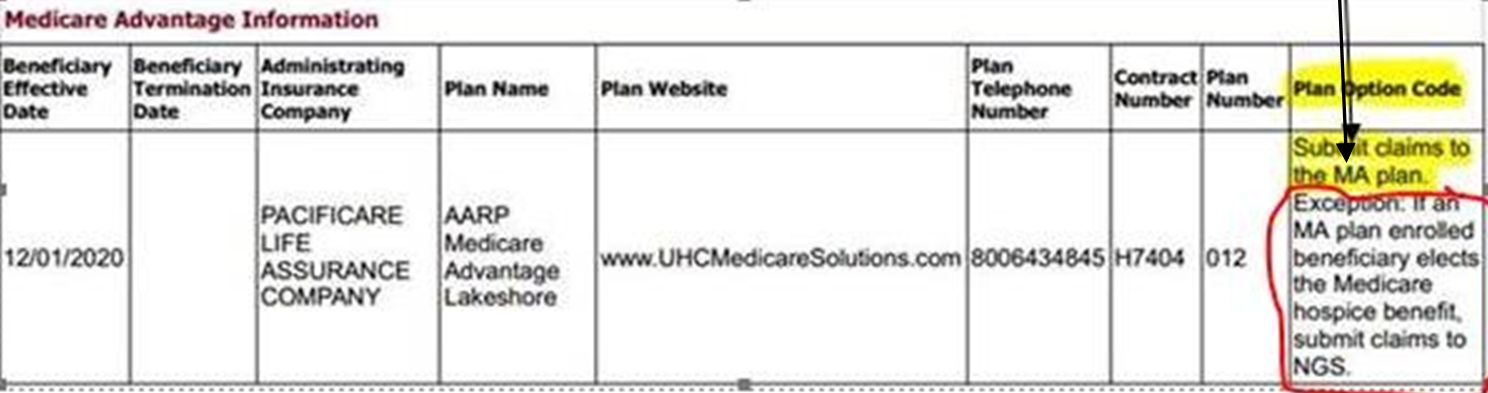
MA = MEDICARE ADVANTAGE (in the context of MDCR NGSConnex)
Exception above applies to hospice and NOT to home care. Claims would be submitted to Medicare Advantage in this example.
Note: If beneficiary is not currently enrolled in a Part C Medicare Advantage Plan or covered by a MA plan in the past 4 years from date of search this panel will be blank.
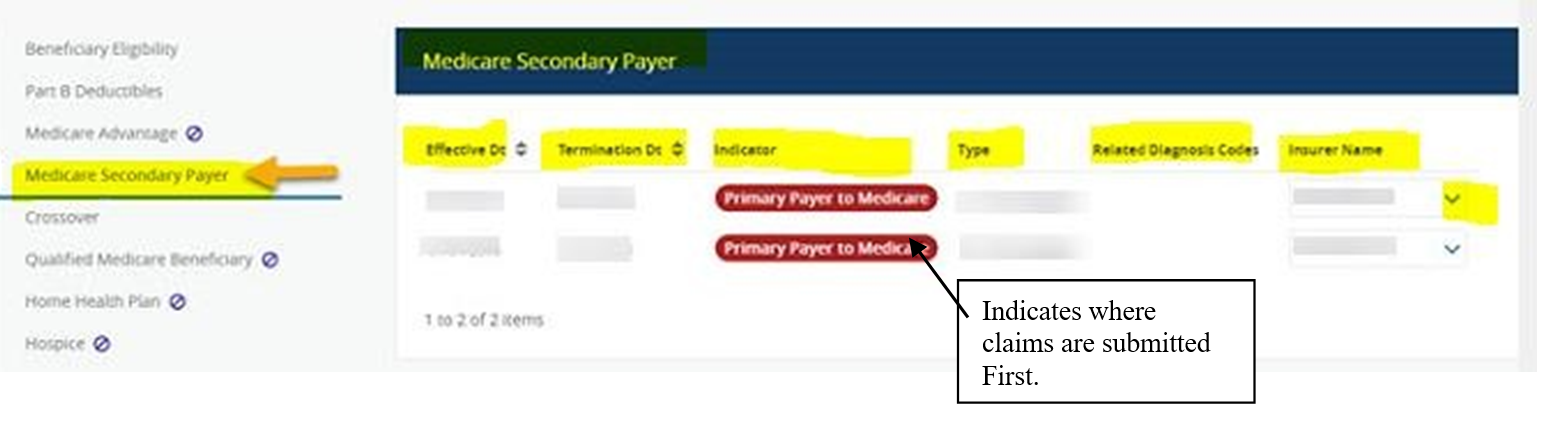
- Medicare Secondary Payer Information: The Medicare Secondary Payer Information panel will display information about other insurance coverage the beneficiary may have, that is primary to Medicare. The most current record will display first.
- Effective Date
- Termination Date
- Indicator – Primary Payer to Medicare will be indicated first
- Diagnosis Codes ‒ If the primary payer is limiting coverage to specific diagnosis codes, the diagnosis codes will be provided if available. If the MSP Related Diagnosis Codes field is blank there are no related diagnosis codesavailable.
- Insurer Name
-
Insurer Address – Select the drop-down arrow, the administering insurance company Name and address will display.
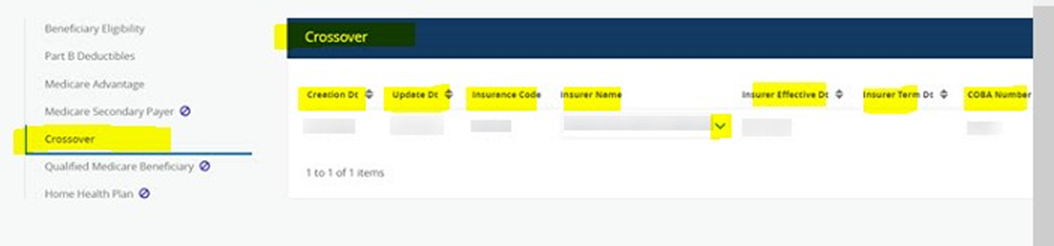
- Crossover Information (Supplemental): The Crossover Information panel will display information if the beneficiary has crossover or secondary information on file with Medicare. Crossover claims are claims that Medicare has automatically sent (crossed over) to a supplemental payer after Medicare has made its payment determination. Crossover claims are not Medicare Secondary Payer claims. If the beneficiary does not have crossover or secondary payer information on file, this panel will be blank.
- Creation Date
- Update Date
- Insurance Code
- Insurer Name – Select the drop-down arrow, the administering insurance company Name and address will display.
- Insurer Effective Date
-
Insurer Termination Date
- Home Health Plan Information: The Home Health Plan Information panel will display information if the beneficiary is currently in a home health episode of care. This is important because Adara will not be able to bill for home health services if another agency is currently active with the client. Other agencies must be contacted to verify dates of service. The Home Health Plan information will also display up to four years’ worth of historical information from the date the eligibility search was initiated.
- DOEBA = Date of earliest billing activity
-
DOLBA = Date of latest billing activity.

-
Hospice Information: The Hospice Information panel will display information if the beneficiary has currently elected to receive hospice care or has elected to receive hospice care in the past. All benefits periods and NOEs will be provided. The Hospice Information panel will be blank when there have been no claims received by CMS.

Note: Adara Home Health cannot overlap hospice unless we are seeing client for something totally unrelated – Hospice agency must be contacted to verify dates and clinical staff must confirm reason for us to be providing services that is totally unrelated.
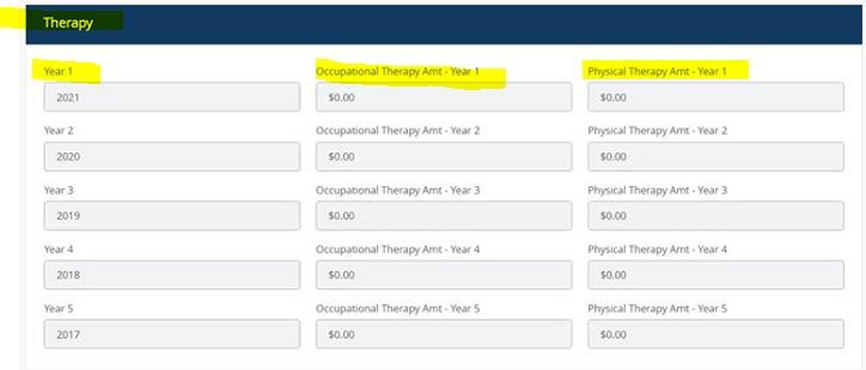
- Therapy Services Information: The Therapy Services Information panel will provide information on the current year’s therapy amounts used. The panel will display up to four years of additional therapy used, if needed.
- Occupational Therapy Amount Used – Occupational Therapy services used dollar amount applied to the capitation limit associated with the calendar year indicated.
-
Physical Therapy Amount Used – Physical and Speech Therapy services used dollar amount applied to the capitation limit associated with the calendar year indicated.
- Save the document under Printable View. You will be able to view all available Eligibility information in one document and save to the client's medical record. To do this:
- Click the Printable View button in the Beneficiary Eligibility Information panel.
- All available eligibility information will be displayed in a separate window or tab.
- Print or Save the information as a PDF in the clients medical record.
- Close the window or tab when finished viewing/printing/saving.
📅 Effective: 01.12.2021 | 🛠️ Revised: 10.23.2026 | ✅ Approved: JFJ