
O-5-292 Transition to AVD
🎯 PURPOSE
Outlines the steps to prepare for the transition to the new Azure Virtual Desktop (AVD).
🔄 PROCESS
Preparation for Transition: Each user will be required to set up a new desktop when transitioning from the 2019 desktop to AVD. Preferences, settings and files saved on the 2019 desktop will not automatically transfer over to the new desktop. Complete the steps below in the 2019 desktop to have the appropriate information available once transitioned.
- Save Email Signatures: User will need to set up signatures in the new desktop. It is recommended to save existing signatures in an e-mail or word document to view in the new desktop to prevent having to recreate.
-
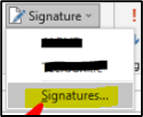
Open an e-mail and select “Signature” dropdown arrow:

-
Select “Signatures” to view multiple signatures set up:
-
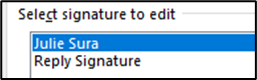
Select appropriate signature(s) to copy:
-
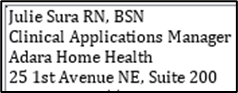
Copy and Paste full text and save in an e-mail (to view in new desktop):
-
- Save Bookmarks: These preferences will not carry over to the new desktop. Bookmarks can be saved in one of two ways: copy and paste the URL (website), or export all bookmarks for frequently used websites.
- Copy and Paste URL (website):
- Open Google Chrome
-
Copy and paste URL (website) for all bookmarks into a word document or e-mail:

- Export Bookmarks:
-
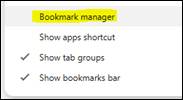
Right click on the bookmarks toolbar and select “Bookmark Manager”:
-
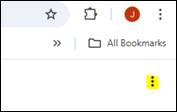
Select the three dot menu in the right corner (under the bookmarks toolbar, not the main Google Chrome window):
-
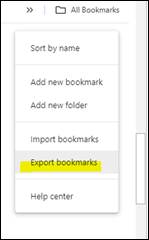
Select Export bookmarks:
-
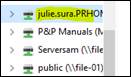
Save to Employee H Drive or T Drive:
-
- Copy and Paste URL (website):
- Save files to H Drive or T Drive: Any items that are not saved to the H Drive (employee/user), or the T Drive will not be accessible when logging into the new desktop. This includes files saved directly to the Desktop, Documents, Downloads and Pictures folders

📅 Effective: 6/8/2026 | 🛠️ Revised: | ✅ Approved: JS