
O-11-100 Per Visit Worker Rate Set Up and Assignment
👤 ROLE
Business Manager, Area Manager, or Designee
🎯 PURPOSE
HCHB was initially designed for applying broad pay rates across wide employee types where all the employees in the type were paid the same. A Worker Rate Set was created and then that Worker Rate Set was assigned to all the employees in the employee type.
That is not how current pay practices occur so we need to adapt to the system. Thus for each worker with a unique per-visit pay rate, the branch will need to create an individual Worker Rate Set and then assign that Worker Rate set to the individual employee.
🔄 PROCESS
-
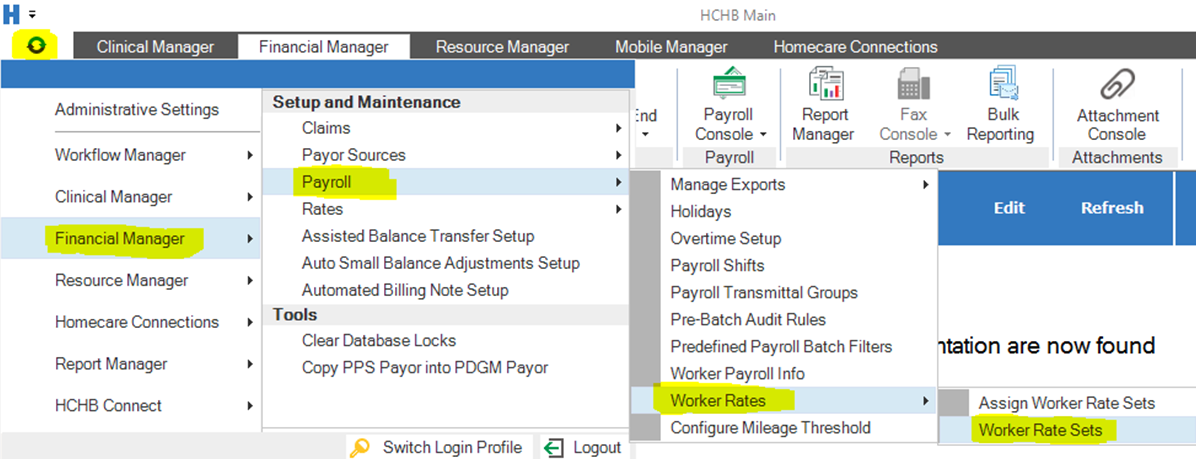
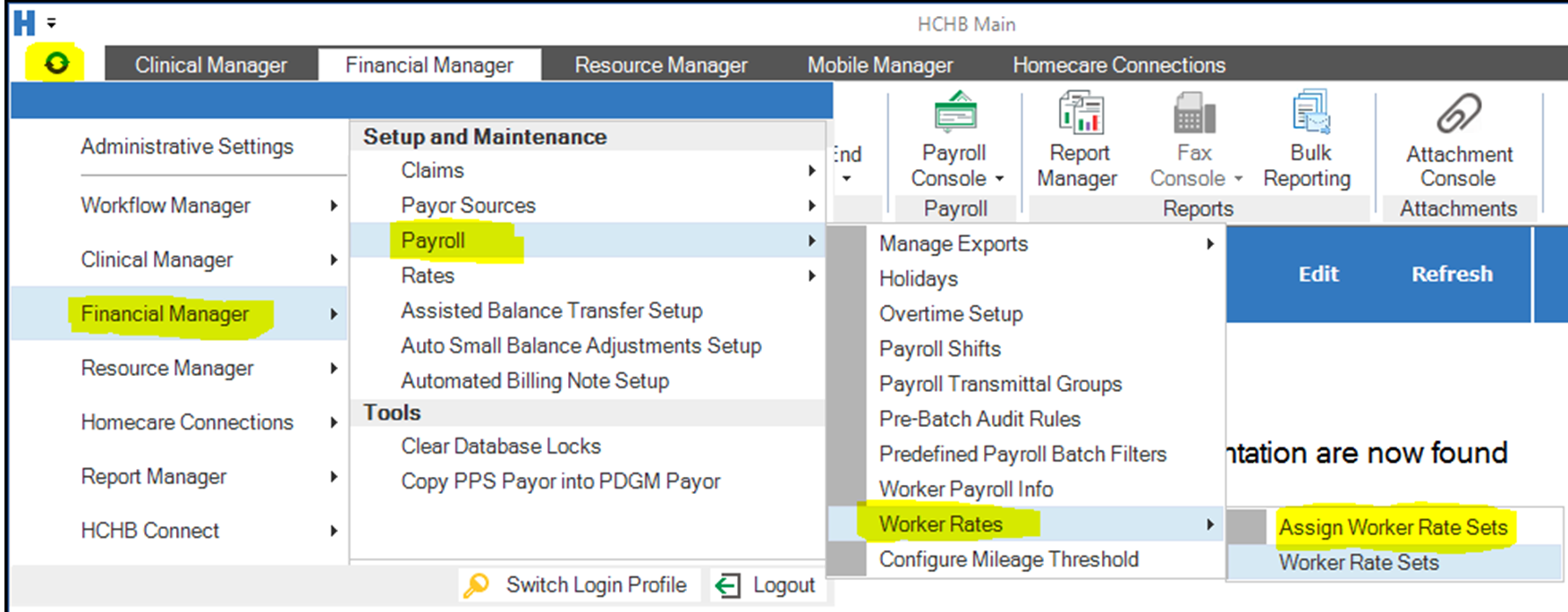
Navigate to the Worker Rate Set setup page by navigating to the Orb > Financial Manager > Payroll > Worker Rates > Worker Rate Sets screen.
-
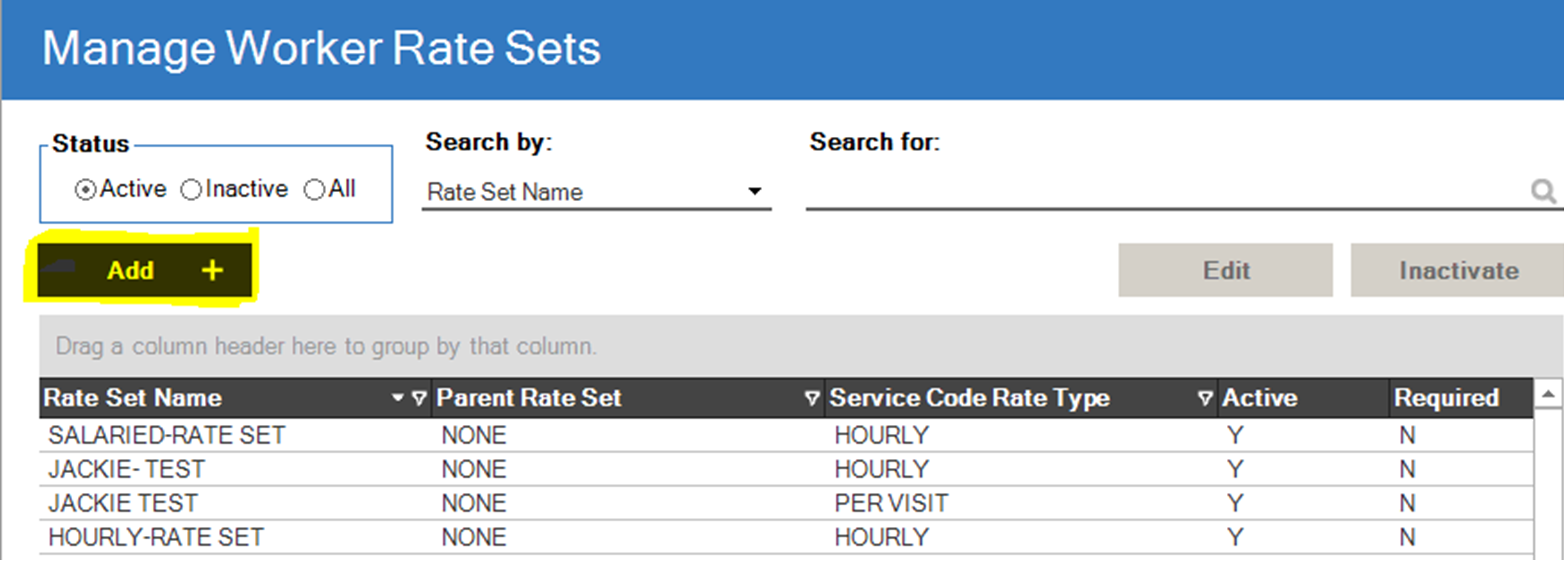
The Manager Worker Rate Sets screen will open showing the existing Worker Rate Sets. Select Add from the screen to create a new Worker Rate Set. In this process we will create two rate sets, a Regular and a Holiday rate set.
-
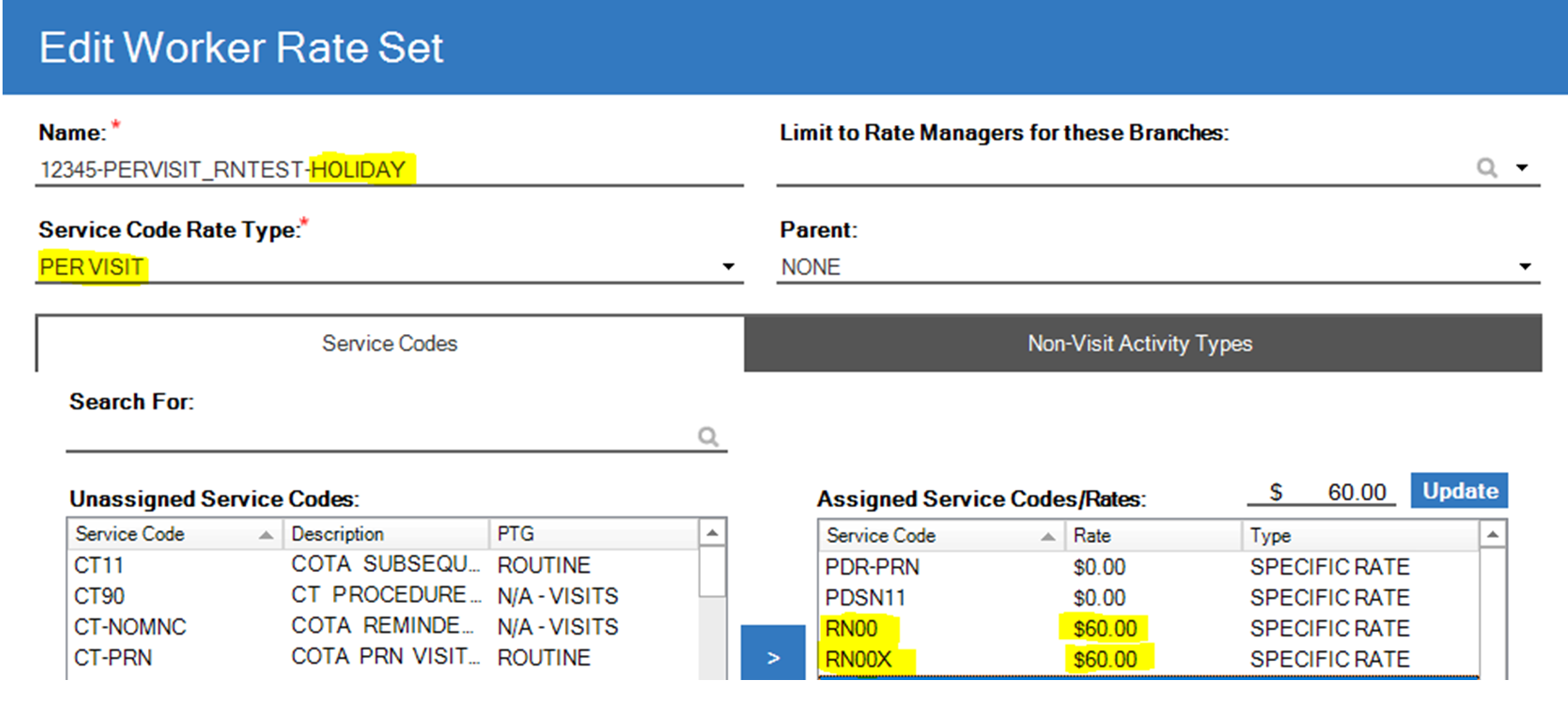
Name the Worker Rate Set according to the template of WorkerID#-FirstInitialLastName-Regular and select the service code rate type of PER VISIT. Leave the other fields blank.

In this example, the Worker ID# is 12345, the FirstInitialLastName is PERVISIT_RNTEST, and the last part is either Regular (as opposed to Holiday). -
The bottom section is where we select the payable Service Codes and assign a rate to each and it is also where we select Non-Visit Activity Types. There needs to be an assigned rate code and rate to each possible service code the employee will be performing. This only applies to the visit service code and not the buddy service codes. You can hold the Ctrl or Shift buttons to multi-select Service Codes and update them all at once.
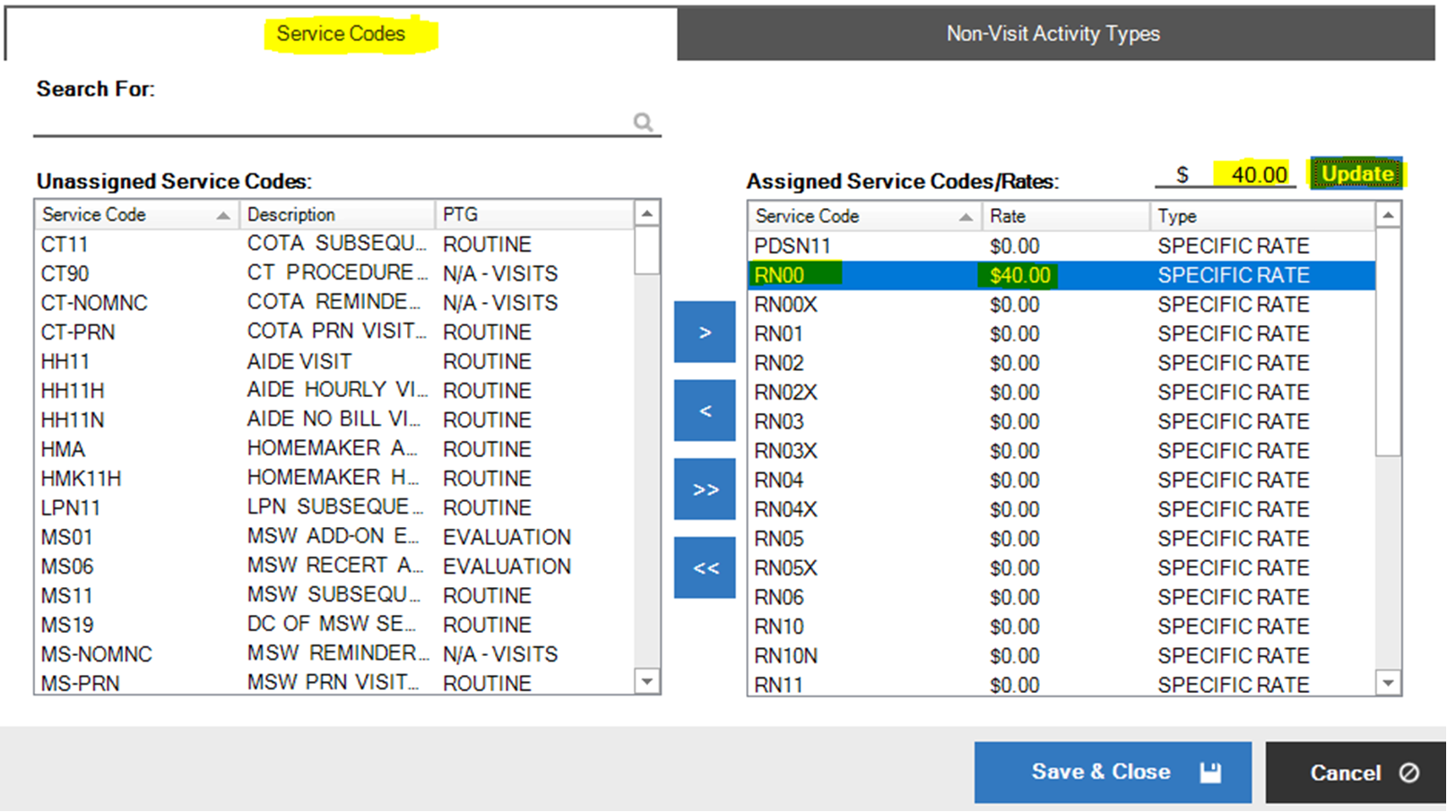
Refer to the Adara Home Health Service Code Tip Sheet O-12-910 for applicable service codes to assign.
- Next, we need to add Non-Visit Activity Types by selecting the right tab and then assigning the Non-Visit Activity Types.
- Any Non-Visit Activity assigned with rate type Hourly should be left at $0.00. The Non-Visit Activity just collects the hours, the pay rate will pull from the payroll system when it imports.
-
Any Non-Visit Activity assigned with rate type Per Quantity will need to have the associated rate of pay. For example, the Attempted Visit rate listed should be 0.5x the hourly rate of pay.
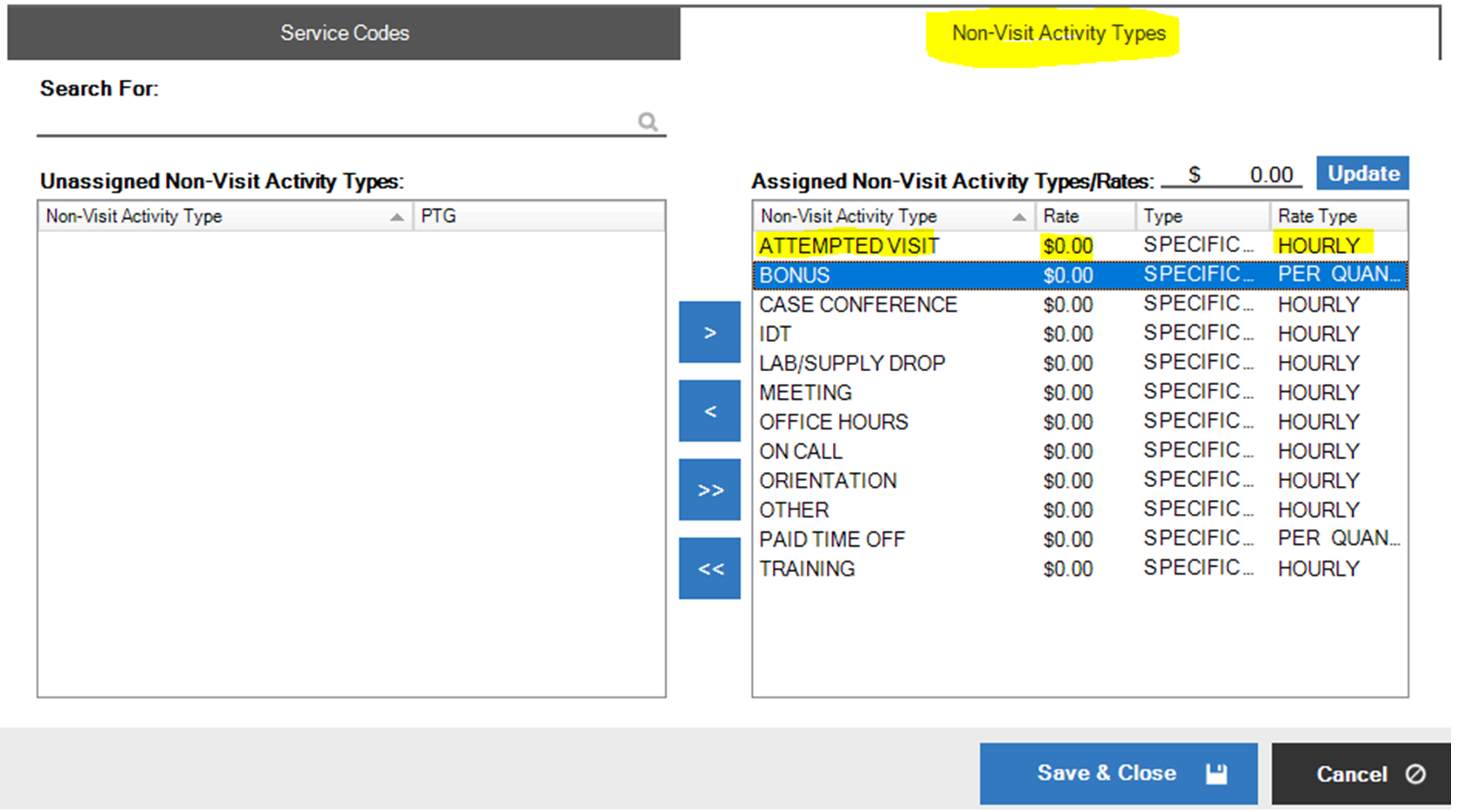
Refer to the Non-Visit Activity Description tip sheet for applicable Non-Activity O-12-920 types to assign.
-
Next, we need to create another rate set for holiday pay. Follow steps 2 through 5 again but replace “Regular” with “Holiday” in the Rate Set name and substitute the regular visit rates with holiday visit rates (150% of regular rate). When we assign the worker rate set to an employee, we will identify when to use the Regular rates vs the Holiday rates and the system will then use the Holiday rates we setup in this Holiday rate set.
-
The last stage of the worker rate sets is assigning the Worker Rate Set we just created to the worker we created it for. Navigate to the same menu the Worker Rate Sets were located and select the Assign Worker Rate Sets option in the menu.
-
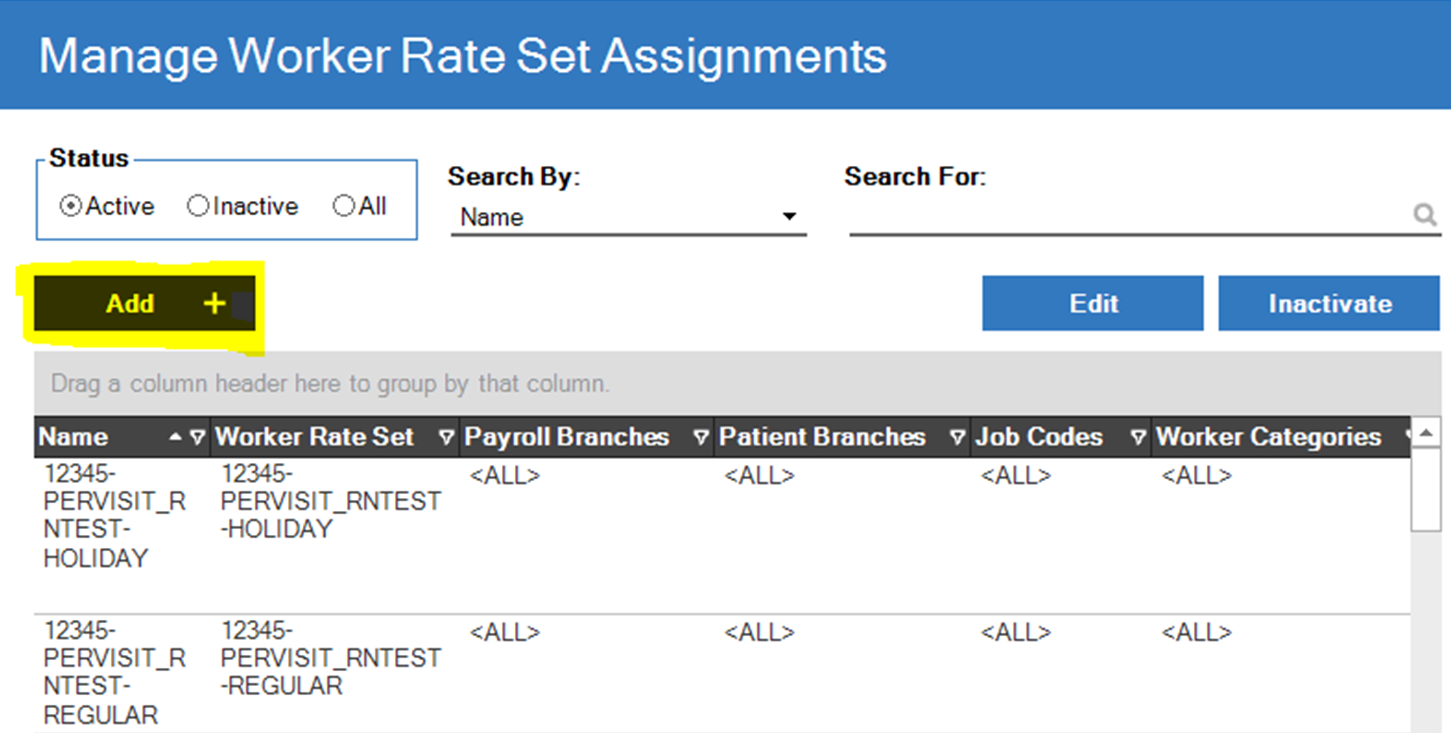
Select the Add button to create a new Worker Rate Set Assignment.
-
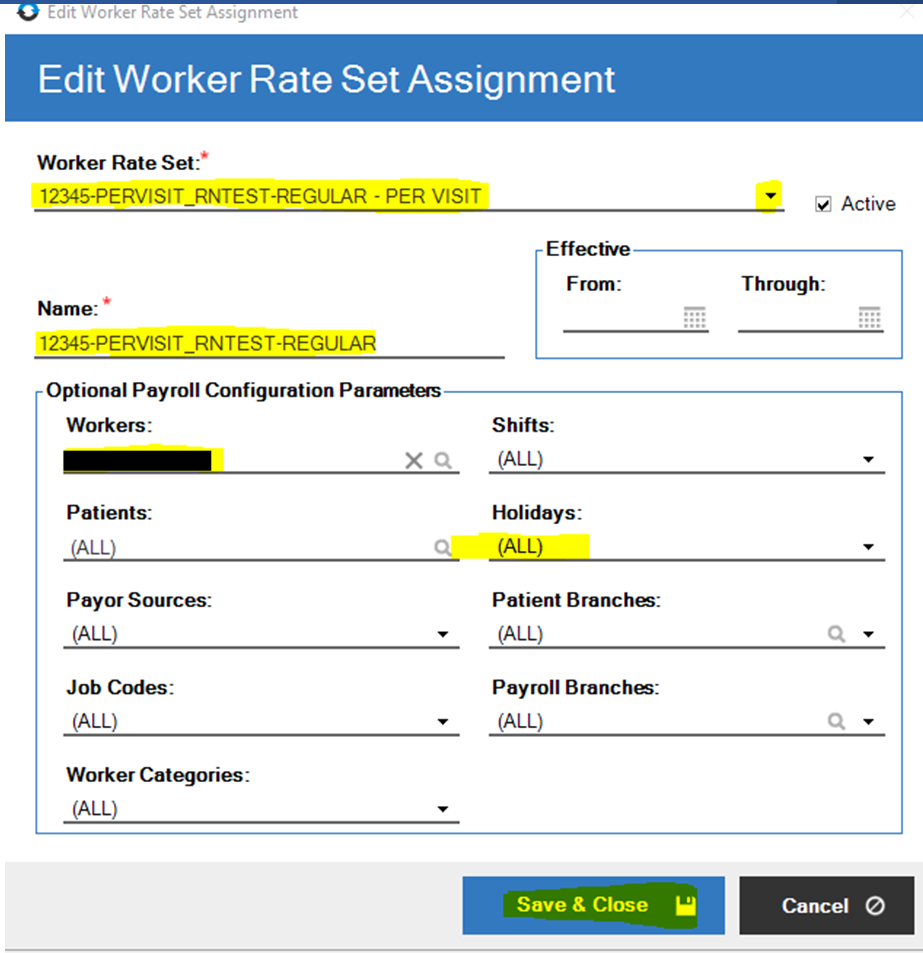
Select the Worker Rate Set we just created for Regular hours from the Worker Rate Set drop down menu. Name the new Worker Rate Set Assignment that same name as the actual Worker Rate Set. Then select the worker to whom this rate set applies.
-
Next, unselect all the holidays in the Holiday list. When you select Done and return the setup page, it will still show (ALL) but don’t worry about that. Leave everything else as the default (ALL) option.
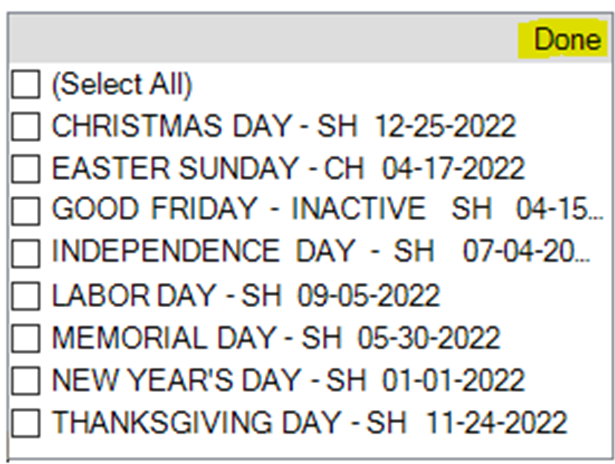
- Select Save and Close to complete the Rate Set Assignment.
-
Repeat the same process for the holiday Worker Rate Set. Name the assignment the same as the rate set and select the worker.
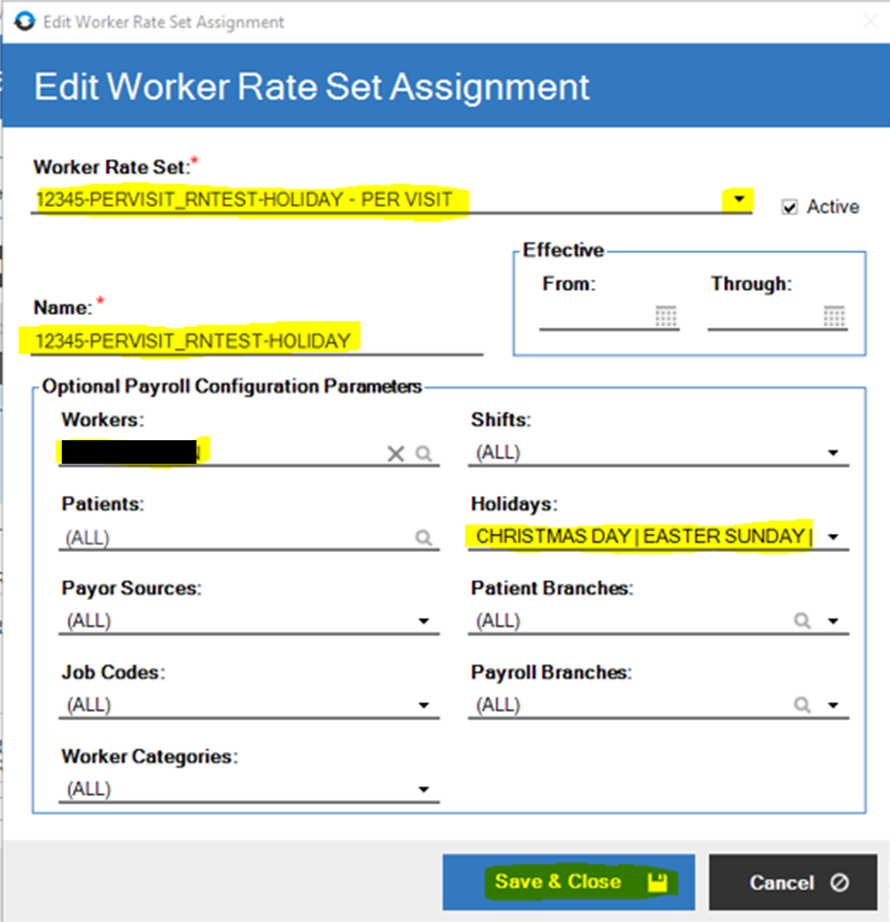
-
Edit the holidays but select all the holidays for which Adara pays holiday and select Done.
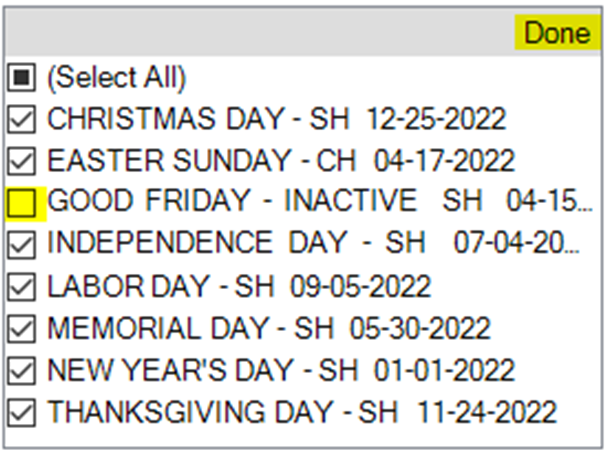
- Then click Save & Close to complete the process.
📅 Effective: 05.03.2024 | 🛠️ Revised: 07.01.2026 | ✅ Approved: AM, JFJ