
O-5-138 Enable Call Forwarding for Time Away from Work in Zoom Desktop App
These instructions are for the users enabling call forwarding within the Zoom desktop app. For directions on how to set up call forwarding from the Zoom mobile app, click here.
👤 ROLES
All Office Staff
This process is written for office staff members. Field staff should follow F-5-139 Enable Call Forwarding for Time Away from Work in Zoom Mobile App instead.
🎯 PURPOSE
When office staff are away from work, incoming calls to their line may be handled in various ways depending on direction from branch management. In some cases, employees may update their voicemails to out of office messages, or employees may not have given out their direct dial externally, and this process would not be needed.
Another option is that the employee can turn on call forwarding at the beginning of their time away from work (e.g. at 5pm on the last business day prior to their time away from work) to be routed to the general branch office number. Call forwarding enables two things:
- Routes phone calls received at that employee's phone number to the office to be addressed.
- Prevents the employee's Zoom Phone from ringing on their cellphone and/or tablet mobile app during their time away from work.
Supervisors: if needing to verify that a user has call forwarding enabled, call the user's extension to see whether the phone call routes to the expected destination. In the unusual circumstance that you need a user's call forwarding set up, reach out to support@adarahomehealth.com
🔄 PROCESS
-
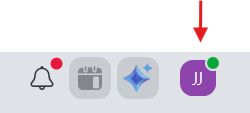
In the desktop Zoom app, click your user icon, which has your first and last name initials.
-
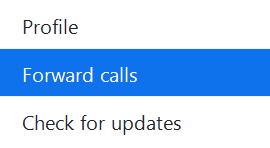
From the dropdown menu, select Forward calls.
- A call forwarding pop-up window will open.

- The call forwarding options will open. There are two options for call forwarding, but only one option should be selected: Forward to a name, number or extension
-
In the call forwarding options pop-up window, select Forward to a name, number, or extension

- In the Forwarding contact field, search for and select your branch in the Forwarding contact by the using the following extension codes:
- 2300 = Buffalo Office
- 2400 = Rochester Office
- 2700 = Mankato Office
- 2800 = Hutchinson Office
- 2900 = St. Cloud Office
- 2100 = Blaine Office
- 2200 = Mendota Heights Office
- 2000 = Corporate Office
For example, if you are a Buffalo branch employee whose calls should be forwarded to the main Buffalo office phone number, you would search for 2300 and then select the Adara Buffalo contact which is found.

The selected branch number would then appear in the Forwarding contact field:

-
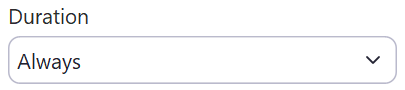
In the Duration dropdown, select Always.
-
Change the selection for Play my voicemail greeting if call is not picked up so that it is toggled OFF.

Ensure this toggle is turned off as in this example.
⚠️ Warning ⚠️
It is very important to ensure this setting Play my voicemail greeting is toggled OFF. If this is incorrectly left on, voicemails will still be sent to your voicemail inbox and will not reach the office.
-
Then, select Turn on in the lower right.
-
When you are in the Phone tab in the Zoom app, you will now be able to see that call forwarding has been turned on.

Later, after your time away from work has occurred:
When you later return to work, you will need to turn off call forwarding. The easiest way to do this is under the phone tab in Zoom, where you will see this message:
Click Turn off to end the call forwarding. That is the only step needed to end call forwarding.
📅 Effective: 07.01.2026 | 🛠️ Revised: N/A | ✅ Approved: JFJ