
O-14-307 Mileage Audit Report - Identify Excessive Mileage
This process is completed as part of the larger overarching process O-11-104 Weekly Payroll Pre-Batching, which you should reference to ensure this process is completed at the correct time in sequence with other related processes.
👤 RESPONSIBLE POSITION
Business Manager
🎯 PURPOSE
This task identifies any excessive mileage so that, if inaccurate, it can be corrected prior to payroll. Excessive mileage amounts, if left uncorrected, can cause incorrect pay for paraprofessional staff and inaccuracy in mileage reporting for all workers. Excessive mileage often indicates an unmapped or incorrect pinned GPS location that must be corrected.
Note: If when reviewing this report there are any visits remaining on the worker schedule report or scheduling requests report (as reviewed in payroll pre-batching tasks 1 and 2) this report must be run and reviewed a second time after these visits are completed.
Do not complete the task until all scheduled and requested visits have been addressed to ensure no visits are omitted from all steps of review required by the overall payroll pre-batching process and sub-processes.
🔄 PROCESS
-
Open the task, which appears like this in workflow:

If running this report throughout the week outside of workflow to work ahead:
- In HCHB Report Manager, navigate to: Financial Manager > Report Manager > Mileage Audit Report
-
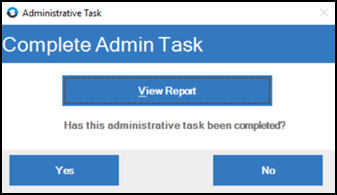
Select View Report.
-
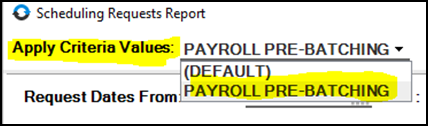
A pop-up window will open, loading the criteria for the report. In the dropdown for Apply Criteria Values in the upper left, select PAYROLL PRE-BATCHING.
- The criteria will load with the following. Update the criteria in the two highlighted fields:
- Activity Date From… To: These dates should be the week beginning and week ending date for the week prior to the week you are in.
-
Payroll Branches: Select your home branch.

-
The miles exceeding field will default to 50 miles. This amount may be adjusted based on the service area of the branch if needed.

- If any visits or non-visit activities pull on the report, review each item to identify whether the mileage is incorrect or if it is accurate.
- Identify the client locations to/from which the worker was travelling that generated the excessive mileage. If the mileage is not corresponding (e.g. the clients live 5 miles apart but a mileage amount of 85 miles is calculating) we can deduce that something has been mapped incorrectly.
- Larger amounts such as 55 miles may be accurate if the worker is covering a large territory that day.

- If any incorrect mileage is found, this is likely a result of an unmapped address or incorrect GPS pin location. If this occurs:
- Navigate to clinical input for that client.
-
Verify the address is entered correctly (correct it if it is not).

- Open the service location and validate the address in mapping by selecting the location pin icon, which may be either red or green.
- Note: if the pin is displaying as green at this point it does not indicate that the address is mapped correctly; it may still need the location moved if it was validated incorrectly.
-
After you have pinned the correct location in mapping, click Save & Close. The location pin should now display as green.

- Rerun the mileage audit report from the criteria window to ensure the correction has processed and the mileage is now correct.
-
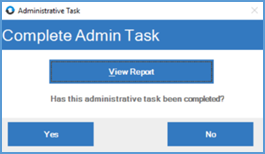
After all visits are addressed and all issues have been resolved, mark the administrative task as complete by returning to the administrative task window and selecting Yes.


📅 Effective: 08.21.2025 | 🛠️ Revised: 05.14.2026 | ✅ Approved: JFJ