
O-14-305 Address Resolution Console - Correct Unmapped Addresses
This process is completed as part of the larger overarching process O-11-104 Weekly Payroll Pre-Batching, which you should reference to ensure this process is completed at the correct time in sequence with other related processes.
👤 RESPONSIBLE POSITION
Business Manager
🎯 PURPOSE
Review of the Address Resolution Console identifies unmapped addresses. Correcting these addresses prevents errors in accuracy of mileage, travel time, and worker pay.
🔄 PROCESS
-
In workflow, the task appears like this.

-
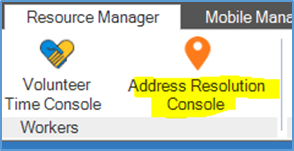
To access the Address Resolution Console, navigate to your HCHB Main screen and click on the Resource Manager tab. Select Address Resolution Console. The Address Resolution Console will open in a new window.
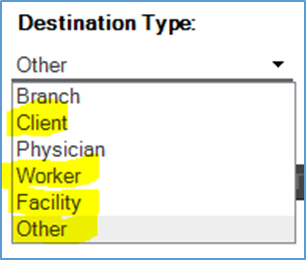
- When reviewing addresses, look for addresses under the following destination types:
- Client
- Worker
- Facility
- Other
-
Navigate between these different types via the dropdown in the upper left of the console.
-
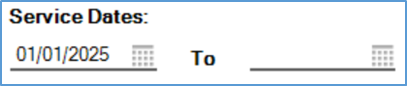
Update the service dates range to a start date of 01/01/2025 and leave the end date blank.
-
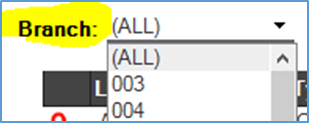
When viewing destination types Client and Worker, also select your individual branch from the Branch dropdown field, located on the upper left, to show addresses for your branch location.
-
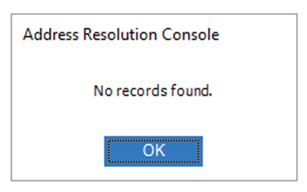
If you select a category and there are no unmapped addresses found, you will receive this pop-up window below. Click OK and move on to select the next destination type needing review.
If an unmapped address populates under any destination type, complete steps 8-10 for each unmapped address.
-
Select the address.

-
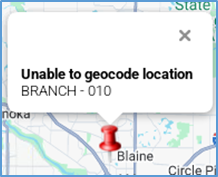
The pin will automatically appear on the map with the message Unable to geocode location.
- Identify what data in the address may be causing the difficulty in locating the address and resolve the issue. Three common causes and their solutions are listed below as Scenarios A, B, and C.
- Scenario A: Incorrect Zip Code
- Issue: The zip code is incorrect. This can be determined as the cause by searching online for the street address and city to see if there is a discrepancy between that result and HCHB.
- Solution:
- Change the ZIP code field to the correct zip code.
-
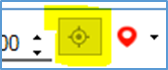
Select the bullseye icon in the middle right of the window.
- The map should update and the red pin in the center of the map should show the correct mapped location for the address.
- If the map has updated correctly, select the red pin in the center of the map, which will cause the Save & Stay button to turn blue.
- Select Save & Stay.
- Scenario A: Incorrect Zip Code
b. Scenario B: N/A Address
- Issue: The address is listed as N/A. This is due to a non-admitted client whose chart did not have any address data entered.
- Solution:
- Select the red pin in the center of the map. This will cause the Save & Stay button to turn blue.
- Select Save & Stay.
c. Scenario C: Apartment Number
- Issue: An apartment number included is preventing the address from being located.
- Solution:
- Temporarily remove the apartment number from the Street field, but take note of the number prior to deleting it as this will be added back into the Street field later.
-
Select the bullseye icon in the middle right of the window.
- The map should update and the red pin in the center of the map should show the correct mapped location for the address.
- Add the apartment number back into the street address.
- Select the bullseye icon again. The mapped location should remain the same, showing the correct address location.
- If the map is correct, select the red pin in the center of the map, which will cause the Save & Stay button to turn blue.
- Select Save & Stay.
- After resolving all unmapped addresses for the destination types Client, Worker, Facility, and Other, return to HCHB Workflow.
-
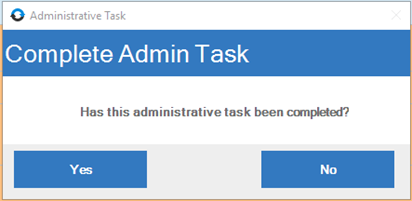
Open the Administrative Task. Select Yes to mark it complete.
📅 Effective: 08.21.2025 | 🛠️ Revised: 05.14.2026 | ✅ Approved: JFJ