
O-14-301 Scheduling Requests Report - Identify Unscheduled Visits (Payroll Pre-Batching)
This process is completed as part of the larger overarching process O-11-104 Weekly Payroll Pre-Batching, which you should reference to ensure this process is completed at the correct time in sequence with other related processes.
If you are looking for the staffing/scheduling resource for identifying visits that need to be assigned, please instead click here for that process.
👤 RESPONSIBLE POSITION
Business Manager
🎯 PURPOSE
Review of the report found in this task identifies any visits which are in an unscheduled (unassigned) status and ensures that all requested visits are addressed.
When this report is reviewed by the Business Manager as part of payroll pre-batching at the beginning of the week, as directed in this process, the report should be entirely blank. If not, those unassigned visits must be addressed by the Clinical Supervisor and/or Staffing Manager. The Business Manager must not mark this task as complete until the report is empty.
If you proceed to review other reports in payroll pre-batching prior to this task being complete, know that the reports must be reviewed a second time in full context of anything potentially affected to ensure no visits are omitted from all steps of review required by the overall payroll pre-batching process and sub-processes.
🔄 PROCESS
-
In the Administrative Tasks tab of the Worker Console, the following task populates weekly every Monday morning at 8:00am. Open the task.

If running this report throughout the week outside of workflow to work ahead:
- In HCHB Report Manager, navigate to: Financial Manager > Report Manager > Scheduling Requests Report
-
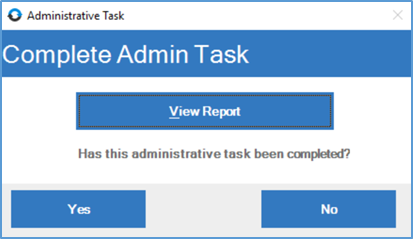
Select View Report.
-
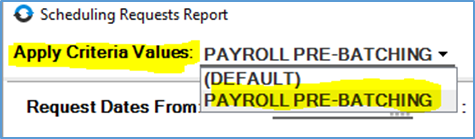
A pop-up window will open, loading the criteria for the report. In the dropdown for Apply Criteria Values in the upper left, select PAYROLL PRE-BATCHING.
- The fields will load with the criteria in the screenshot below. Add/edit criteria in the two highlighted fields:
- Request Dates From…To: Enter a date in the Request Dates … To field. The date in the To field should be the week ending date for the week prior to the week you are in.
-
Branches: Select your branch location.
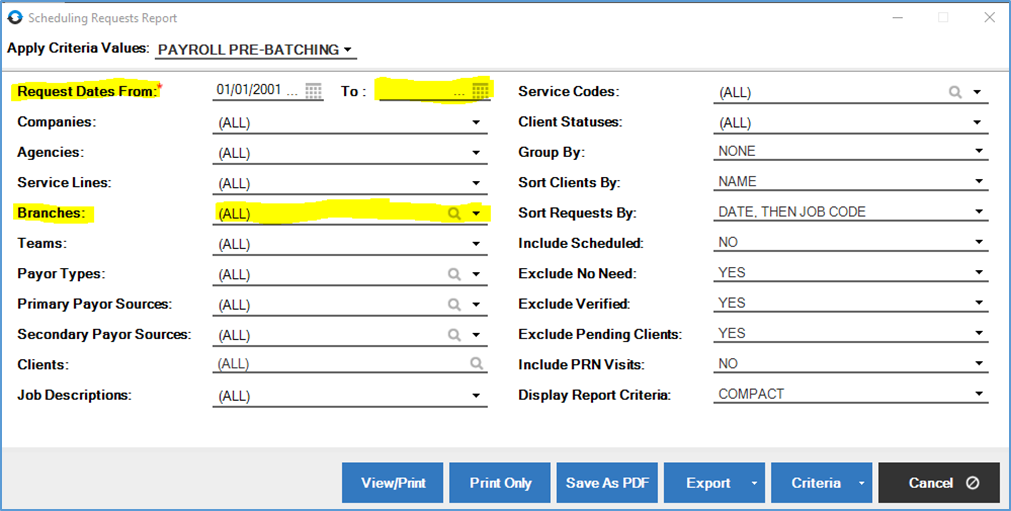
- Select View/Print to view the report.
- The report should be blank. When the report is empty, it demonstrates that no visits are unassigned within the selected date range.
If any visits populate, escalate them immediately to the Clinical Supervisor (for any professional visits) and/or the Staffing Manager (for any paraprofessional visits), as the visits have either not been properly processed as missed or the visit has not been performed as ordered, which could have major impacts on client care.
DO NOT continue and mark this administrative task as complete until this report is empty.
-
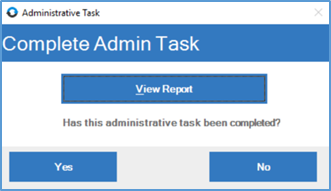
When the report is empty, return to the administrative task window and select Yes to indicate that the task has been completed.
📅 Effective: 08.21.2025 | 🛠️ Revised: 05.14.2026 | ✅ Approved: JFJ