
O-11-402 Add Supply Requisition to Client
👤 RESPONSIBLE POSITION
Business Manager or Designee
🎯 PURPOSE
If certain non-routine supplies are required during a home care episode under an episodic payer such as Medicare-NGS or qualifying Medicare Advantage plans. For qualifying payers, Adara must provide the client the supplies in conjunction with the skilled services provided.
Reference O-11-918 Payer Guidelines if needing to check whether a specific plan qualifies to have supplies provided under it.
In most cases, the clinician is able to order the supplies through PointCare which connects with Medline and is routed to the Clinical Supervisor for approval.
In some cases, supplies may need to be ordered externally through Medline.com or another supplier. A common reason for this is that the specific supply is not available for selection in PointCare and was ordered external of HCHB. In these cases, the back office must manually enter the supply into the client’s chart so that its details will pull to the claim. This task must be completed weekly.
🔄 PROCESS
- The Business Manager obtains a list of supplies ordered for clients, typically through Medline.
Medline Invoice Reports are sent to each branch’s Business Manager weekly by the corporate Administrative Assistant, typically on Mondays.
- The following steps are completed individually for each client who has had supplies ordered.
- Viewing the list of supplies, identify the client.
-
In HCHB Clinical Input, search for the client.

- Select the client’s episode so it is highlighted in blue. If there are multiple episodes to choose from, select the episode that contains the dates during which the orders were supplied.
-
In the bottom of the Clinical Input window, select Medical Record Info and the choose Supply Requisitions from the dropdown.
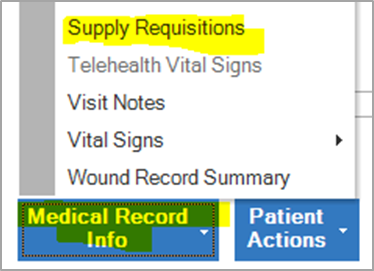
- If the supply item listed on the invoice is not already listed under supply requisitions within an immediate date range, the supply requisition must be added to HCHB.
- If the supply item is already listed within the supply requisition in HCHB within an immediate date range, do not add the supply a second time; instead proceed to review the next supply item and/or the next client.
- Supplies ordered multiple times for the same client but in separate weeks (on different invoices) should be added in separate supply requisitions as many times as ordered.
-
To add the supply, select Add Requisition. A pop-up window will open.

Under Supply Vendor, select Medline.

Under Supply Delivery Method, always choose FROM STOCK ROOM TO CLIENT.

- The client’s address will auto-populate, but will not be used as the supply has been already sent when the order was approved in Medline.
-
Select Add Requisition Detail. A pop-up window will open.

Select the search icon to search for one of the specific supplies ordered for the client.

- If the exact supply is not found, add a similar item. It doesn’t have to match exactly but should be in close proximity to the supply type and the total dollar amount. Then add a comment including the actual product name and item number.
- If there is nothing similar to the supply in the list of supplies available to select, this indicates that the category of supply is not added to the 485 (indicated by no supplies in that category being available to select). In this case, connect with the Clinical Supervisor or designee so that they can add that supply category to the client’s episode via an order. After this is done, you will be able to select the specific or similar item and proceed.
- After choosing the supply, with the specific supply highlighted, click Select in the lower right of the pop-up window.
-
In the Quantity field, enter the quantity of that item that was ordered.
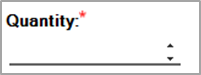
- The total cost will update as the quantity is updated. This total cost will typically not match precisely with the actual cost when we ordered the supply, but the total cost should be similar.
-
Click Save & Close. The supply will now appear in the list of supplies within the Supply Requisition screen.

-
If the supply selected is non-formulary, this pop-up window will appear. Select Yes to bypass this alert unless directed otherwise by your Area Manager.
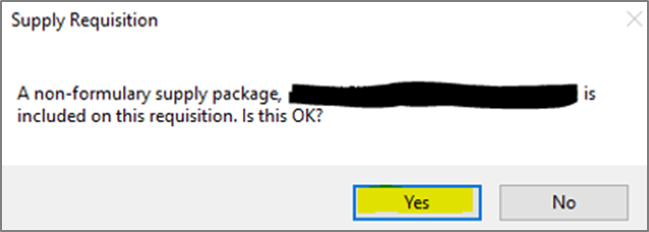
- If the client has more than one supply item, repeat steps 11-16 for each additional supply item.
-
After all supplies ordered on a specific date have been added to the supply requisition, click Save and Close while in the Add Supply Requisition for pop-up window.
19. In the Add Supply Requisition for window, select the requisition which was just entered and click Approve Requisition. You are able to do this because the supply has already been ordered; supplies which have not yet been ordered go through the Clinical Supervisor for approval.

-
When you receive this prompt, select Yes.
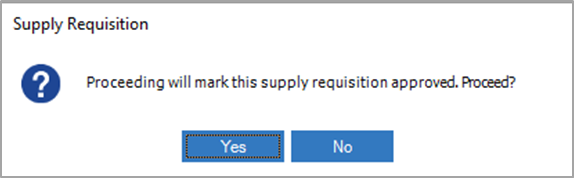
- When you receive this prompt, select No.

-
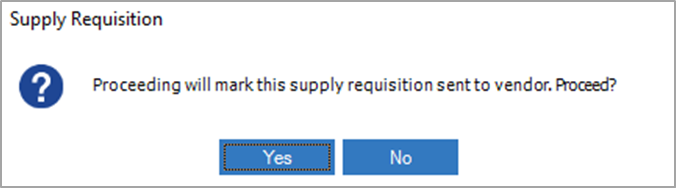
Then select Mark Sent.

-
When you receive this prompt, select Yes.
-
The approved and sent dates will appear in the appropriate fields. This completes adding a supply requisition to a client.

- Repeat steps 3-25 for each client who had supplies ordered on the supply order report.
📅 Effective: 05.09.2025 | 🛠️ Revised: 05.07.2026 ✅ Approved: JFJ