
O-14-105 Electronic Visit Verification Exception
👤 RESPONSIBLE POSITION
Business Manager (or designee)
🎯 PURPOSE
Adara must submit Electronic Visit Verification (EVV) for Home Health Services funded by Medicaid and Managed Medicaid payer sources. Staff complete documentation in PointCare and HCHB integrates with Celltrak to transmit the data to the state aggregator (HHAExchange).
EVV Exceptions occur before a visit is submitted to HHAExchange if the visit is edited or changed, or data is missing. This generates the ELECTRONIC VISIT VERIFICATION workflow task, which generates to the Business Manager responsible position in HCHB workflow. The exception is cleared by reviewing the data and adding the reason for the data change.
Once the exception is cleared, the visit will be submitted to HHAExchange for processing.
🔄 PROCESS
-
First, the ELECTRONIC VISIT VERIFICATION workflow task generates to the Business Manager. Open the task.

-
The Patient Name, Visit Date, Service Code, and Agent (Worker) Name are displayed at the top of the task:
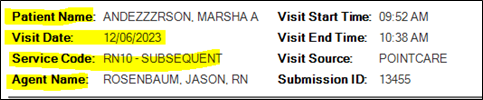
Example of task header. - Review the content of the workflow task, which differs based on the visit data, specifically looking in the Exception and Elements Changed fields to determine the type of exception.
- Below is a list of different exceptions that may generate in HCHB. Click a link below to navigate to the steps needed for that specific exception.
- Visit was modified after being verified; Elements Changed- Visit Begin Time
- Visit was modified after being verified; Elements Changed- Visit End Time
- Visit was modified after being verified; Elements Changed- Visit Paused
- Visit was modified after being verified; Elements Changed- Billing Procedure Code
- No GPS Reading Exists for the Start of Visit
- No GPS Reading Exists for the End of Visit
- Visit was modified after being verified: Visit modification data not available
Some visits may have multiple exceptions that need to be reviewed, and each exception will require a Reason and a Resolution to resolve. Depending on the Reason selected, a Memo also may be required.

You will need to address every exception included in the task.
Visit was modified after being verified; Elements Changed- Visit Begin Time
and/or
Visit was modified after being verified; Elements Changed- Visit End Time
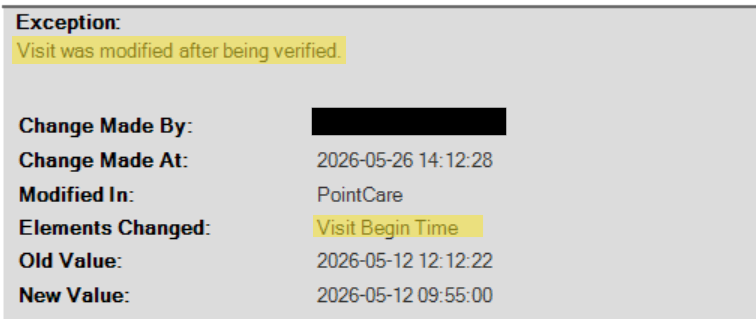
- Navigate to Clinical Input in HCHB and locate the specific client's chart.
- Review the visit note for the visit identified in the exception workflow to identify the reason for visit time adjustment.
- The clinician may have adjusted the visit time in PointCare at the completion of their visit, or the back office may have adjusted the visit time upon request or identification of an incorrect entry.
- Review Visit Time Exception coordination note (if applicable)
- Review Visit Time Change Request coordination chart (if applicable)
- Review Late Visit Documentation note(if applicable)
- Then, in the exception workflow, select the following in the Reason field's dropdown menu: Staff called in to or out of the EVV system early or late
- Select the Resolution: (select appropriate response based what was found in your follow up)
- Timesheet verified
- Supervisor approved change
- Confirmed visit with outside entity and documented
- Other (must include Reason Memo)
-
Once completed, if that was the last exception in the task, select Approve and the visit will transmit to HHAExchange.
Visit was modified after being verified; Elements Changed- Visit Paused
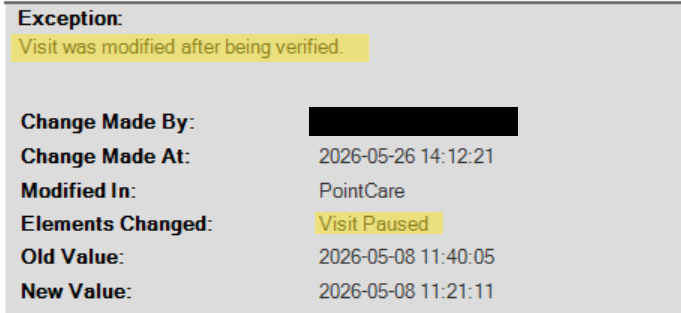
- When a clinician pauses a visit, the system adjusts the end time of the visit so the duration does not include the time the visit was paused.
- Follow up with clinician for reason for paused visit. Clinicians should only pause visits in approved circumstances.
- Review visit to confirm visit data is accurate based on the response from the clinician.
- Reason to select: Data Entry Error
- Resolution to select (select appropriate response based on follow up):
- Timesheet verified
- Confirmed visit with outside entity and documented
- Supervisor approved change
- Other
- Then, enter in the Reason Memo: Paused visit, end time adjusted
-
Once completed, if that was the last exception in the task, select Approve and the visit will transmit to HHAExchange.
Visit was modified after being verified; Elements Changed- Billing Procedure Code

- This exception generates if visit is rebilled to a payer that requires a BRTM (Billing Rate Time Modifier) to change the procedure code.
- Action to take: None
- Reason to select: Other
- Resolution to select: Other
- In the Reason Memo. enter this reason: Rebilled visit
-
Once completed, if that was the last exception in the task, select Approve and the visit will transmit to HHAExchange.
No GPS Reading Exists for the Start of Visit
and/or
No GPS Reading Exists for the End of Visit

- This exception indicates that a GPS reading was not captured at the start or end of the visit. This can be due to the address itself in HCHB, the clinician’s tablet, or the worker profile setting.
- First, navigate to the client's chart in clinical input.
-
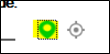
Under the Demographics tab, confirm address has been geolocated accurately by clicking on the location pin. If it is green, it means the location has been pinned successfully.
-
Next, verify worker profile has silent GPS permission enabled. This is viewed in the Worker Console under the Permissions tab of the worker profile. This field should be set to Y.

- If in both these previous steps no issue was found, follow up with clinician:
- If the visit occurred in a rural location or in an apartment building/ALF, instruct the clinician to try to get near a window when starting and/or ending the visit to capture GPS location.
- Also instruct the clinician to wait 60-90 seconds at the end of the visit to sync completed visit to allow device to capture GPS.
- Review the visit note to confirm visit data is correct and review the client signature in the visit note.
- Review Late Visit Documentation coordination note (if applicable)
- After completing follow up, return to the exception workflow task and select the Reason: Staff unable to connect to internet or EVV system down
- Select one of Resolution options below (select appropriate response based on follow up):
- Timesheet verified
- Confirmed visit with outside entity and documented
- Other (Must include Reason Memo)
-
Once completed, if that was the last exception in the task, select Approve and the visit will transmit to HHAExchange.
Visit was modified after being verified: Visit modification data not available

- In some situations, such as a rebilled visit or a payer change, HCHB will generate a visit exception, but the exact data that was modified is not available.
- In this case, follow up with billing if applicable.
- Review the visit note data to determine if there were late entry, late documentation, and/or visit date/time modifications.
- Reason to select: Other
- Resolution to select (select appropriate response based on follow up):
- Timesheet verified
- Other
- Confirmed visit with outside entity and documented
- Supervisor approved change
- In the Reason Memo: Indicate the visit data that was confirmed.
-
Once completed, if that was the last exception in the task, select Approve and the visit will transmit to HHAExchange.
📅 Effective: 08.13.2024 | 🛠️ Revised: 05.11.2026 | ✅ Approved: JFJ