
O-5-135 Set Up a Voicemail Greeting in Zoom
🎯 PURPOSE
These instructions give the steps for office staff to set up their voicemail greeting in Zoom. Every office staff member must have a voicemail greeting set up in Zoom.
This process applies to office staff only. When field staff are assigned an activated Zoom account, they will have a default voicemail assigned to them automatically.
🔄 PROCESS
- First, log in to the Zoom Web Portal. You cannot access these settings via the Zoom Application.
- In a web browser, navigate to https://zoom.us/signin
- Sign into the Zoom website with your work account.
- The website should automatically take you to your settings options. On the left, you will have menu options.
-
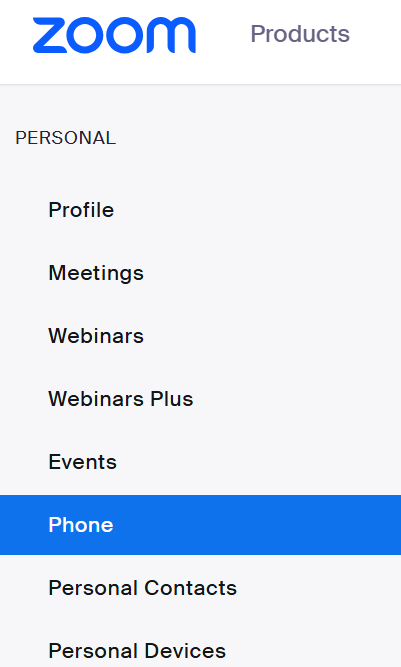
In the left sidebar, select Phone.
-
There will be a bar with tabs across the top of your screen. Select Settings.

- Scroll down to the section labeled Call Handling.
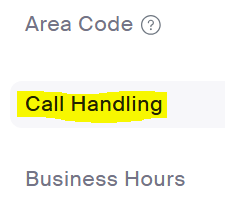
- Scroll down within the Call Handling section until you see the Greeting & Leave voicemail instruction options near the bottom of that section.

-
Click Edit.

A dropdown will open. Select Add Audio.
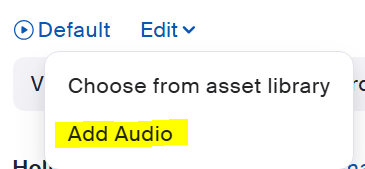
Select this option to add a new voicemail greeting. - If you have have a recording already saved in Zoom you would like to use instead of creating a new one, click here to follow those steps.
- After selecting Add Audio, a popup window will open. There will be three tabs, each for different a greeting setup option:
- Text to Speech
- Upload an Audio File
-
Record by Computer (easiest and most commonly used)

- Select your preferred greeting option from the hyperlink in step 9 above.
- The hyperlink routes you to the steps specific to that option, located in this process's appendix.
- Complete the steps specific to your preferred setup option.
-
After completing these steps, the name of your newly-assigned voicemail will appear under the Greeting & Leave voicemail instruction section instead of Default.

- Changes will save automatically - your new voicemail greeting is now active.
APPENDIX
Option A: Create Voicemail Greeting using Text-to-Speech
An alternative to recording a message is to use text-to-speech to have a generated voice read text which you enter. To use this option, having followed the process above through step 9, then complete the following:
-
Select the Text to Speech tab.
-
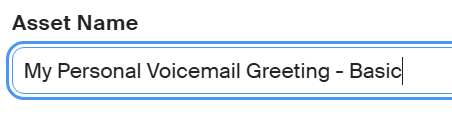
Enter an Asset Name (e.g., “My Personal Voicemail Greeting”)
-
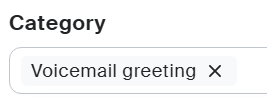
From the Category dropdown, select Voicemail greeting.
-
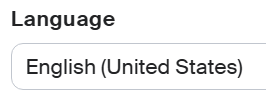
Under Language, select English (United States).
- In the box labeled Message to play, type the full greeting you want callers to hear.
- Sample Voicemail Greeting Script:
- “Hi, you’ve reached the voicemail of [Your Full Name], [Job Title] at Adara Home Health. I’m currently unavailable. Please leave your name, phone number, and a brief message, and I’ll return your call as soon as possible. Thank you.”
- Sample Voicemail Greeting Script:
- Click the Play button at the bottom of the text box to preview how the message sounds.
- Under the Voice dropdown in the upper right of the text box, there are different voice styles to select. To preview the different voices, select a name from the dropdown and then clicking the Play button to hear the automated voice read your message.
- You may select a voice which you like, but do not select an option with a child's voice.
- Once you're happy with the selections made, the text of the voicemail, and how the preview sounds, select Save in the lower right.
-
The pop-up window will close and you will now the title of the voicemail you created will now show under the Greeting & Leave voicemail instruction section.
- This completes your voicemail setup. When callers reach your voicemail, they will then now hear that assigned message.
Option B: Upload a Pre-Made Voicemail Greeting
To use this option, you will need to upload a pre-recorded.mp3/.wav file.
This option is not commonly used. If you want to use this option, reach out to your Area Manager for direction. If you then proceed with using this option and are experiencing technology barriers, reach out to support@adarahomehealth.com if needed.
Option C: Record your voicemail greeting by computer
Having followed this process through step 9, then complete the following:
-
Select the Record by Computer tab.

-
Enter an Asset Name (e.g., “My Personal Voicemail Greeting”)
From the Category dropdown, select Voicemail greeting.
Under Language, select English (United States).
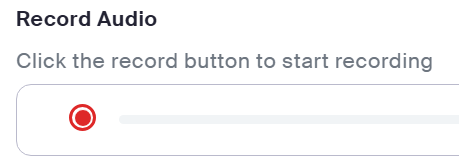
To record your message, select the record button and speak your voicemail greeting.
-
Sample Voicemail Greeting Script
“Hi, you’ve reached the voicemail of [Your Full Name], [Job Title] at Adara Home Health. I’m currently unavailable. Please leave your name, phone number, and a brief message, and I’ll return your call as soon as possible. Thank you.”
-
-
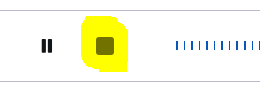
Click the stop icon to stop recording.
-
To listen to your recording, select the play icon.

-
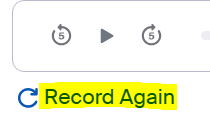
To re-record, click Record Again (your previous recording will not save).
-
When you are satisfied with your recording, select Add.

-
The pop-up window will close and you will now the title of the voicemail you created will now show under the Greeting & Leave voicemail instruction section.
- This completes your voicemail setup. When callers reach your voicemail, they will then now hear that assigned message.
Additional Option: Select an Existing Voicemail Recording
If you already have a voicemail recorded in Zoom that you would like to use, complete these steps after following steps 1-7 in the process above.
- Instead of selecting Add Audio from the Edit dropdown, select Choose from Asset Library.
-
In the list of voicemail options, select the recording you wish to use, using the play button beside the saved voicemail options to preview the voicemail(s) if needed.
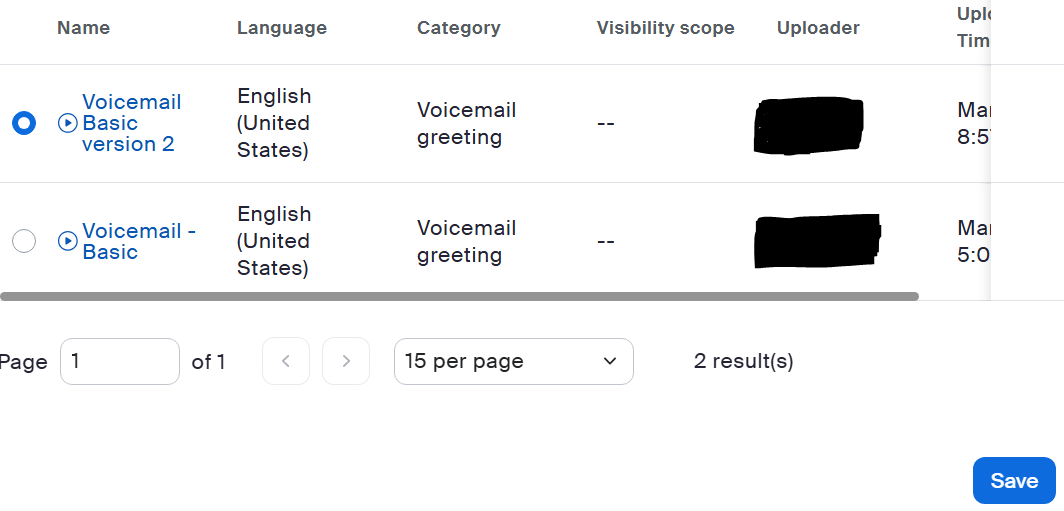
Example of a case when a user already has voicemail greetings recorded - Then click Save in the the lower right.
-
The pop-up window will close and you will now the title of the voicemail you selected will now show under the Greeting & Leave voicemail instruction section.
- This completes your voicemail setup. When callers reach your voicemail, they will then now hear that assigned message.
