
O-5-134 Assign On-Call Staff Members to the Zoom Phone After-Hours Call Queue
👤 RESPONSIBLE POSITION
Back Office
While some branches may sometimes share on-call responsibilities, the task of assigning members to the individual branch's on-call queues is the responsibility of that individual branch. This task is assigned to specific office team member(s) by each location's Area Manager.
🎯 PURPOSE
Each office location maintains a 24-hour on-call for after-hours services and holidays. At branch office locations, the on-call responsibility is split between four team members:
- on-call nurse (Nursing line)
- on-call office team member to address scheduling-related calls (Staffing line)
- on-call office team member responsible for addressing new clients/referrals (Intake line)
- on-call supervisor
When an individual calls an office location after hours, they will hear a response directing them either to leave a voicemail if the call can wait until the next business day (option 1) or to make a selection to reach a specific call queue according to the category of their need: Nursing (option 2), Scheduling (option 3), or Intake (option 4).
If a caller selects option 7, which is not mentioned in the menu and is intended for employee use only, they will be routed to the on-call supervisor.
This process details the steps to be completed by each branch to assign the team members who are scheduled to be on-call to the specific on-call queues within Zoom.
Reference HR-1-130 for more details of the on-call process and requirements.
🔄 PROCESS:
- In a web browser, navigate to https://zoom.us/signin
- Sign into the Zoom website with your work account. The website should automatically take you to the settings options.
-
On the left, scroll down through the list of user settings until you reach the ADMIN settings section.
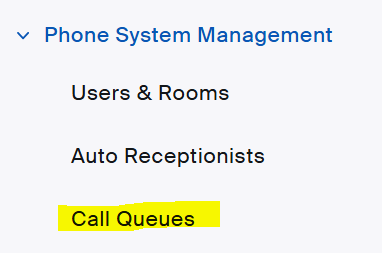
- Scroll down and select Phone System Management under the ADMIN section, which will expand a menu.
-
Select Call Queues.
- You will now see a list of the call queues to which you have been given access. For each branch location, the call queues are:
- Branch - On Call - Nursing
- Branch - On Call - Staffing
- Branch - On Call - Intake
- Branch - On Call - Supervisor
- For each call queue, complete the following steps to add or edit the members of the call queue. Each person who is added to the call queue will receive phone calls routed to that queue.
-
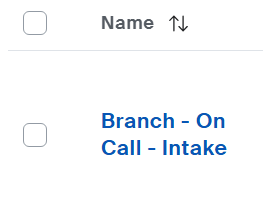
First, select the name of the call queue, for example "Branch - On Call - Intake". The details of the call queue will open.
-
One of the first sections listed will be Members. Select View or Edit. The details of the call queue, including the assigned staff member, will load.

-
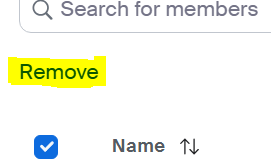
To change the assigned user, first remove the user who is currently assigned. Select the checkbox beside the employee's name, and then select Remove.
-
A confirmation pop-up will appear. Select Remove again, which will remove the member from the queue.

-
Then select Add to assign a different staff member to the on-call queue. A pop-up window will open.

-
Use the search bar to search for the user who should be assigned to the specific on-call queue.
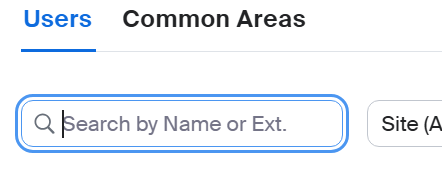
- After locating the user in the list, select the checkbox beside the staff member's name.
-
Select OK at the bottom right of the pop-up window.

- Go back to the call queue by selecting the call queue name in blue at the top of the page. The newly-assigned team member will appear as an assigned user in the queue details.
-
Next, the voicemail routing must be assigned specifically to the assigned user. Scroll down within the Business Hours section to the Overflow Field and click Edit.
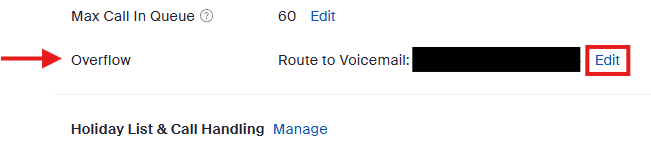
-
A pop-up window will open with Routing Option as the header.
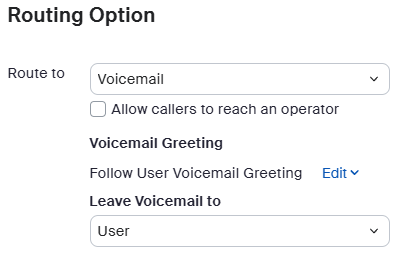
- In the Route to field, select Voicemail from the dropdown.
- In the Leave Voicemail to field, select User from the dropdown.
-
To the right of User, a second dropdown will have appeared where you will need to specify the user. Search for the correct user in this field and select their name.

- In the Voicemail Greeting field:
-
For all call queues besides the nursing line: the selection should be Follow User Voicemail Greeting. (Click Edit to change selection if needed.)

Voicemail Greeting selection for all on-call lines except nursing. -
For the nursing line: the selection will look like this:
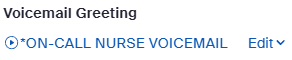
Voicemail Greeting selection for on-call nurse only.
-
-
After all selections are correct, click Save.

-
The pop-up window will close, and the overflow field should read the following, with the name of the user who is assigned to the on-call queue.

-
Select Call Queues in the menu on the left-hand side to return to the list of call queues.

- Repeat steps 8-23 for each call queue which needs its member to be reassigned.
- After assigning the new on-call personnel for the day, test each phone line (Nursing, Scheduling, Intake, Supervisor) at the end of the business day immediately at 5:00pm to ensure the phone lines route to each user as intended.

