
O-5-131 Access Zoom Application in an Office Desktop Session
👤 RESPONSIBLE POSITION | ROLE
All office employees
🎯 PURPOSE
The steps below describe how to access Zoom in an office desktop session.
🔄 PROCESS
-
Logged into your office desktop session, click the Zoom VDI Workplace shortcut which is found on your desktop.

- You may also click the start menu at the bottom of your screen and search for Zoom to launch the app.
- A pop-up window will open. If you are logged out of Zoom, follow the prompts to log in.
-
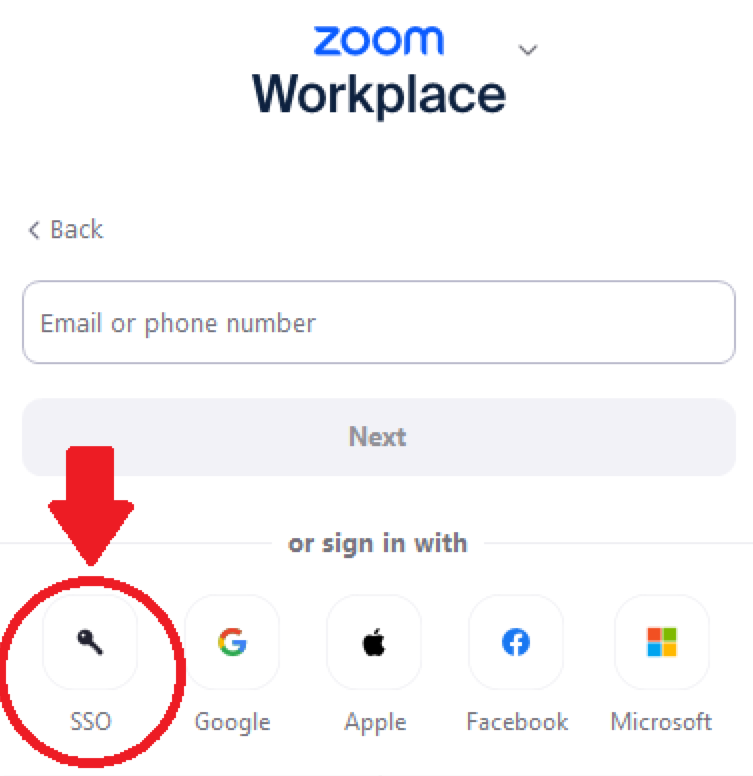
If you have single sign-on (SSO) enabled, select the option to sign in with SSO:
-
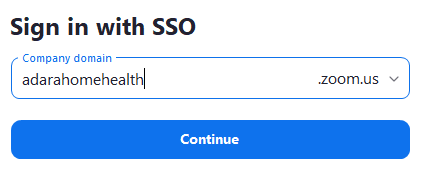
Enter the company domain, adarahomehealth, and then select Continue.
- Single sign-on prompts may populate. Follow the prompts to verify your sign-on.
-
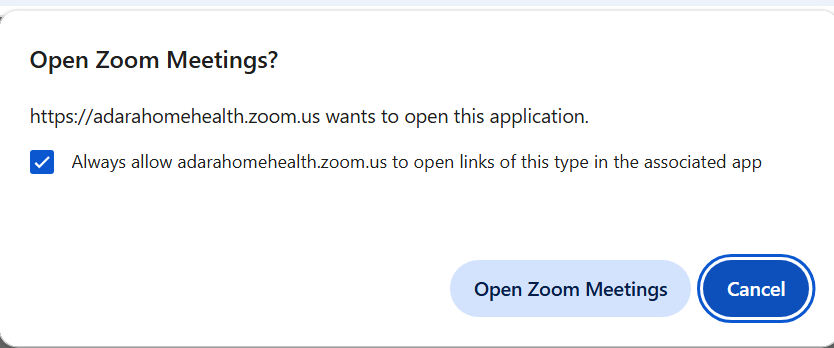
You may then receive a pop-up in your web browser asking whether to allow Zoom Meetings to launch. Select the option to "Always allow..." and click Open Zoom Meetings.
- Your Zoom application will launch, ready to use.

📅 Effective: 03.12.2026 | 🛠️ Revised: 09.08.2026 | ✅ Approved: JFJ