
O-5-212 Access the Outlook Email Archive
🎯 PURPOSE
All emails received or sent by an Adara email address (adarahomehealth.com) will automatically be saved to an archive which retains copies of all emails sent. In addition, any emails which are no longer accessible via the Outlook email application due to being deleted permanently or by a retention policy (which deletes old emails according to timeframes in place) can still be accessed via this archive. This process shows how an employee may access their email archive.
🔁 PROCESS
- In a web browser, navigate to this web address: https://mas.barracudanetworks.com/
-
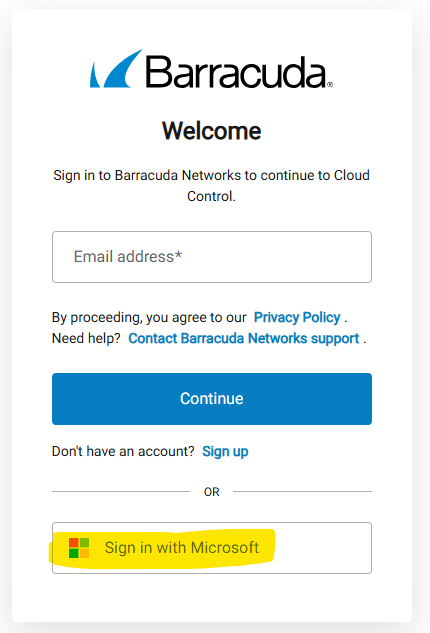
When the sign-in screen opens, click Sign in with Microsoft.
-
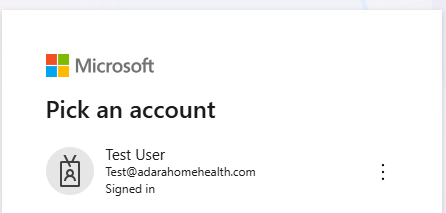
Then, log in using Single Sign-On (SSO) by selecting your work Microsoft account (which uses your Adara email address).
-
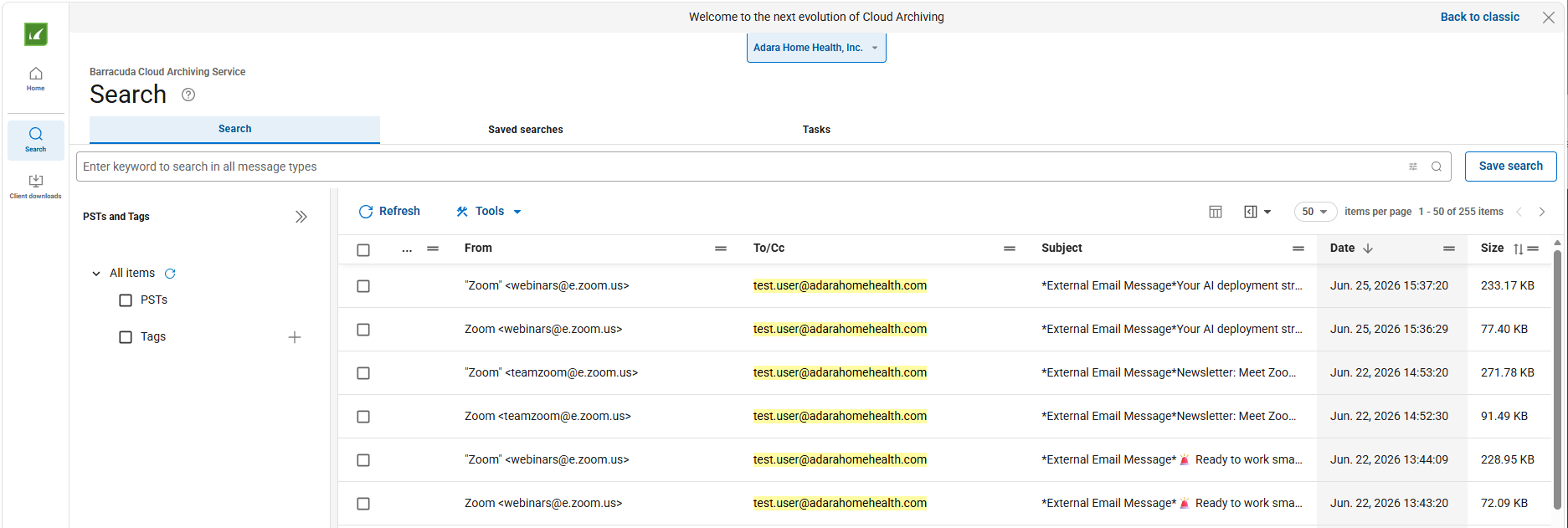
The email archive will load.
-
To search for an email, enter criteria in the search bar in the top left of the window.

-
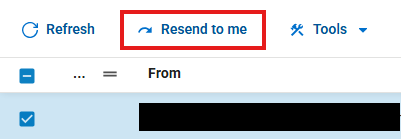
To resend an email to your email inbox, select the email and click Resend to me.
-
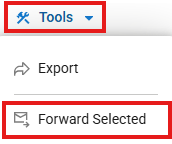
To forward an email to another Adara email address, after selecting one or more emails, click Tools and choose Forward from the dropdown. Then follow the prompts to add the email address to which the email should be sent.
📅 Effective: 02.04.2025 | 🛠️ Revised: 07.01.2026 | ✅ Approved: JFJ