
O-11-216 Edit Visit Times of a Completed Visit
👤 RESPONSIBLE POSITION
Business Manager or designee
🎯 PURPOSE
When visit time (travel time, in-home time, or documentation time) is entered incorrectly, the times must be updated whenever possible. The following steps are necessary whenever editing a visit’s time and/or date, including the required entry of a modification comment to the visit note by adding a Late Entry. The purpose of the late entry modification comment is to keep a clear record of the reason(s) edits are made to a clinician’s documentation in the medical record.
When addressing visit times needing to be edited, take note of trends for specific employees who have frequent incorrect visit time entries. Report these trends to the worker's supervisor so that they can work with employees to identify any barriers and reduce the need to edit visit times.
🔄 PROCESS
- Navigate to Clinical Input.
- Locate the client's episode containing the date of the visit which needs to be edited. Select the episode (single-click).
-
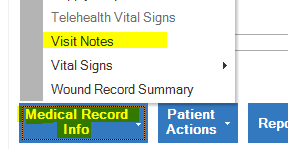
In the bottom left of the Clinical Input window, click Medical Record Info and then select Visit Notes from the dropdown.
- Locate and select (by single mouse click) the visit which needs to be edited.
-
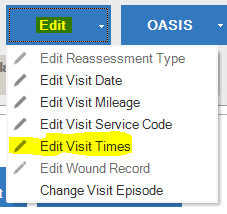
Select Edit and choose Edit Visit Times from the dropdown.
⚠️ If when you select Edit Visit Times you receive an error pop-up message referencing billing which prevents you from being able to change the visit times, the ramifications of unbilling the claim compared to the change needed must be considered before unbilling the claim.
Follow the guidelines in the appendix to determine whether the times must be edited.
If they must be edited, email clinicalsupport@adarahomehealth.com so that they can coordinate unbilling the claim so that the visit time can be corrected. After the edits have been made, reply back that the changes are complete so that the claim can be rebilled.
- Modify the visit date/time, which may include any or multiple of the following time types:
- Travel Time (T Time or TT)
- In-Home Time (Visit Time)
- Documentation Time (Doc Time)
- After all modifications are complete, close the View/Edit Visit Times window.
-
With the visit still selected from the visit list, select View Visit Note.

-
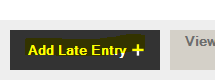
Click Add Late Entry.
-
Enter documentation explaining the reason for the modification to the clinician’s note.
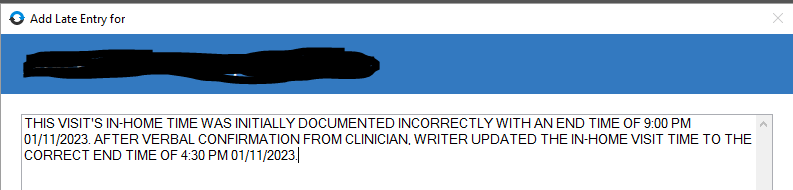
Example of Late Entry Modification Comment -
Click Save & Close.
Note: Modification comments cannot be edited after being saved. If additional edits were needed to this note, an additional late entry would need to be added.
- The Late Entry will appear inside the Late Entry text field in the visit note. When the visit note is printed, the modification comments will also appear at the end of the last page of the note. The Late Entry documentation will also be visible as a modification comment when looking at the visit in the list of visit notes.
APPENDIX
If when you select Edit Visit Times you receive an error pop-up message referencing billing which prevents you from being able to change the visit times, the ramifications of unbilling the claim compared to the change needed must be considered before unbilling the claim.
Here are the guidelines, separated according to the type of time we are looking at editing.
In-Home Visit Time
- Regardless of the worker type, if the visit time needing to be edited is In-Home visit time, then the visit times must be edited. Email clinical support to unbill the claim to allow edits. After the claim has been unbilled, proceed with the process steps 6-12.
Travel Time
- If the worker is a unlicensed field employee (Home Health Aide or Homemaker) whether salaried or hourly, this directly impacts their hourly pay and the edit must be made. Email clinical support to unbill the claim to allow edits and then proceed with the process steps 6-12.
- If the worker is a contracted staff member, the claim does not need to be unbilled to allow edits. Instead, enter a late entry with a comment explaining what the correct time actually is, as laid out in steps 8-12 of the process.
- If the worker is a salaried exempt professional licensed employee, the claim does not need to be unbilled to allow edits. Instead, enter a late entry with a comment explaining what the correct time actually is, as laid out in steps 8-12 of the process. If the travel time is greater than one hour, notify their supervisor so they are aware of this when they when they review reporting for employee time management.
- If the worker is a per-visit hourly professional licensed employee and the travel time which should be removed is less than two hours, the claim does not need to be unbilled to allow edits. Instead, enter a late entry with a comment explaining what the correct time actually is, as laid out in steps 8-12 of the process.
- If the worker is a per-visit hourly professional licensed employee and the travel time which should be removed is greater than two hours, to prevent PLT accruals being incorrectly generated for the employee, the travel time must be edited. Email clinical support to unbill the claim to allow edits and then proceed with the process steps 6-12.
Documentation (Doc) Time
- If the worker is a unlicensed field employee (Home Health Aide or Homemaker) whether salaried or hourly, they should not ever have doc time entered. This also directly impacts their hourly pay. Connect with the employee to identify the circumstances of why the doc time was entered, and specifically to identify whether the time was time worked in the client home, worked outside the client home, or if it was not time worked.
- If the doc time was not time worked, the doc time must be deleted. Email clinical support to unbill the claim to allow edits and then proceed with the process steps 6-12.
- If the doc time was time worked during a visit in the client's home, email clinical support to unbill the claim to allow edits. Proceed with the process steps 6-12, but delete the doc time line and edit the in-home time to include that worked time in the in-home time.
- If the doc time was time worked but not during a visit in the client's home, they must be paid the time worked. Create and approve a non-visit activity (NVA) under Aide Hourly Pay type and enter the time worked. This will pay the employee hourly for that time as they are not paid hourly by the doc time entry within the visit. Then email clinical support to unbill the claim to allow edits. Proceed with the process steps 6-12, but only delete the doc time line and then enter the late entry comment.
- If the worker is a contracted staff member, the claim does not need to be unbilled to allow edits. Instead, enter a late entry with a comment explaining what the correct time actually is, as laid out in steps 8-12 of the process.
- If the worker is a salaried exempt professional licensed employee, the claim does not need to be unbilled to allow edits. Instead, enter a late entry with a comment explaining what the correct time actually is, as laid out in steps 8-12 of the process. If the incorrectly-entered doc time is greater than one hour, notify their supervisor so they are aware of they when they review reporting for employee time management.
- If the worker is a per-visit hourly professional licensed employee and doc time which should be removed is less than two hours, the claim does not need to be unbilled to allow edits. Instead, enter a late entry with a comment explaining what the correct time actually is, as laid out in steps 8-12 of the process.
- If the worker is a per-visit hourly professional licensed employee and the doc time which should be removed is greater than two hours, to prevent PLT accruals being incorrectly generated for the employee, the doc time must be edited. Email clinical support to unbill the claim to allow edits and then proceed with the process steps 6-12.
📅 Effective: 05.11.2026 | 🛠️ Revised: 06.18.2026 | ✅ Approved: JFJ