
O-14-312 NOMNC Verification Process
RESPONSIBLE POSITION: Administrative Specialist
PURPOSE: This task generates daily to the Administrative Specialist for the purpose of verifying that any required Notice of Medicare Non-Coverage (NOMNC) from the previous day has been issued to the client and received back by the office. While other NOMNC-related workflow does generate in HCHB, the time-sensitive nature of NOMNC's requires timely follow-up. This task is intended to fill in an existing gap to ensure any missing NOMNC's are identified as immediately as possible so that a resolution can be reached prior to the client's discharge.
NOTE: The report used in this task generates based on NOMNC buddy codes which have been plotted by the Clinical Supervisors and completed by the clinician. If a NOMNC was not plotted on the client schedule appropriately or was marked as missed, the report will not pull that client's name.
PROCESS:
-
Within HCHB workflow, navigate to the Administrative Tasks tab.

-
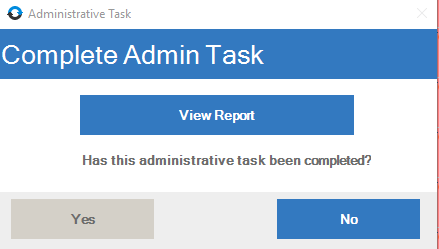
Locate the task NOMNC VERIFICATION PROCESS and double-click to open the task.

-
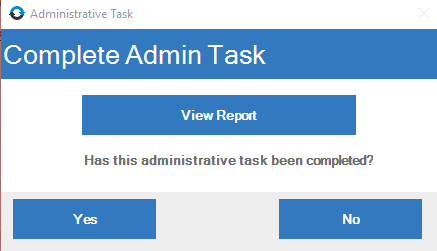
Select View Report.
-
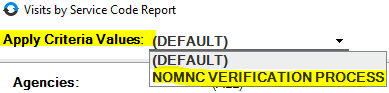
At the top left of the criteria selection window, locate the Apply Criteria Values dropdown and select NOMNC Verification Process.
- Most required fields will auto-populate, but the following fields must be selected each time the report is run:
-
Branches: Select the specific branch location if you have access to more than one branch.

-
Date From...To: In both fields, enter the date prior to the date the task generated.

In this example, the task generated on 12/04/2025; the report is run to identify NOMNC's which should have been obtained on the previous day.
-
- Select View/Print to open the report.
- If the report is empty, this means that no NOMNC's were expected to have been completed the previous date. In this case, proceed to step 13.
- If the report generates any visits, this means that NOMNC's for the clients listed should have been completed the previous date and should have already been synced back to the office.
- Complete steps 8-9 for each client whose name pulls into the report to identify whether a completed NOMNC has been received after being synced back to the office by the clinician. The document should be either attached to the client's chart in HCHB or awaiting review and attachment in Mosai.
- Identify whether the completed NOMNC has been received in HCHB.
-
In HCHB, check whether the NOMNC has been linked under the client's Patient Attachments.

- Ensure that if you locate a NOMNC under patient attachments it is from the expected date - that it is signed on the date for which the report was run.
- If the client had previously been discharged from our agency there may be another older copy associated to that discharge, which would not be valid for this discharge.
-
- If the NOMNC is not in HCHB, navigate to Mosai to identify whether the NOMNC has been uploaded into Mosai:
-
In Mosai, locate the Mobile Uploads - Mail & Attach card and open your specific branch's folder.
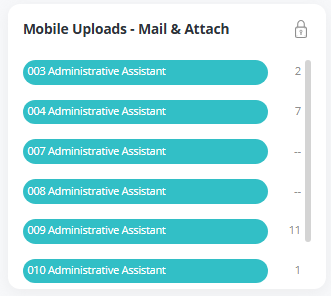
- Review the folder contents to identify whether the NOMNC for the specific client is located in the folder. If the NOMNC is in the folder, proceed with step 10. If not, continue on below.
-
Return to your Mosai dashboard. Depending on your permissions, you may have access to the general Mobile Uploads card, where uploaded mobile forms first arrive for initial review.
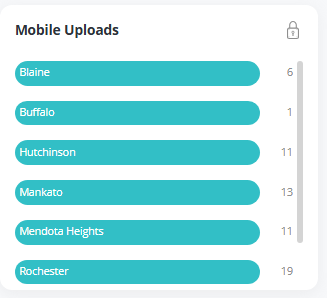
- If you have access to this card: Select your specific branch folder and see whether the NOMNC for the specific client is located there.
- If you do not have access to this card: Communicate with the Business Manager to determine whether the specific NOMNC needed has been uploaded.
- If the document is not in the folder, include the client's name on the list described in step 11.
-
- Complete steps 8-9 for each client listed on the report.
- Compile a list of clients whose NOMNC's from the previous date are missing.
- Provide the list of missing NOMNC's to the Clinical Supervisors either verbally or via email. If via email, mark the email as High Importance or Urgent as this is a time-sensitive task.
-
Return to the Administrative Task and select Yes, marking the task as completed.
If processing this task after a weekend or a holiday, there will be up to three tasks in workflow from previous days.
For example, on any given Monday after a routine weekend, there will be three tasks in workflow:
- A task that generated on Saturday morning: prompts you to review NOMNC's which should have been obtained on Friday.
- A task that generated on Sunday morning: prompts you to review NOMNC's which should have been obtained on Saturday.
- A task that generated on Monday morning: prompts you to review NOMNC's which should have been obtained on Sunday.
Effective: 12.09.2025 | 🛠️ Revised: 12.09.2025 | ✅ Approved by: JFJ