
O-5-217 Fax Server Sending Guide
🎯 Purpose
Sending a fax via the Fax Server can be done by sending an email from your Adara Home Health e-mail account. This guide outlines each required field and indicates how it translates to the Fax Cover Page when a fax is sent.
🔄 Process
The Fax Cover Sheet Fields:
DATE:
The date will pull based on the time the email was sent to the fax server.
TO:
In the “To” field you will enter the fax destination information. The format of this field will affect what will pull on to the automatically created cover page. The basic requirements for this field is simply the fax number followed by the domain @Adarafax.com.
EXAMPLE OF FAX NUMBER ONLY
-
An example for the corporate office fax number (763-682-6543) would look like this: 7636826543@Adarafax.com
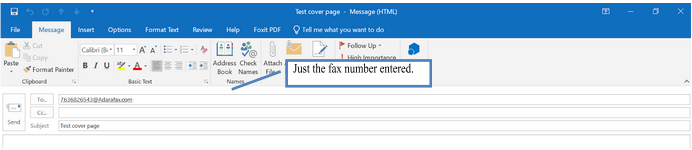
Just the Fax Number Entered FAX NUMBER COVER LETTER
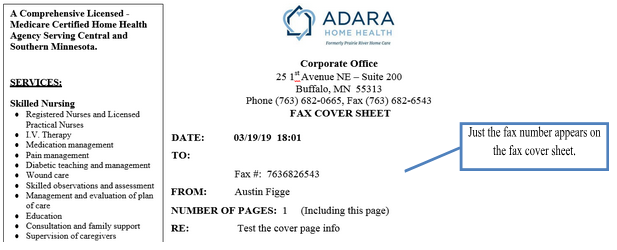
- Sending an email to this address will send a fax to that phone number.
- The cover page will show just the fax number in the “To:” field.
-
In order to add a name to the “To:” address, you need to add the name followed by a "." (period) before the fax number, followed by @adarafax.com.
NOTE:
There needs to be an underscore between separate words in order to make a valid email address.
Multiple names will need to be separated by a “_” (underscore).
EXAMPLE OF SENDING NAME AND FAX NUMBER
To send a fax to the Corporate Fax number (763-682-6543) would look like this: Corporate_Fax.7636826543@Adarafax.com
NOTE:
Due to the underscore requirement, "Corporate Fax" translates to Corporate_Fax.

Sending an email to this address will send a fax to that phone number. The cover page will show the text that was in the address before the “.” and the fax number in the “To:” field.
EXAMPLE OF NAME AND FAX NUMBER COVER LETTER
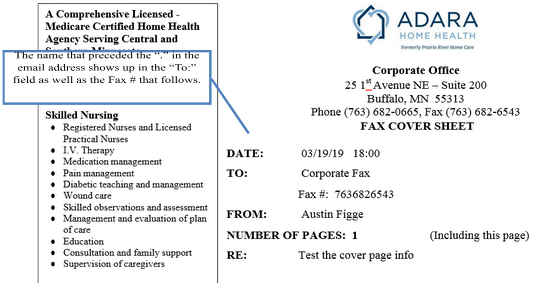
The name that preceded the “.” in the email address shows up in the “To:” field as well as the Fax # that follows.
FROM:
The “From:” field pulls from the Adara active directory set up of the user’s mail account; thus, whoever sends the email will have their name filled in to the “From:” field. It also uses this method to decide which cover page to use depending on the office user group in which the user is configured.
In the Example Above:
The active directory user was Austin Figge; thus, the user name was automatically pulled onto the cover page.
NOTE:
If you are in multiple office user groups (which is rare), a default cover page will pull with the information configured in the user Active Directory account (to the extent it is filled out).
NUMBER OF PAGES:
The number of pages is determined by the length of the “Message:” section and the number of pages of the attachment. If your message section exceeds the first page, a second cover page will automatically be created. The total number of pages based on the cover page and the attachment will automatically be filled in for you.
RE:
The “RE:” field on the fax cover page is filled from the Subject of the email.

ATTENTION:
Text added to the “Subject” line of the email cannot contain protected health information (PHI) as it prints to the cover page.

To suppress the automatically generated cover page of the fax:
- Enter //nocp in the subject line of the email message.
- When //nocp is added, only the attached document will be faxed.
- Use this when the attachment already includes a fax cover page.

MESSAGE:
The main message of the email will populate the “Message:” field on the fax cover page.
- Remove any automatically configured email signatures from your email if you do not want them to appear on your fax cover sheet.
NOTE:
If you are forwarding something, due to the entire forwarded message would appear on the cover page.
ATTENTION:
Text added to the “Message:” line of the email cannot contain protected health information

📅 Effective: 4/3/14 | 🔍 Reviewed: 4/22/19 | 🛠️ Revised: 5/12/25 | ✅ Approved: AM